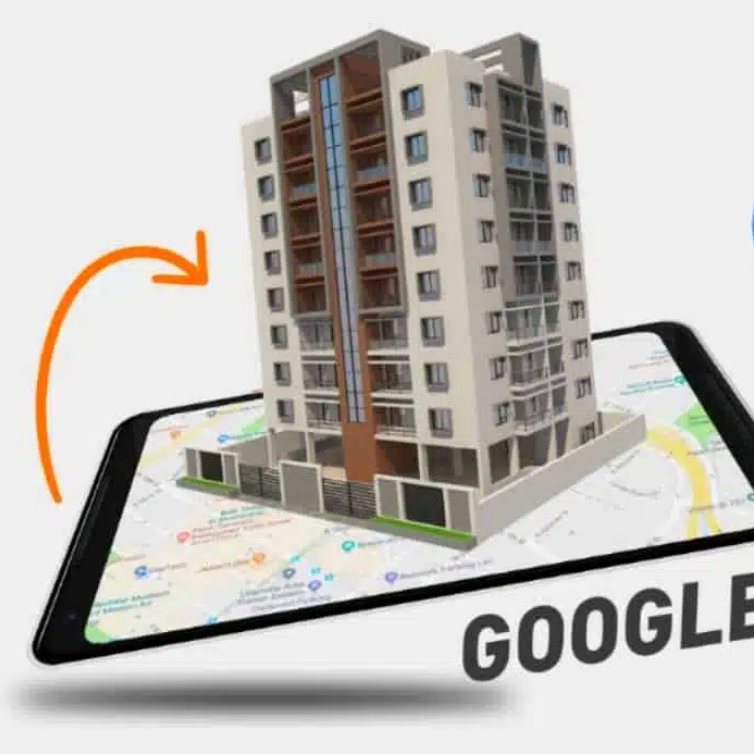

Imagine standing outside your home and viewing it from every possible angle without leaving your couch. That’s exactly what Google Earth lets you do. Whether you’re a homeowner curious about how your property looks from above, a real estate agent wanting to showcase listings, or someone planning renovations, seeing your 3D home on Google Earth has become one of the most fascinating ways to explore your own space. In 2026, this technology has become even more accessible, with updated features and improved 3D imagery across millions of locations worldwide.
This comprehensive guide will walk you through everything you need to know about viewing your home in stunning 3D on Google Earth.
What is Google Earth 3D Home Viewing?
Google Earth is Google’s powerful virtual globe application that combines satellite imagery, 3D building models, Street View photography, and mapping technology to create an immersive exploration experience. When we talk about seeing your 3D home on Google Earth, we’re referring to multiple viewing modes that let you observe your property in different ways.
3D buildings are three-dimensional representations of structures created using photogrammetry (a technique where satellite and aerial photos are converted into 3D models). These models give buildings realistic depth and dimension, making them look like actual 3D structures rather than flat, 2D satellite images.
Street View imagery provides ground-level, 360-degree panoramic photos taken from Google’s fleet of camera-equipped vehicles. This allows you to virtually “walk” down your street and see your home from street level, just as if you were standing on the sidewalk.
Satellite imagery offers top-down, birds-eye views of your property with exceptional detail and clarity. In 2026, this imagery has become more frequently updated and higher resolution than ever before.
The combination of these three elements creates a comprehensive 3D home viewing experience that was barely possible just a few years ago.
Why Would You Want to See Your Home in 3D on Google Earth?
There are several practical and entertaining reasons why people want to see their 3D homes on Google Earth. Homeowners often use it for several purposes:
Home Assessment and Renovation Planning: Before undertaking major renovation projects, seeing your home in 3D helps visualize how changes might look. You can plan landscaping improvements, deck installations, or exterior modifications with a clear visual reference.
Real Estate Purposes: If you’re selling your home, 3D Google Earth views provide potential buyers with an immediate understanding of your property’s location, neighborhood characteristics, and physical layout. Real estate agents use these views extensively in marketing materials.
Curiosity and Exploration: Let’s be honest—it’s simply fascinating to see your own home from perspectives you’ve never experienced before. People often spend hours exploring their neighborhoods and discovering new details about familiar areas.
Security and Monitoring: Some homeowners use Google Earth to check their property from a distance, verify that construction projects are on track, or simply keep tabs on their neighborhood.
Educational and Historical Purposes: You can save snapshots of how your home looked at different times, tracking neighborhood development and changes over years.
Travel and Virtual Exploration: Before visiting somewhere new, you can explore the area virtually through Google Earth, giving you confidence about directions and neighborhood familiarity.
In 2026, these uses have expanded even further with improved imagery quality and more frequent updates.
How to Access Google Earth: The Complete Breakdown
Accessing Google Earth is incredibly simple, and there are multiple ways to do it depending on your device and preference.
Desktop Version (Web-Based)
The easiest way to view your 3D home is through your web browser. Here’s how to get started:
- Open any modern web browser (Chrome, Firefox, Edge, or Safari)
- Navigate to earth.google.com in your address bar
- You don’t need to download or install anything—Google Earth runs directly in your browser
- Wait for the application to load (this typically takes a few seconds)
- You’re now ready to explore
Google Earth Pro (Desktop Application)
For users who want advanced features, Google Earth Pro is available for free download on Windows, Mac, and Linux computers:
- Visit google.com/earth/download
- Click the download button for your operating system
- Follow the installation instructions
- Launch the application from your Programs menu (Windows) or Applications folder (Mac)
- Create or sign in with your Google account
Google Earth Pro offers features like advanced measurement tools, movie maker capabilities, and the ability to import and export GIS data—useful for professionals and serious enthusiasts.
Mobile Applications
Google Earth is also available as a free app on smartphones and tablets:
- Android: Download from Google Play Store
- iOS: Download from the Apple App Store
The mobile version provides all essential features in a touch-optimized interface, perfect for viewing your home while you’re on the go.
System Requirements
Good news: Google Earth runs on almost any device. For the web version, you simply need a reasonably modern web browser and an internet connection. For Google Earth Pro, most computers from the last 10 years will run it smoothly. For mobile apps, ensure your device is relatively recent (from the last 5-7 years).
Step-by-Step Guide: How to See Your 3D Home on Google Earth
Now that you know how to access Google Earth, let’s walk through the exact steps to view your home in 3D.
Step 1: Open Google Earth and Locate Your Address
- Open Google Earth using any of the methods mentioned above
- In the search box (typically located in the upper left corner), type your complete home address
- Include your full street address, city, state, and zip code for best results (example: “123 Oak Street, Denver, Colorado 80202”)
- Press Enter or click the search button
Within seconds, Google Earth will animate and fly you to your location. The globe will spin and zoom until you’re positioned directly above your home. This initial approach is always visually impressive and sets the stage for your 3D exploration.
Step 2: Enable 3D Buildings
This is the crucial step that transforms your view from flat satellite imagery to stunning 3D models. Follow these steps carefully:
- Look for the “Layers” panel on the left side of your screen (in the web version, click the hamburger menu ≡ if you don’t see it)
- Click on “Layers” to expand the available options
- Look for “Primary Database” and click the arrow next to it to expand that section
- Find “3D Buildings” within the Primary Database section
- Click the checkbox next to “3D Buildings” to enable it
- The 3D models should now appear on your screen, showing buildings in full three-dimensional detail
If you’re on the mobile app, you’ll usually see a 3D toggle button at the bottom of your screen. Tap it to switch between 2D and 3D viewing modes.
Note: The availability of 3D buildings varies by location. Major cities worldwide have excellent 3D coverage, but rural areas may only have standard satellite imagery. If 3D buildings aren’t available for your specific area, you’ll still have excellent satellite and Street View imagery.
Step 3: Explore Different View Angles
Now comes the fun part—exploring your home from every conceivable angle:
Rotating Your View: Click and drag your mouse (or touch and drag on mobile) to rotate the view around your home. You can spin 360 degrees and see your property from the north, south, east, and west.
Tilting for 3D Perspective: Hold down the middle mouse button (or use two-finger touch on mobile) and drag upward to tilt your view, looking at your home from an angle rather than straight down. This is when the 3D effect becomes most apparent and impressive.
Zooming In and Out: Use your mouse wheel (or pinch on mobile) to zoom in closer to your home or zoom out to see your entire neighborhood, city block, or wider area. You can zoom all the way from space down to individual buildings.
Returning to North Orientation: At the bottom right of the screen, you’ll see a compass. Click it to reset your view so that north faces upward on your screen, providing orientation consistency.
Step 4: Switch to Street View for Ground-Level Perspective
While 3D buildings are impressive, nothing beats the immersive experience of Street View, which puts you at street level:
- On the desktop version, look for the Pegman icon (a small orange person figure) in the bottom right corner
- Drag Pegman onto your street (the areas where Street View is available will highlight in blue)
- Release Pegman, and you’ll instantly transition to ground-level Street View imagery
- You can now navigate using the arrow buttons or by clicking in the direction you want to look
- On mobile, simply tap the Street View button (usually labeled “Street View” or showing Pegman)
- You can look around 360 degrees by dragging your screen
This perspective gives you an authentic sense of what your street, front yard, and home exterior actually look like from ground level. You can see details like mailboxes, vegetation, fencing, and neighboring properties just as you would see them in person.
Step 5: Save and Share Your Favorite Views
Google Earth lets you capture and save your discoveries:
- Once you’ve found a view you love, click “File” (or the menu icon)
- Select “Save Image” or “Screenshot”
- Choose your desired file format and save location
- You can now use this image for presentations, social media, or printing
- To share with others, you can create a link or embed code (options vary by version)
Key Features and Benefits of 3D Google Earth Home Viewing in 2026
Improved Image Quality and Frequency: In 2026, Google has significantly upgraded the resolution and update frequency of satellite imagery. Many areas now receive updated imagery every few months instead of every few years, meaning you’re viewing much more current representations of your home.
Expanded 3D Building Coverage: More locations worldwide now have 3D building models available. While coverage is still concentrated in developed areas, even many smaller towns now have detailed 3D building representations.
Enhanced Performance: The 2026 versions of Google Earth load faster and run more smoothly across all devices, even on older hardware or slower internet connections.
Integrated Historical Imagery: A fantastic feature allows you to view your home and neighborhood as they looked in previous years. You can watch your neighborhood develop over time, seeing new construction projects completed and older structures change.
Better Mobile Experience: The mobile app has been optimized significantly, offering nearly feature-parity with the desktop version while remaining optimized for touch screens and smaller displays.
Vector Maps and Customization: Users can now customize what information displays on their maps, choosing to show or hide labels, roads, terrain, and various points of interest, creating a personalized viewing experience.
Seamless Integration with Google Maps: Your searches and locations automatically sync between Google Earth and Google Maps, allowing fluid transitions between applications.
Comparison: Google Earth 3D vs. Google Maps vs. Street View
Many people confuse Google Earth with Google Maps or Street View, but they’re distinct tools with different strengths. Understanding the differences helps you choose the right tool for your needs.
Google Earth is a full 3D virtual globe that emphasizes immersive, interactive exploration. It excels at providing comprehensive spatial understanding, dramatic flight paths, and entertaining exploration. The 3D buildings feature is particularly compelling, and you can see your home from space and zoom progressively to street level.
Google Maps is a more utilitarian mapping tool focused on navigation, directions, and point-of-interest information. While it includes 3D features and can show 3D buildings in some areas, its primary purpose is finding routes, locations, and business information. It’s better for practical navigation than exploration.
Street View provides ground-level 360-degree panoramic imagery. Available within both Google Earth and Google Maps, it offers the most realistic “you are there” perspective. However, it only works where Google’s camera vehicles have traveled, and you’re limited to that perspective.
Comparison Table
| Feature | Google Earth | Google Maps | Street View |
|---|---|---|---|
| 3D Building Models | ✓ Full coverage in available areas | ✓ Limited coverage | ✗ Ground-level only |
| Satellite Imagery | ✓ High quality and regularly updated | ✓ High quality | ✗ Not primary function |
| Street View Integration | ✓ Full integration | ✓ Full integration | ✓ Primary function |
| Navigation & Directions | Basic | ✓ Advanced | ✗ Not designed for this |
| Immersive Exploration | ✓ Excellent | Limited | ✓ Good ground-level view |
| 3D Flight Paths | ✓ Full 3D navigation | Basic 3D tilt | ✗ Limited |
| Historical Imagery | ✓ Multiple time periods | ✓ Some areas | ✗ Not available |
| Desktop Experience | ✓ Optimized | ✓ Optimized | ✓ Good |
| Mobile Experience | ✓ Excellent | ✓ Excellent | ✓ Excellent |
Pros and Cons of Viewing Your Home on Google Earth
Advantages
Viewing your home on Google Earth offers numerous benefits. First, it’s completely free—there are no hidden costs or premium versions required for essential features. The imagery is typically quite recent, providing accurate representations of your current property. The experience is engaging and entertaining; you’ll likely spend time exploring your neighborhood and discovering new details about familiar locations.
For homeowners planning renovations, the visual context helps tremendously with decision-making. Real estate professionals find it invaluable for marketing. The technology works across all devices and requires no special skills to use. You’ll gain perspective on your property’s relationship to nearby amenities, schools, parks, and commercial areas. There’s also satisfaction in seeing your home featured in such a comprehensive global mapping project.
Disadvantages and Limitations
Despite its benefits, Google Earth 3D viewing has some limitations worth understanding. Imagery update frequency varies significantly by location. While major cities might receive quarterly updates, rural areas might wait years between image refreshes. This means if you’ve recently made changes to your home, they might not yet be visible.
3D building models aren’t perfect—some may be distorted or inaccurate due to the automated generation process. Street View isn’t available everywhere; rural roads and private properties are often excluded. Privacy concerns exist for some people regarding publicly available satellite imagery of their homes. Seasonal variations matter—your home might be photographed in different seasons, affecting how vegetation and exterior features appear. There’s also a slight time lag between when imagery is captured and when it becomes available on Google Earth.
The web version requires a reasonably fast internet connection, and performance can suffer on slower connections or older devices. Some users find the learning curve steep for accessing all features, though this has improved significantly in recent versions.
Troubleshooting: Why Can’t You See Your Home or 3D Buildings?
Problem: “I searched for my address but nothing appears”
Solution: Try being more specific. Instead of just “Main Street,” use the complete address with zip code. If your address is very new, Google’s database might not include it yet—this can take weeks or months for newly constructed homes. Try searching by nearby landmark or business instead.
Problem: “3D Buildings isn’t showing up in my Layers menu”
Solution: Make sure you’ve expanded the “Primary Database” section by clicking the arrow next to it. On some versions, 3D Buildings appears under “Additional Layers” instead. Check both locations. If still not visible, your browser might need updating, or 3D buildings might not be available for your location.
Problem: “The 3D buildings look wrong or distorted”
Solution: This is common in areas with complex building shapes or dense urban environments. Zoom in and out to see if the distortion is related to zoom level. Try rotating your view angle—different angles sometimes display more accurately. These errors are gradually being corrected by Google’s algorithms.
Problem: “Street View shows my home but imagery is old”
Solution: Street View updates happen regularly, but not all streets are covered annually. If you need current Street View imagery, you can request an update through Google’s Street View coverage map. Some areas allow users to submit their own Street View imagery to supplement Google’s coverage.
Problem: “Google Earth is running slowly on my device”
Solution: Reduce the quality settings in preferences—set imagery quality to “Low” or “Medium” instead of “High.” Disable animated clouds and other visual effects. Close unnecessary browser tabs. On mobile, restart the app or device. Update to the latest version of Google Earth.
Advanced Tips for Getting the Most Out of Google Earth 3D Home Viewing
Explore Historical Time Lapses: Use the historical imagery feature to create a time-lapse animation of how your neighborhood has developed. This reveals suburban growth, new construction, and urban development patterns.
Use Measurement Tools: Google Earth Pro includes measurement tools that let you measure distances and areas. Measure your lot size, property dimensions, or distance to nearby amenities.
Create Custom Tours: In Google Earth Pro, you can create recorded flyover tours of your property. These make impressive presentations for family, friends, or real estate clients.
Export High-Resolution Images: Save high-resolution versions of your favorite views for printing or professional use. These make excellent home office decorations or realtor marketing materials.
Compare Multiple Time Periods: Line up satellite images from different years side by side to visualize neighborhood changes, home renovations, or new developments.
Plan Projects with Measurement: Use the measurement tools to plan landscaping, calculate roof dimensions, or determine fence line locations before construction begins.
Share with Family: Create shareable links to specific views and send them to family and friends. It’s a fun way to show off your neighborhood to relatives who live far away.
Updates and Changes Coming to Google Earth in 2026 and Beyond
Google continuously improves Google Earth with new features and better imagery. In 2026, several enhancements have been implemented that make viewing your 3D home even better.
AI-Enhanced Image Processing: Google has implemented machine learning algorithms that improve image clarity and detail, sharpening older imagery and enhancing object recognition for better 3D model generation.
More Frequent Updates: Imagery update cycles have been accelerated in many regions, with major cities now receiving updates quarterly instead of annually.
Expanded 3D Coverage: Coverage areas for 3D buildings have expanded significantly, with detailed 3D models now available for hundreds of additional cities worldwide.
Improved Mobile Performance: The mobile app has been optimized for lower bandwidth scenarios, allowing exploration even with slower internet connections.
Enhanced Street View Coverage: Google continues expanding Street View coverage, adding previously unavailable areas and updating older coverage.
Integrated Augmented Reality: Emerging AR capabilities let you overlay 3D models of your home onto your camera’s real-world view, letting you visualize renovations or changes in real-time.
Climate and Environmental Overlays: New data layers show information about flood risks, air quality, tree canopy coverage, and other environmental factors affecting your property.
Frequently Asked Questions About Viewing Your 3D Home on Google Earth
Q: Is it free to use Google Earth and view my 3D home?
A: Yes, Google Earth is completely free to use. Both the web version and mobile apps are free. Google Earth Pro, which includes advanced features, is also now free (it was previously a paid product, but Google changed this years ago).
Q: How often is the satellite imagery on Google Earth updated?
A: Update frequency varies by location. Urban areas typically receive updates every 3-12 months, while rural areas might wait 1-3 years between updates. Some regions get more frequent updates as part of special projects. There’s no way to predict when your specific address will be updated.
Q: Why doesn’t my area have 3D buildings available?
A: 3D building coverage depends on multiple factors including data availability, population density, and Google’s resource allocation. Coverage is expanding constantly, but remote or newly developed areas may not yet have 3D models. Google prioritizes high-traffic areas and population centers.
Q: Can I request a specific area to receive 3D building models or updated imagery?
A: While you can’t directly request specific areas, you can provide feedback through Google’s feedback tools within Google Earth (usually a “Report a Problem” button). Google does monitor these submissions when planning future updates.
Q: Is my privacy compromised by having my home visible on Google Earth?
A: Your home’s exterior is public information visible from any street. However, Google Earth uses the same imagery as public satellite services. If privacy is a concern, you can request that specific high-resolution imagery be pixelated or blurred, though this process varies by location and Google’s policies.
Q: Can I see the interior of my home on Google Earth?
A: No, Google Earth only shows exterior views. Street View and satellite imagery capture only what’s visible from public spaces. Interior photography is not available through Google Earth.
Q: Does Google Earth show real-time imagery, or is it always outdated?
A: Google Earth uses satellite imagery that typically ranges from several months to 2-3 years old depending on location. It’s not real-time. The date of imagery is usually displayed when you examine historical versions.
Q: Can I download Google Earth images for commercial use?
A: Usage rights depend on your location and the specific imagery. Generally, for personal use, you can download and use imagery freely. For commercial purposes, you should review Google’s terms of service or contact Google directly. Restrictions vary by jurisdiction.
Q: Why does my home look different or distorted in the 3D view?
A: 3D building models are automatically generated from satellite imagery using computer algorithms. Complex roof shapes, irregular structures, or dense vegetation can cause distortions. These aren’t intentional; they’re limitations of the automated modeling process. Google gradually improves these through updates.
Q: How can I improve the quality of 3D imagery for my area?
A: You can’t directly improve it, but you can submit feedback noting areas that need updating through Google’s feedback tools. Google does use this input when prioritizing updates. Contributing to OpenStreetMap, a crowdsourced mapping project, can also help improve underlying data that Google uses.
Conclusion
Viewing your 3D home on Google Earth in 2026 is easier, more impressive, and more useful than ever before. Whether you’re a curious homeowner, a real estate professional, or an urban explorer, Google Earth offers an extraordinary window into your property and neighborhood.
The process is straightforward: access Google Earth through any web browser or mobile app, search for your address, enable 3D buildings, and explore from every angle. You’ll gain perspectives you’ve never seen before, from the dramatic birds-eye view from space to the intimate street-level view where you walk every day.
The combination of satellite imagery, 3D building models, and Street View creates a comprehensive understanding of your property in its geographic context. You’ll discover things about your neighborhood you never noticed and gain valuable perspective for renovation planning, real estate decisions, or simple exploration.
As Google continues improving imagery quality and expanding coverage, this experience will only get better. The technology that once seemed like science fiction—viewing any building on Earth in stunning 3D detail from your home—is now a casual click away.
Start exploring today. Search for your address, enable those 3D buildings, and prepare to see your home like never before. You might be surprised at what you discover.