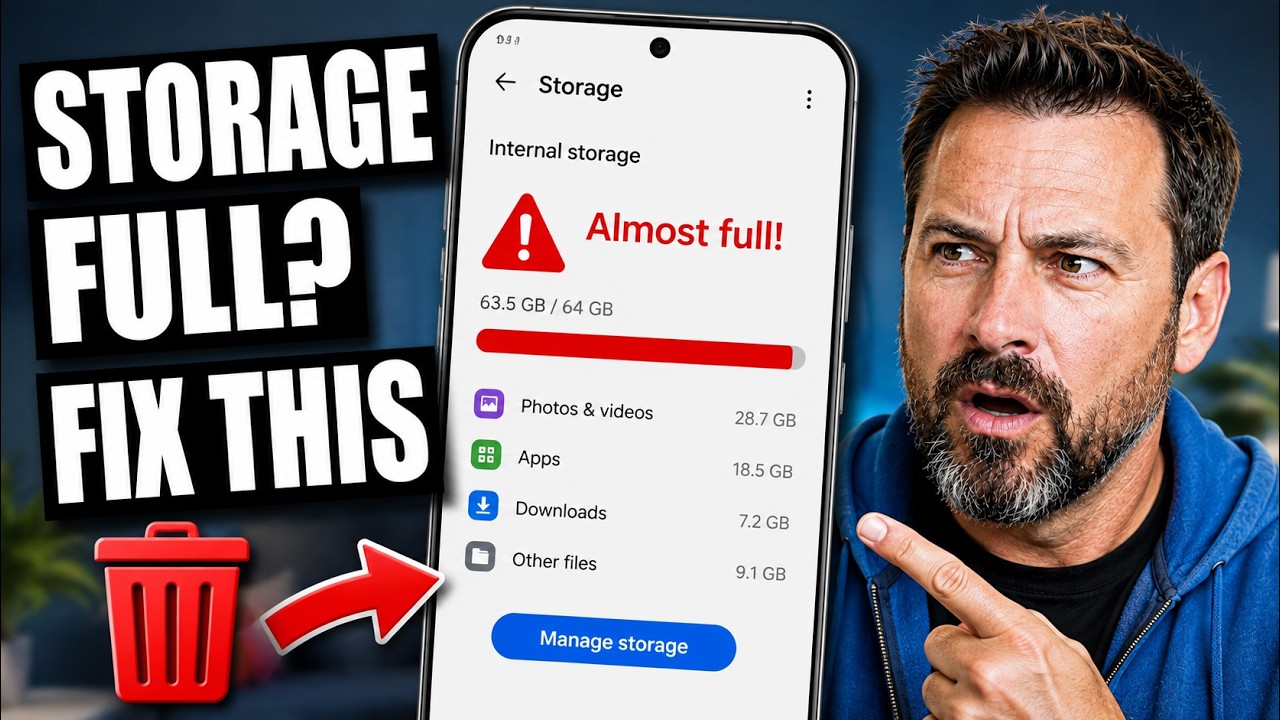

Seeing a “storage almost full” warning when your app list looks short and mostly empty is confusing — and it’s one of the most common Android complaints, because the culprit is rarely the apps themselves. Photos, cached files, system data, and files downloaded through apps like WhatsApp or Telegram routinely take up far more space than the apps that generated them.
This guide explains exactly where that hidden storage goes, how to find it on your specific phone, and how to free it up safely without deleting anything you actually need.
The Short Answer: Apps Aren’t the Real Problem
The app list on your home screen or app drawer shows how many apps you’ve installed, but it doesn’t show what those apps have generated, downloaded, or cached over time. A single messaging app with a small install size can easily accumulate several gigabytes of photos, videos, and voice notes sent through chats. A browser can build up a cache of website data. The camera app itself doesn’t take up much space — but the photos and videos it creates do.
In other words, “few apps installed” and “storage full” aren’t contradictory. The apps are usually just the entry point through which the actual storage-heavy files arrived.
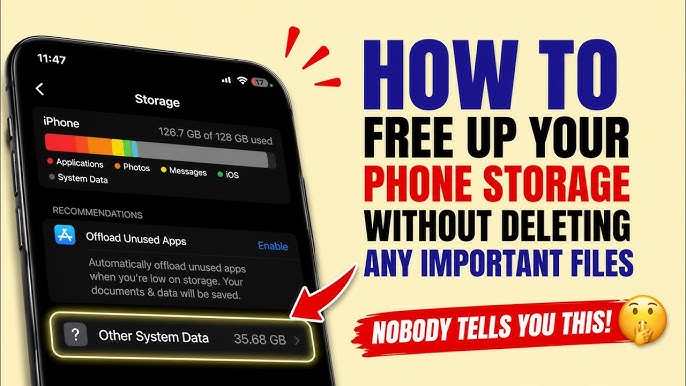
Step 1: See Where Your Storage Is Actually Going
Before deleting anything, check the breakdown. This tells you whether the issue is photos, app data, system files, or something else, so you’re not guessing.
On stock Android: Go to Settings > Storage. This shows a breakdown by category — Apps, Images, Videos, Audio, Documents, and System.
On Samsung devices: Settings > Battery and device care > Storage.
On Xiaomi (MIUI/HyperOS): Settings > Storage, which typically shows a similar category breakdown along with a “Deep clean” or “Cleaner” tool.
On other manufacturers: Look for “Storage” inside Settings; most manufacturer skins include some version of this category breakdown, though the exact tool names differ.
What to look for:
- A large “Images” or “Videos” category relative to everything else — this is the single most common cause of storage running out.
- A surprisingly large “Apps” total that doesn’t match your app count — tap into it to see individual app sizes, since a small number of apps can still add up if each one has accumulated a lot of cached or downloaded data.
- A “System” or “Other” category taking several gigabytes — this is normal to a degree, since Android itself, along with fonts, drivers, and system caches, uses space, but an unusually large system category can sometimes indicate cached data that hasn’t been cleared automatically.
Step 2: Check Messaging Apps for Auto-Downloaded Media
This is the most frequently overlooked cause. Apps like WhatsApp, Telegram, and similar messaging platforms automatically download photos, videos, voice messages, and documents sent in every chat and group by default. Over months or years of use, this can add up to several gigabytes without a single manual download.
To check:
- Open Settings > Storage and look for how much space messaging apps are using specifically (tap into the app’s entry under the Apps breakdown).
- Inside the messaging app itself, look for a built-in storage manager — most major messaging apps include one under their own Settings menu (commonly labeled “Storage and data” or similar), which shows which chats or groups are using the most space and lets you delete media in bulk.
- Consider turning off auto-download for photos and videos, particularly over mobile data, in the app’s media settings. This doesn’t delete anything already downloaded, but it prevents the problem from recurring.
Step 3: Clear App Cache (Not App Data)
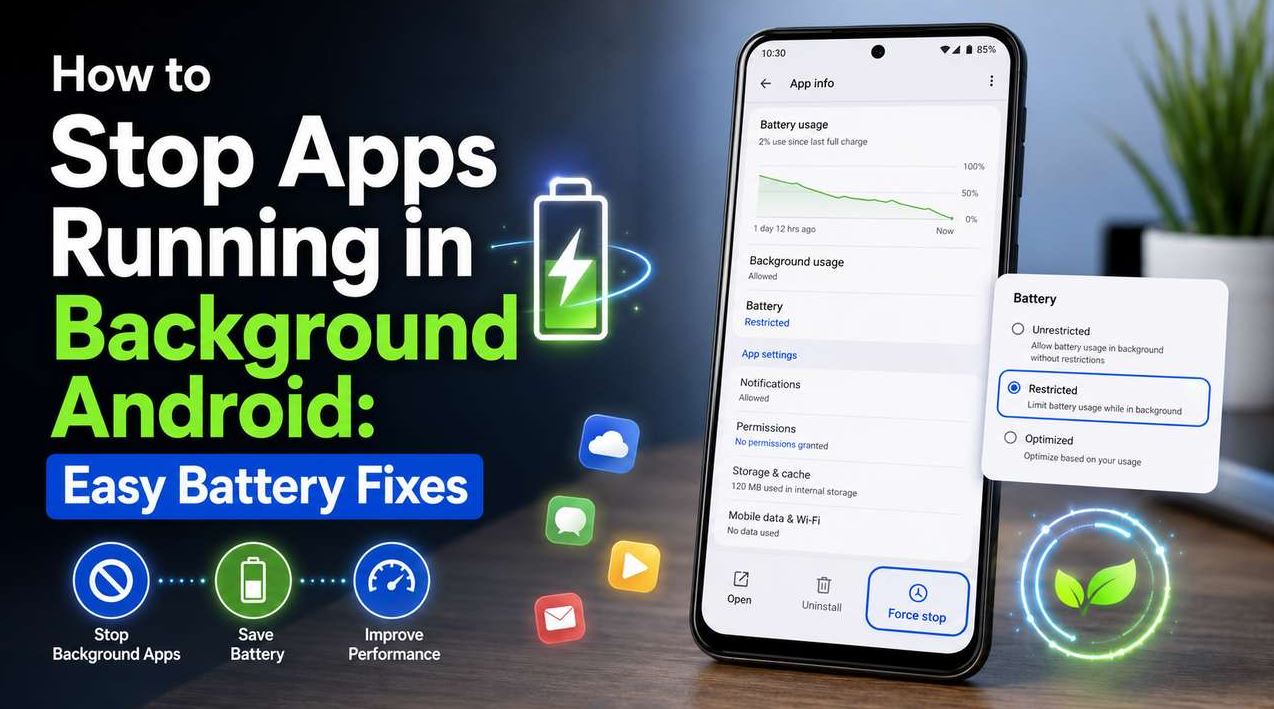
Every app builds up cached files over time — temporary data used to load content faster. This is different from app data, which includes your logins, settings, and saved information. Clearing cache is safe and doesn’t log you out of anything; clearing data does, so it’s important not to confuse the two.
To clear cache for a single app: Settings > Apps > [app name] > Storage > Clear cache.
To clear cache for all apps at once: Settings > Storage > (tap the “Apps” category, or look for a “Free up space” option, which varies by manufacturer). Some manufacturer skins, such as MIUI, include a dedicated “Clean up” or “Deep clean” tool that scans and clears cache across all apps in one step.
Browsers and social media apps in particular tend to accumulate large caches from loading images and videos, so these are usually worth checking first.
Step 4: Check Downloads and Files You Forgot About
The Downloads folder quietly accumulates PDFs, installer files (APKs), images sent through email, and files saved from browsers — all outside of any specific app’s storage category. Over time this can become several gigabytes of forgotten files.
Open your phone’s Files app (often called “Files by Google” on stock Android, or a manufacturer-specific file manager), and check the Downloads folder along with any folder labeled by app name (such as a “WhatsApp Images” or “Camera” folder), since media saved by apps to shared storage doesn’t always show up under the app’s own storage figure.
Step 5: Review Backed-Up Photos and Videos
If your photos are already backed up to Google Photos or another cloud service, keeping the full-resolution originals on the device as well is often unnecessary. Google Photos includes a “Free up space” feature (accessible from the app’s menu) that removes photos and videos from the device only after confirming they’re safely backed up in the cloud — this is one of the safest ways to reclaim significant storage without actually losing anything, since the files remain accessible through the app itself.
If you use a different backup service, check whether it offers a similar device-storage-freeing option, since not all cloud backup apps include this by default.
Step 6: Check for Duplicate or Unnecessary Screenshots and Downloads
Screenshots, duplicate photos (particularly from messaging apps that save a copy separately from the one already in your gallery), and repeated downloads of the same file are common sources of avoidable clutter. Most phones don’t flag duplicates automatically, so this typically requires manually reviewing your gallery’s Screenshots folder and any download-heavy folders.
Some manufacturer file managers include a built-in duplicate file finder as part of their storage cleaning tools; check your Files app’s menu for an option along these lines before manually sorting through folders.
Common Mistakes to Avoid
Clearing app data instead of cache. This is the most common mistake — clearing “data” rather than “cache” logs you out of the app and can delete locally saved settings or offline content. Always confirm you’re tapping “Clear cache,” not “Clear data” or “Clear storage.”
Uninstalling apps expecting a large storage recovery. Since most apps themselves are small, uninstalling one rarely frees significant space unless it had accumulated a large amount of cached or downloaded data — check the app’s storage size first before assuming uninstalling it will help meaningfully.
Relying on third-party “cleaner” apps. Many of these apps request broad permissions and, in some cases, provide little benefit beyond what Android’s built-in storage tools already offer for free. Android’s own Storage settings and Google Photos’ native “Free up space” tool are generally sufficient for most users without installing anything additional.
Deleting system files manually. Some users attempt to delete files inside system folders using a file manager to recover space. This is risky and can cause instability or bugs, since these files are used by the operating system itself. Stick to Settings > Storage and app-level cache clearing instead.
Ignoring recurring causes. Clearing space once without addressing auto-downloading media or backup settings means the same problem will likely return within weeks. Turning off unnecessary auto-downloads (Step 2) prevents having to repeat this process constantly.
When Storage Issues Point to Something Else
If you’ve gone through the steps above and storage is still filling up unusually fast, consider:
- A single app stuck in a download or logging loop, continuously writing data without your awareness — check the Apps storage breakdown periodically over a day or two to see if one app’s size keeps growing.
- Low total storage capacity relative to how you use the phone. Devices with 32GB or 64GB of storage fill up far faster than those with 128GB or more, particularly with photo and video use, and no amount of cache-clearing changes that underlying capacity limit.
- A microSD card (if supported) not being used for media storage, on devices that support expandable storage — check your camera and file manager settings to confirm where new photos and downloads are being saved.
If storage keeps filling rapidly with no clear cause even after these checks, it may be worth checking with your device manufacturer’s support resources, since this can occasionally indicate a deeper system issue.
Frequently Asked Questions
Will clearing app cache delete my photos or logins? No. Clearing cache only removes temporary files the app uses to load faster; your photos, logins, and saved settings remain untouched. Clearing app “data” is different and does remove logins and saved content, so check which option you’re selecting.
Why does WhatsApp or Telegram use so much storage if I barely use them? These apps automatically download media sent in every chat and group by default, which accumulates over time. This is normal app behavior, not a bug, but it can be managed by turning off auto-download and periodically clearing old media through the app’s own storage manager.
Is it safe to delete files in the “Android/data” or “Android/obb” folders? Generally, no — these folders contain files apps rely on to function correctly, and deleting the wrong files can cause apps to malfunction or lose saved progress. It’s safer to use each app’s own “Clear cache” option in Settings rather than manually deleting files from these folders.
Does uninstalling apps I don’t use free up much space? Sometimes, but not always significantly. Most apps are small on their own; the real space is often in the data, cache, and media they’ve accumulated. Check the app’s storage size in Settings before assuming removing it will make a large difference.
Should I buy a phone with a microSD card slot if I keep running out of storage? If you frequently run low on storage and don’t want to rely on cloud backups, a device supporting expandable storage can help, since photos and files can be redirected there. This is a purchasing consideration rather than a fix for an existing device, though, and not all modern phones include this feature.
How often should I clear cache and check storage? There’s no fixed schedule, but checking every few weeks — particularly for messaging and browser apps — prevents storage from building up unnoticed. Many manufacturer storage tools also offer automatic periodic cache clearing as a setting, if you’d prefer not to do it manually.
Conclusion
A full storage warning with few apps installed almost always comes down to accumulated media, cache, and downloaded files rather than the apps themselves. Checking the storage breakdown first, addressing messaging app media and cache, and using Google Photos’ backup-based cleanup tool resolves the issue for most users without needing to delete anything important. If storage keeps filling rapidly despite these steps, it’s worth considering whether your device’s total capacity is simply undersized for how you use it.