
If your phone’s battery is emptying much faster than it used to, the cause is almost always something specific: a misbehaving app, a background process that won’t quit, a stuck update, or a hardware issue that’s just starting to show. Sudden battery drain is different from the slow, gradual capacity loss every phone experiences over a year or two — it points to something that changed recently, which means it can usually be found and fixed.
This guide walks through how to actually diagnose what’s draining your battery, then how to fix the most common causes step by step. Menu names below are based on stock Android; if you use a Samsung, Xiaomi, Oppo, Vivo, OnePlus, or another manufacturer’s phone, the exact wording and location of some settings may differ, and this is noted where it matters.
Why “Sudden” Drain Is a Different Problem Than Normal Aging
All lithium-ion batteries lose capacity over time — that’s normal aging, and it shows up as a gradual decline over many months. Sudden drain is not that. It usually means one of these changed recently:
- A new or recently updated app started misbehaving in the background
- A system or app update introduced a bug
- A setting was changed (intentionally or by an update) that increased background activity
- The phone is stuck trying to sync, download, or connect to something that’s failing repeatedly
- A background process is stuck in a loop (this is often called a “wakelock”)
- The battery itself is degrading due to age or a fault, and the symptom just became noticeable
The diagnostic steps below are ordered roughly from “quick and safe” to “more involved,” so you can stop as soon as you find the cause.
Step 1: Check Which App Is Actually Draining the Battery
Before changing anything, look at where the battery is actually going. This is the single most useful diagnostic step, because it turns “my battery is dying” into “this specific app is using 40% of my battery,” which is something you can act on.
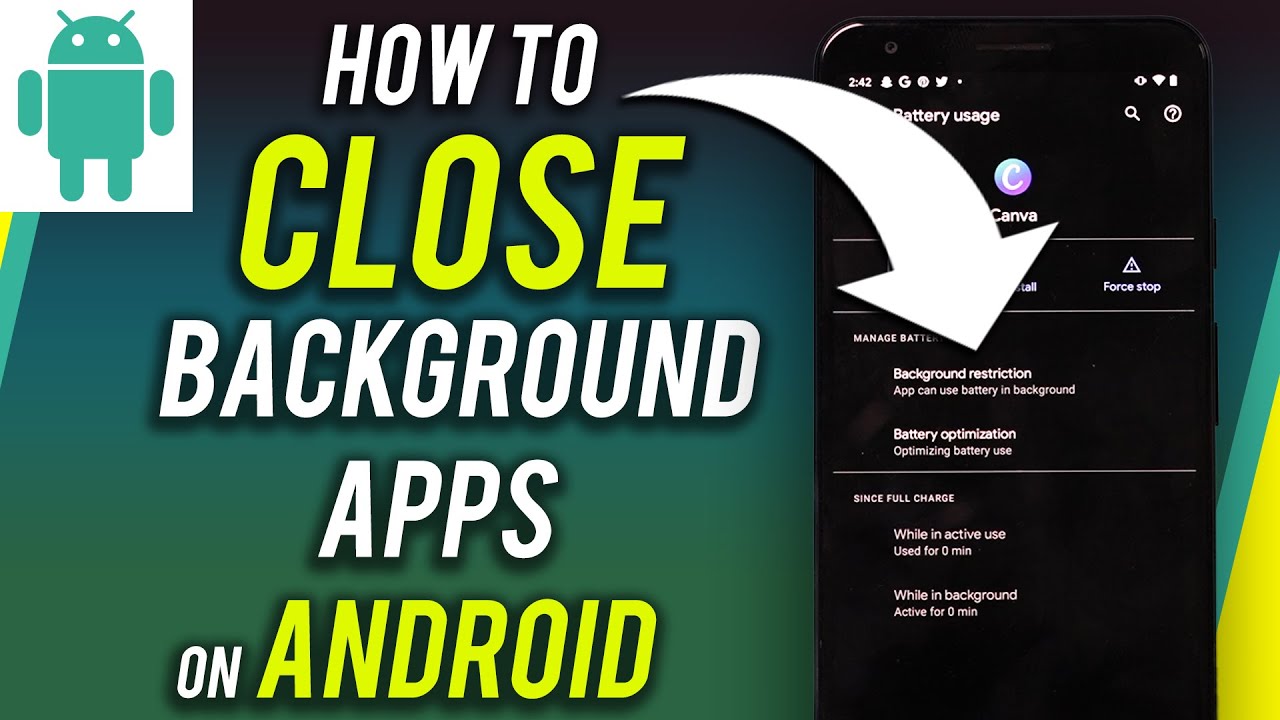
On stock Android: Go to Settings > Battery > Battery usage (sometimes labeled “Battery usage since full charge”). This shows a ranked list of apps and how much battery each one has used.
On Samsung devices: Settings > Battery and device care > Battery > View details or App power usage.
On Xiaomi (MIUI/HyperOS): Settings > Battery & performance > App battery usage.
On other manufacturers: Look for a “Battery” section inside Settings, then a submenu called “battery usage,” “app usage,” or similar. The exact wording varies by Android version and manufacturer skin, but nearly every modern Android phone has some version of this screen.
What to look for:
- An app using far more battery than its actual usage justifies. If a messaging app you rarely open is at the top of the list, that’s a red flag — apps should generally use battery in proportion to how much you use them.
- “Background” vs “screen on” time. Most battery screens break this down. High background usage from an app you didn’t actively use is the clearest sign of a problem.
- Apps you don’t remember installing or rarely use. These are common culprits, especially free apps with aggressive background syncing or ad-serving processes.
If one app clearly stands out, skip ahead to Step 4 (Fixing App-Specific Drain). If nothing obviously stands out, continue to the next steps.
Step 2: Check for Wakelocks and Background Activity
A “wakelock” is when an app or process prevents the phone’s processor from going into deep sleep, even when the screen is off. This is one of the most common causes of drain that doesn’t show up clearly in the basic battery screen, because the phone can burn a significant amount of power staying “awake” without any single app looking suspicious at a glance.
Signs of a wakelock problem:
- The phone feels warm even when sitting idle and screen-off
- Battery percentage drops noticeably overnight, even in airplane mode or with Wi-Fi off
- “Screen on” time in your battery stats is low, but total battery usage is high
Stock Android doesn’t expose raw wakelock data to regular users the way it once did through hidden menus, but you can get a good picture through:
- Settings > Battery > Battery usage, checking the background activity time next to each app
- Adaptive Battery (Settings > Battery > Adaptive Battery), which Android uses to learn your habits and restrict background activity for apps you rarely use — if this is turned off, turning it on can help
If you want a more detailed breakdown, some manufacturers include a “sleep tracker” or “battery diagnostics” tool in their battery settings (for example, some Samsung and Xiaomi devices show how long the device stayed in deep sleep versus awake overnight). Availability and naming vary by device and Android version, so check your phone’s official battery settings menu for anything labeled along these lines.
Step 3: Rule Out Recent Changes
Since sudden drain means something changed, retrace what’s different:
Did you install or update any apps recently? Open Google Play Store, tap your profile icon, go to Manage apps & device > Manage, and sort by “Recently updated.” Cross-reference this with when the drain started.
Did the phone receive a system update? Check Settings > System > System update (wording varies by manufacturer) to see the last update date. Bugs introduced by Android version updates are a known cause of temporary battery drain, and manufacturers frequently release follow-up patches to address them.
Did you change any settings? Location accuracy, always-on display, high refresh rate displays (90Hz/120Hz), and 5G being left on when not needed are common settings that increase battery use but aren’t “bugs” — just trade-offs you may not have realized you made.
Is the phone in a weak signal area? A phone constantly searching for cell signal (in a basement, rural area, or building with poor reception) burns significantly more battery than one with a stable connection. This is one of the most overlooked causes of sudden drain because it’s environmental, not app-related — if the drain correlates with being in a specific location, this is worth checking before assuming it’s a software issue.
Step 4: Fixing App-Specific Drain
Once you’ve identified a specific app causing the problem:
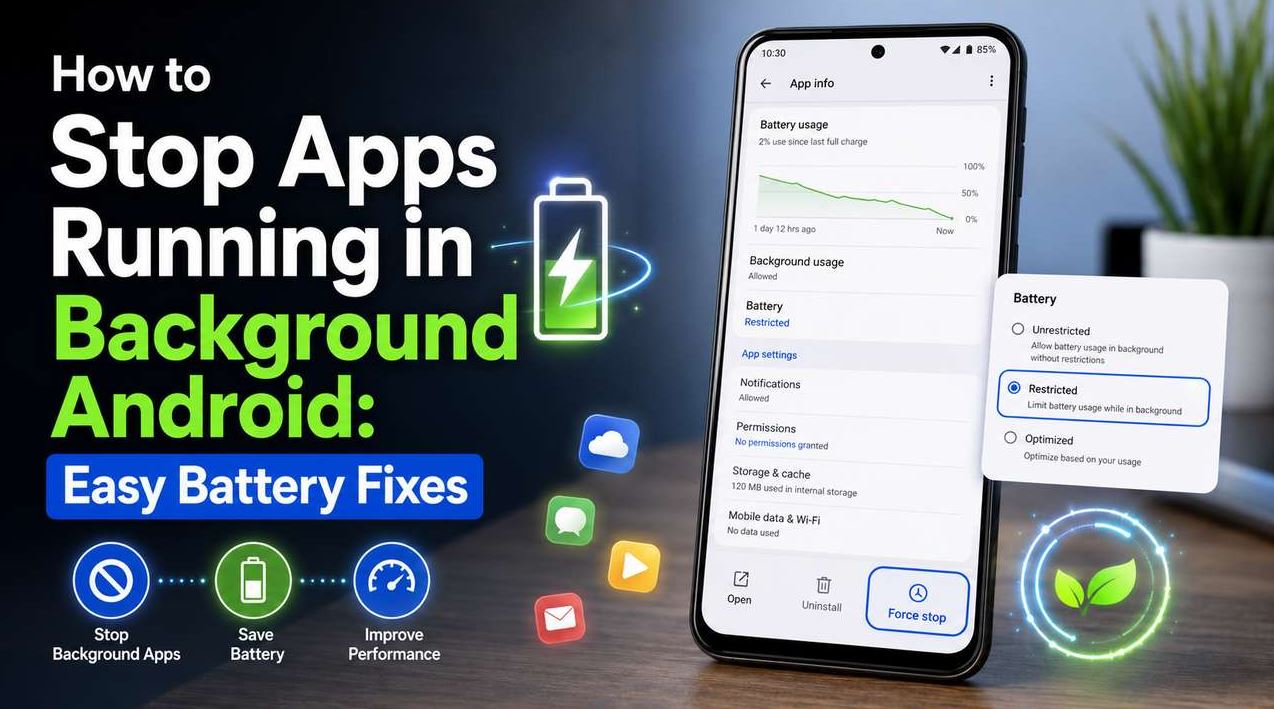
Force stop and restart the app. Settings > Apps > [app name] > Force stop. This clears whatever stuck process was running and is worth trying first since it’s non-destructive.
Check for a pending update. Open the Play Store listing for the app — an outdated version with a known bug is a common cause, and developers often patch battery-related issues quickly once reported.
Restrict background activity. Settings > Apps > [app name] > Battery > Restrict (the wording is “Background restriction” on some devices). This stops the app from running processes when you’re not actively using it. Be aware this can delay notifications for messaging or email apps, so use it selectively rather than applying it broadly.
Check app permissions, especially location. An app with “Allow all the time” location access can poll GPS in the background continuously. Go to Settings > Location > App location permissions, and change apps that don’t need constant tracking to “Only while using the app.”
Clear cache (not data). Settings > Apps > [app name] > Storage > Clear cache. This removes temporary files without deleting your logins or saved data, and can resolve corrupted cache files that cause an app to loop or retry failed operations repeatedly.
Uninstall and reinstall as a last resort. If none of the above works and the app remains the top drain, removing and reinstalling it gives it a completely clean state.
Step 5: System-Level Fixes
If no single app is responsible, or if several apps show unusually high background usage at once, the issue may be system-wide:
Reboot the phone. This sounds basic, but a restart clears every running process and often resolves phantom wakelocks that build up over days or weeks of uptime without a reboot.
Check for a pending system update. As mentioned above, manufacturers frequently patch battery bugs introduced in earlier updates.
Review your display settings. Screen brightness and refresh rate are typically the single largest battery consumers on any phone. Lowering brightness, enabling adaptive brightness, and switching a 120Hz display to 90Hz or “adaptive” (rather than a fixed high refresh rate) can produce a noticeable, immediate improvement.
Check sync and account settings. Settings > Accounts (or Passwords & accounts) shows every account syncing data in the background. Multiple email accounts, cloud backup apps, and social media accounts all sync independently, and each one adds up.
Test in Safe Mode. Restarting into Safe Mode temporarily disables all third-party apps. If battery drain stops in Safe Mode, the cause is a third-party app rather than the system itself — this is a useful way to confirm the problem isn’t hardware-related before going further. (To enter Safe Mode, the method varies by manufacturer — commonly it involves holding the power button, then long-pressing “Power off” until a Safe Mode restart option appears, but check your device manufacturer’s support page if this doesn’t work.)
When It Might Be a Hardware Issue
If you’ve gone through diagnosis and nothing in software explains the drain, consider whether the battery itself has degraded. Signs pointing to hardware rather than software:
- The phone is more than 2–3 years old with heavy daily use
- Battery percentage drops in sudden jumps (for example, from 30% straight to 5%) rather than gradually
- The phone shuts down unexpectedly at a battery percentage well above 0%
- The phone visibly swells or the back panel bulges (this is a safety issue — stop using the device and seek professional battery replacement immediately)
Most Android phones let you check estimated battery health under Settings > Battery > Battery health or similar, though the exact availability of this feature depends on your device manufacturer and Android version. If your phone doesn’t show this natively, a manufacturer service center can test it directly. If the battery is degraded, the only real fix is a professional replacement — battery calibration tricks and “battery saver” apps do not restore lost capacity.
Common Mistakes to Avoid
Relying on “battery booster” or “cleaner” apps. Most of these do little beyond what Android’s built-in battery tools already do, and some are themselves poorly optimized and add to the drain they claim to fix. Android’s Adaptive Battery and built-in optimization tools generally outperform third-party battery apps.
Force-closing apps constantly as a habit. Repeatedly force-closing apps can actually increase battery use, since the app has to fully reload and re-establish connections each time you reopen it, rather than resuming from a paused state the way Android is designed to handle.
Assuming a factory reset is the first fix to try. A factory reset does often resolve stubborn battery issues, but it’s disruptive and should be a later step, after the targeted fixes above, not the first thing you try.
Ignoring the age of the battery. If a phone is several years old, some of what looks like “sudden” drain may actually be the tail end of gradual degradation becoming noticeable all at once, particularly after a software update changes how aggressively the phone manages power.
Frequently Asked Questions
Why did my battery suddenly start draining fast after a software update? System and app updates occasionally introduce bugs that increase background activity or interfere with power management. This is a well-documented pattern, and manufacturers typically release a follow-up patch within days to weeks. Checking for a newer update is one of the first things to try.
Does closing apps from the recent apps screen save battery? Not significantly, and doing it constantly can use more battery, not less, because Android has to fully restart the app rather than resuming it from memory. Android’s own background app management is generally more efficient than manual closing.
Will a factory reset fix battery drain? It often does, since it removes every third-party app and setting that could be causing the problem, but it’s a disruptive last resort. Try the targeted fixes in this guide first, since they solve most cases without the need to reset the device.
How can I tell if it’s an app problem or a battery hardware problem? Test in Safe Mode. If the drain disappears with third-party apps disabled, the cause is software. If drain continues even in Safe Mode, or if you also notice sudden percentage jumps or unexpected shutdowns, the battery itself may be degraded.
Is it normal for my phone to be warm while charging or under heavy use? Some warmth is normal, especially during charging, gaming, or camera use. A phone that’s noticeably hot while sitting idle and screen-off, however, is unusual and typically points to a wakelock or background process problem worth investigating.
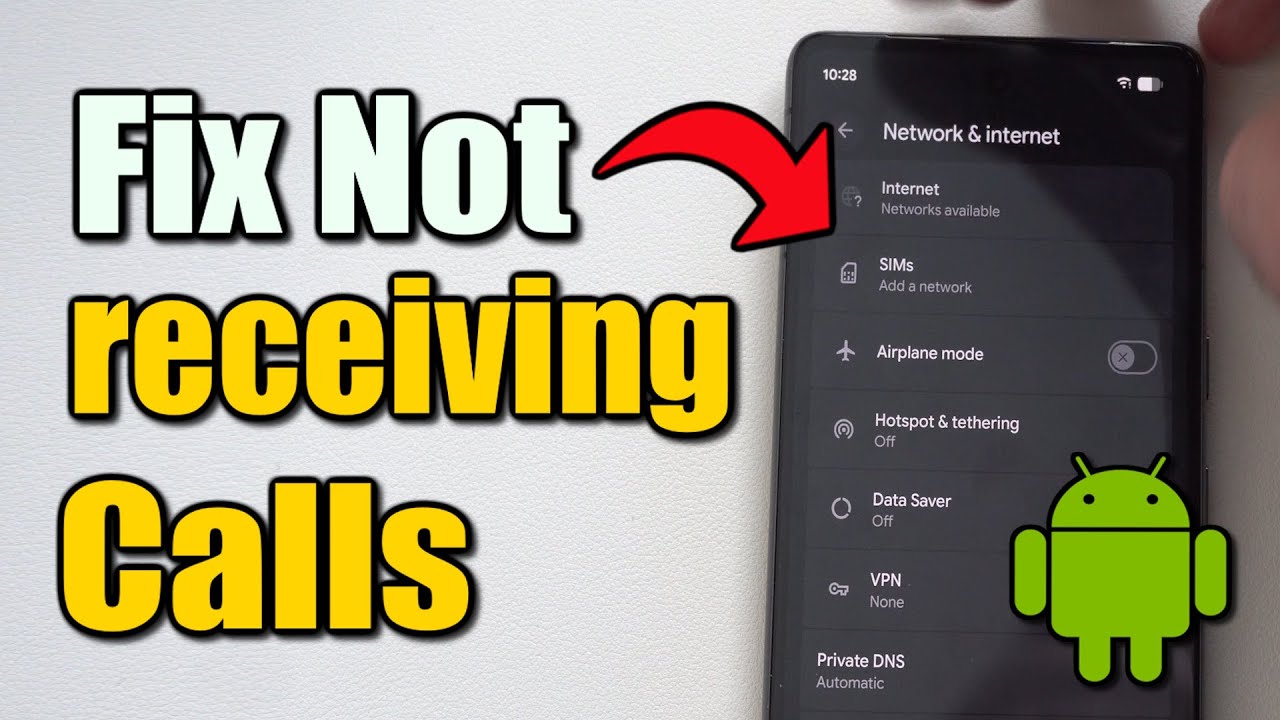
Does 5G drain the battery faster than 4G? Generally yes, particularly in areas with weak 5G coverage where the phone works harder to maintain the connection. If you don’t need 5G speeds, switching to a “4G/LTE preferred” setting in Settings > Network & internet can meaningfully improve battery life.
Conclusion
Sudden battery drain almost always has an identifiable cause, and the fastest path to fixing it is checking the battery usage screen first rather than guessing. From there, working through app-specific fixes, then system-level settings, and finally ruling out hardware degradation will resolve the large majority of cases. If none of these steps help and the phone is otherwise healthy, a battery health check through your device manufacturer is the logical next step.