
Some apps keep working long after you close them — syncing data, checking for notifications, or refreshing content — and while this is often intentional and useful, it isn’t always necessary for every app you use. If you’ve noticed certain apps draining battery, using mobile data, or slowing down your phone even when you’re not actively using them, restricting their background activity is usually the fix, and it’s something Android lets you control on a per-app basis without needing any third-party tool.
This guide explains what background activity actually does, how to identify which apps need it and which don’t, and how to restrict specific apps step by step.
Why Apps Run in the Background in the First Place
Background activity isn’t automatically a problem. Many apps need it to function the way users expect:
- Messaging apps need it to deliver notifications instantly
- Email apps need it to check for new mail periodically
- Music and navigation apps need it to keep playing or tracking location while you use other apps
- Cloud backup apps need it to sync photos and files automatically
The issue arises when an app you rarely use, or one that doesn’t need real-time updates, is doing the same thing — polling servers, syncing data, or keeping processes alive — without providing enough benefit to justify the battery and data cost. Restricting background activity selectively, rather than for every app, is the more effective approach, since disabling it broadly can break the exact features you rely on.
Step 1: Identify Which Apps Actually Need Restricting
Before changing settings, check which apps are using the most background resources. This avoids restricting apps that don’t need it and missing the ones that do.
On stock Android: Go to Settings > Battery > Battery usage. This lists apps along with a breakdown of screen-on versus background usage. Apps with high background time relative to how often you actually open them are good candidates for restriction.
On Samsung devices: Settings > Battery and device care > Battery > Background usage limits — Samsung’s version of this feature groups apps into categories (such as “Sleeping apps” and “Deep sleeping apps”) that already restrict background activity automatically, and lets you add specific apps manually.
On Xiaomi (MIUI/HyperOS): Settings > Apps > Manage apps > [app name] > Battery saver, or through Settings > Battery & performance > App battery usage, where individual apps can be set to restricted background behavior.
On other manufacturers (Oppo, Vivo, OnePlus): Look for “Battery” or “App management” inside Settings, then a submenu related to background app limits — the exact wording differs, but nearly all major manufacturer skins include some version of this control, often because they build on top of Android’s underlying background restriction system.
Step 2: Restrict Background Activity for a Specific App
Once you’ve identified an app worth restricting, here’s how to do it on stock Android:
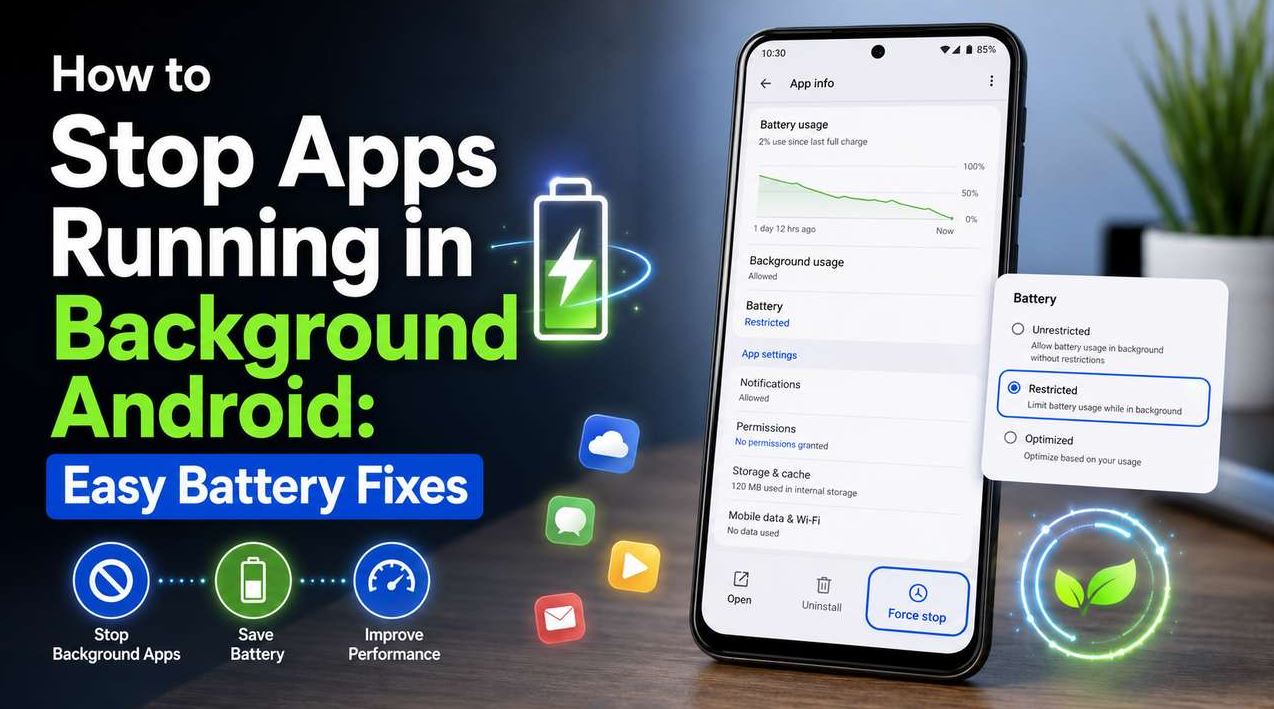
- Open Settings > Apps, then select the app you want to restrict.
- Tap Battery (sometimes labeled “Battery usage” within the app’s settings).
- Choose Restricted. On some versions of Android, the options may instead appear as “Optimized,” “Unrestricted,” and “Restricted,” in which case select “Restricted.”
This tells Android to prevent the app from running processes, waking the device, or using data in the background outside of when you’re actively using it.
What to expect afterward: Notifications from a restricted app may be delayed, arriving only when you next open the app, rather than in real time. For apps like games, shopping apps, or rarely-used utilities, this is usually an acceptable trade-off. For messaging or email apps you rely on for timely alerts, restricting them can cause you to miss notifications until you open the app manually — so this setting is best applied selectively rather than as a blanket fix.
Step 3: Manage Background Data Usage Separately
Background restriction (Step 2) and background data usage are related but distinct settings. An app can be allowed to run in the background but still be blocked from using mobile data while doing so — useful if you want an app to stay responsive but not consume your data plan when you’re off Wi-Fi.
To manage this specifically:
- Go to Settings > Apps > [app name] > Mobile data & Wi-Fi (the exact label varies; on some devices it’s under “Data usage”).
- Turn off Background data for that app.
This is a gentler alternative to full restriction — the app can still sync and notify you over Wi-Fi, but won’t quietly use your mobile data allowance in the background.
Step 4: Use Android’s Built-In Battery Optimization Categories
Beyond manually restricting individual apps, Android includes a broader system called Adaptive Battery, which learns your usage patterns over time and automatically limits background activity for apps you rarely open — without you needing to configure each one manually.
To check or enable it: Settings > Battery > Adaptive Battery.
This works alongside manual restrictions rather than replacing them. Manually restricting a specific app guarantees the behavior immediately; Adaptive Battery adjusts gradually based on observed usage, which is useful for apps you haven’t gotten around to restricting yourself, or for catching apps you didn’t realize were behaving poorly in the background.
Step 5: Check App-Specific Settings, Not Just System Settings
Some apps include their own internal settings for background behavior, separate from anything controlled at the Android system level. This is especially common with:
- Messaging and social media apps, which often have a setting for background data usage or sync frequency inside their own app settings menu.
- Email apps, which frequently let you choose sync frequency (real-time, every 15 minutes, manual only) rather than an all-or-nothing toggle.
- Cloud backup apps, which may offer a setting to only sync over Wi-Fi or only while charging.
Checking these in addition to Android’s system-level controls often produces a better result than relying on system restriction alone, since it lets you keep some background functionality (like periodic email checks) while still reducing unnecessary activity.
Common Mistakes to Avoid
Restricting every app “just in case.” Broadly restricting apps you actually rely on for timely notifications tends to cause more frustration (missed messages, delayed alerts) than the battery or data savings are worth. Restriction is most useful when applied to specific apps you’ve identified as problematic, not as a blanket setting.
Confusing “Force stop” with background restriction. Force stopping an app closes it immediately but doesn’t prevent it from restarting and resuming background activity later — it’s a one-time action, not an ongoing setting. Background restriction (Step 2) is the setting that has a lasting effect.
Assuming restriction breaks all app functionality. Restricting background activity doesn’t prevent you from opening and using the app normally; it only limits what the app can do when you’re not actively using it. Some users avoid this setting believing it disables the app entirely, which isn’t the case.
Not checking after restricting an important app. If you restrict an app and later notice you’re missing time-sensitive notifications, that’s a sign the app needs unrestricted background access, not that something is broken. Reversing the setting is as simple as changing “Restricted” back to “Optimized” or “Unrestricted.”
Relying solely on third-party “app killer” tools. Third-party apps that promise to manage background activity for you often duplicate what Android’s built-in Battery settings already do, and in some cases run their own background processes to do so — working against the goal of reducing background activity rather than helping it.
When Restricting Background Activity Might Not Help
Background restriction addresses apps that are actively using resources while not in use, but it isn’t a fix for every drain or slowdown issue:
- If a single app is misbehaving due to a bug (for example, after a recent update), restricting it may reduce the symptom but won’t fix the underlying issue — checking for an app update is often more effective in that case.
- If the phone is old or has limited RAM, background restriction can help but may not fully resolve general slowness, since that can also stem from hardware limitations rather than any specific app’s behavior.
- If the issue is related to weak network signal causing apps to repeatedly retry connections, background restriction may reduce some of the impact but won’t address the root cause.
Frequently Asked Questions
Will restricting background activity stop me from receiving notifications entirely? No, but it can delay them. A restricted app typically won’t push real-time notifications and instead updates only when you next open it, which is a meaningful difference for messaging apps but usually not a problem for apps you check manually.
What’s the difference between “Optimized” and “Restricted” background settings? “Optimized” (the Android default for most apps) allows the system to manage background activity intelligently, generally permitting reasonable use while limiting excessive activity. “Restricted” is more aggressive and largely prevents background activity outside of active use, at the cost of possible notification delays.
Do I need to restrict system apps too? Generally not. Restricting core system apps or manufacturer-installed services can cause instability or break basic phone functions, since these often support features the operating system itself depends on. Background restriction is intended for third-party apps you’ve installed, not built-in system components.
Does restricting background activity save mobile data as well as battery? Yes, in most cases — since background restriction prevents the app from making network requests while unused, it typically reduces both battery use and background data consumption. If you only want to save data specifically while leaving background activity otherwise unrestricted, Step 3 (disabling background data individually) is the more precise option.
Will this work the same way on every Android phone? The core Android background restriction feature is present across most modern Android versions, but manufacturer skins like Samsung’s One UI or Xiaomi’s MIUI/HyperOS often add their own additional battery management layers on top, which can sometimes restrict apps more aggressively than the standard Android setting alone. If an app keeps getting restricted unexpectedly, check both the standard Android battery setting and any manufacturer-specific battery management menu.
Conclusion
Restricting background activity for specific apps is one of the more effective, low-risk ways to reduce battery drain, unnecessary data use, and general background clutter on Android, and it doesn’t require uninstalling anything or giving up functionality you actually rely on. The key is applying it selectively — checking which apps are using disproportionate background resources first, then restricting those specifically, rather than treating it as a blanket fix for every app on the phone.