Most people grant app permissions once, during setup, and never look at them again. Over months or years, that adds up to dozens of apps holding onto access to your location, camera, microphone, contacts, and files — much of it granted for a feature you used once and forgot about, or requested by an app that didn’t actually need it in the first place.
Reviewing and restricting these permissions is one of the most effective privacy improvements you can make on an Android phone, and it takes a few minutes rather than requiring any new app or setting change that affects how your phone otherwise works. This guide explains how permissions actually work on Android, how to review what you’ve already granted, and how to restrict them without breaking the apps you actually rely on.
How Android Permissions Actually Work
Modern Android uses a runtime permission system, meaning apps must ask for sensitive permissions — like location, camera, microphone, or contacts — at the moment they’re needed, rather than all at once during installation. You can grant, deny, or later revoke these permissions independently of whether the app itself stays installed.
Since Android 10, most location, camera, and microphone permissions can also be set to “Only while using the app” or “Ask every time,” rather than a blanket “Allow” that applies constantly in the background. This distinction matters more than most users realize: an app with “Allow all the time” location access can track your location even when it’s closed, while “Only while using the app” limits that access to moments you’re actively using it.
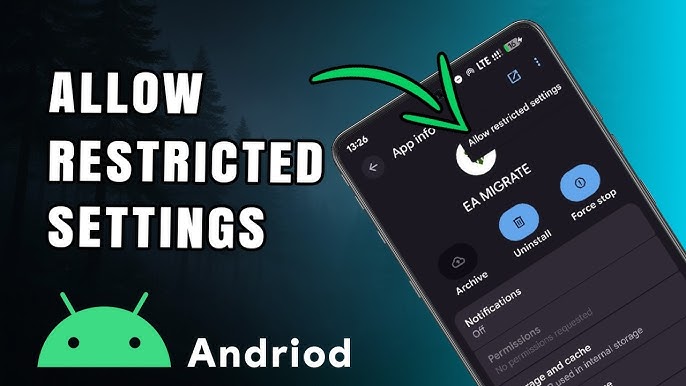
The exact permission categories and options available can vary slightly depending on your Android version, so if a setting described here doesn’t match exactly what you see, check your device’s Android version under Settings > About phone, since older versions offer more limited controls.
Step 1: Review Permissions by Category (Not by App)
Rather than opening every app individually, Android lets you review permissions by category, which is faster and shows you exactly which apps have access to something sensitive, like your camera or location, all in one place.
On stock Android: Go to Settings > Privacy > Permission manager. This shows a list of permission categories (Location, Camera, Microphone, Contacts, Files and media, and others); tapping into any category shows every app that currently has that permission, along with whether it’s set to “Allowed,” “Allowed only while in use,” or “Denied.”
On Samsung devices: Settings > Privacy > Permission manager, which functions similarly.
On Xiaomi (MIUI/HyperOS): Settings > Privacy protection > Permissions, or App settings > Permissions, which offers a comparable category-based view.
On other manufacturers (Oppo, Vivo, OnePlus): Look for “Privacy” or “Permission manager” inside Settings — this feature is part of the underlying Android framework, so nearly all modern devices include some version of it, though the exact menu path and naming vary.
This category view is the most efficient starting point because it immediately surfaces apps you might not expect to have sensitive access — for example, a flashlight or QR scanner app with location access it likely doesn’t need for its core function.
Step 2: Identify Permissions That Don’t Match the App’s Purpose
This is where the real privacy value comes from. As you review each category, ask a simple question for each app: does this permission make sense for what the app actually does?
Some examples worth specifically checking for:
- Location access for apps with no obvious location-based feature — a note-taking app, a calculator, or a simple utility app generally has no legitimate need for location data.
- Microphone access for apps that don’t involve voice or calls — a photo editor or a game requesting microphone access is worth questioning.
- Contacts access for apps that don’t involve messaging or calling — many apps request contacts access to “find friends” or enable social features that aren’t essential to their core function.
- “Allow all the time” location for apps that only need it briefly — a weather app, for instance, typically only needs your location when you open it, not continuously in the background.
This doesn’t mean every mismatched permission is malicious — often it’s simply an app requesting broader access than it strictly needs, sometimes for optional features you don’t use. But narrowing permissions to only what’s necessary reduces your overall exposure if an app is later compromised or if its data practices change.
Step 3: Restrict or Revoke a Specific Permission
Once you’ve identified a permission worth changing:
- Go to Settings > Privacy > Permission manager, tap the relevant category (for example, Location).
- Tap the specific app.
- Choose the appropriate option: “Allow only while using the app,” “Ask every time,” or “Don’t allow.”
What to expect afterward: If you choose “Don’t allow” for a permission the app actually needs for a feature you use, that feature will typically stop working until you grant the permission again — Android will often prompt you to re-enable it the next time you try to use that feature, rather than failing silently. This is why Step 2 (checking whether the permission matches the app’s purpose) matters — restricting permissions blindly across every app can break features you actually wanted.
Step 4: Use Android’s Automatic Permission Reset for Unused Apps
Android includes a feature that automatically resets permissions for apps you haven’t opened in several months, without you needing to do this manually for every unused app. This is typically enabled by default on supported Android versions, but it’s worth confirming.
To check: Go to Settings > Privacy > Permission manager, then look for an option related to “Automatically reset permissions” or “Remove permissions if app isn’t used,” depending on your Android version and manufacturer. If available, ensure it’s turned on.
This is particularly useful for apps you installed once, granted broad permissions to, and haven’t opened since — a common source of forgotten access that most users never think to check manually.
Step 5: Check One-Time and Sensitive Permission Categories Separately
Beyond the standard permission categories, Android includes a few sensitive categories worth checking individually, since they’re often overlooked:
- Camera and microphone indicator dots. Android shows a small dot in the status bar when an app is actively using your camera or microphone. If you notice this indicator appearing when you’re not expecting it, that’s worth investigating immediately through the Permission manager.
- Background location. Even after reviewing standard location permissions, it’s worth specifically checking which apps have “Allow all the time” versus “Only while using the app,” since this distinction is easy to miss when quickly clicking through a list.
- Special app access (under Settings > Apps > Special app access on many devices), which covers less commonly reviewed permissions like accessibility services, device admin apps, and apps that can display over other apps — these carry more significant privacy and security implications than standard permissions and are worth checking periodically.
Common Mistakes to Avoid
Revoking permissions without understanding what breaks. Denying camera access to a video calling app, for example, will prevent it from functioning for its core purpose. Always consider what the app is actually for before restricting a permission it clearly needs.
Assuming “Only while using the app” has no downsides. For apps like fitness trackers or navigation apps that need continuous location tracking to function properly (for example, tracking a run or providing turn-by-turn directions with the screen off), restricting location to “only while using the app” can interfere with the feature working as intended. Read what the app’s own settings say about location requirements before restricting it.
Treating every permission request as automatically suspicious. Many permissions are genuinely necessary — a camera app needs camera access, a messaging app needs contacts access to let you message people in your address book. The goal is identifying mismatches, not eliminating every permission across the board.
Forgetting about “Special app access” permissions. Standard permission categories get most of the attention, but accessibility services and display-over-other-apps permissions can be more invasive if misused, since they can potentially observe or interact with what’s on your screen. These are worth reviewing separately, not just skipped in favor of the more commonly discussed categories.
Not checking permissions after installing new apps. Reviewing permissions once and never again means new apps you install afterward go unchecked. Making this a periodic habit — every few months, for example — is more effective than a single one-time cleanup.
When Restricting Permissions Isn’t Enough
Reviewing permissions addresses what data an app can access on your device, but it doesn’t address everything related to privacy:
- Data the app has already collected before you restricted the permission isn’t deleted by revoking access going forward — that would require checking the app’s own privacy settings or contacting the developer, depending on what the app’s privacy policy describes.
- Permissions don’t control what a developer does with data once it’s shared, such as whether it’s sold to third parties or used for advertising — this is governed by the app’s privacy policy, not by Android’s permission system.
- Some apps may not function at all without certain permissions, even if the connection isn’t obvious, since some core features (such as account verification through contacts) may be built around that access rather than being optional.
For deeper privacy concerns beyond what specific data an app can access on your device, reviewing the app’s privacy policy or checking its data safety section on the Google Play Store listing provides more complete information than permissions alone.
Frequently Asked Questions
Will restricting permissions break the apps I use? It can, if the permission is genuinely required for a feature you use — for example, restricting camera access on a video calling app will prevent video calls from working. This is why checking whether the permission matches the app’s actual purpose (Step 2) matters before restricting anything.
How often should I review app permissions? There’s no strict requirement, but checking every few months, or right after installing several new apps, catches most issues without requiring constant attention. Android’s automatic permission reset feature (Step 4) also helps handle apps you’ve forgotten about between manual reviews.
What’s the difference between “Ask every time” and “Only while using the app”? “Only while using the app” grants access automatically whenever the app is open, without prompting you each time. “Ask every time” is more restrictive — it prompts you for permission every single time the app requests that data, even during the same session, giving you more granular control at the cost of more frequent prompts.
Can I tell if an app is using my camera or microphone without my knowledge? Android displays a small green indicator dot in the status bar whenever an app is actively using the camera or microphone. If you see this appear without a clear reason, checking the Permission manager can help identify which app is responsible.
Do all apps need to explain why they want a permission? Google Play policies generally require apps requesting sensitive permissions to have a legitimate, disclosed use for them, and Android itself often shows a brief explanation when an app requests a permission. However, the depth of that explanation can vary, so if a request seems unclear or unnecessary for the app’s purpose, treating it with caution is reasonable.
Is restricting permissions enough to make an app “safe” to use? Not entirely. Permissions control what data an app can access on your device, but they don’t address what a developer does with that data once it’s been shared, or issues unrelated to permissions, such as the app’s overall security practices. Reviewing the app’s privacy policy or Play Store data safety information provides a fuller picture.
Conclusion
Reviewing and restricting app permissions is one of the more effective privacy steps available on Android because it directly limits what apps can access, using a system already built into the phone. The key is being selective rather than restrictive across the board — checking whether each permission genuinely matches what the app is meant to do, rather than denying everything or leaving everything unchecked. Making this a periodic habit, combined with Android’s automatic permission reset for unused apps, keeps your permission list reasonably current without requiring constant manual attention