
It’s a pattern many Android users notice but rarely understand: the phone runs fine for months, then storage creeps toward full, and suddenly everything feels sluggish — apps take longer to open, the camera hesitates before taking a photo, typing lags behind what you’re actually typing. This isn’t a coincidence or a sign the phone is simply “getting old.” There’s a specific technical reason low storage causes slowdowns, and understanding it also explains why the fix isn’t always as simple as deleting a few files.
This article explains what’s actually happening when storage runs low, why it affects performance rather than just available space, and what you can do about it.
The Core Reason: Storage and Memory Management Are Connected
It’s easy to assume storage (where your files, photos, and apps live) and RAM (the memory used to run apps while they’re active) are completely separate systems, but on Android they interact more than most users realize.
Virtual memory and swap space. Android, like most modern operating systems, can use a portion of storage as an extension of RAM when physical memory runs low — a mechanism generally referred to as swap space or, on many modern Android devices, zRAM (a compressed portion of RAM that reduces the need to write to storage, though some devices still use storage-backed swap as well). When storage is nearly full, the system has less room to manage this efficiently, which can contribute to slower performance under memory pressure, particularly when several apps are open at once.
Free space needed for temporary files. Many operations — installing app updates, taking photos, recording video, extracting files, even normal app operation — require temporary “scratch space” on the storage drive to work with data before finalizing it. When there’s very little free space left, the system has less room to perform these operations smoothly, which can cause delays or, in more severe cases, failed operations (such as a photo that fails to save, or an update that won’t install).
Storage controller performance near capacity. The flash storage used in phones (eMMC or UFS, depending on the device) generally performs best when it has some free space to work with for its own internal management processes, such as wear leveling and garbage collection — background processes the storage chip uses to keep write operations efficient. As available space shrinks, these processes have less room to operate, and in some cases this can result in slower read and write speeds, which shows up to the user as general sluggishness rather than a specific error.
The exact technical behavior can vary depending on the phone’s storage hardware and Android version, but the overall relationship — less free space generally meaning less room for the system to operate efficiently — holds true across most Android devices.
Why This Isn’t Just About “Running Out of Room”
A common misunderstanding is that storage-related slowdowns only happen once storage is completely full and something fails to save. In practice, performance issues tend to show up gradually as available space gets low — commonly noticeable somewhere in the last 5–10% of total storage remaining, though the exact threshold isn’t a fixed number and depends on the device and how it’s being used at the time.
This is why a phone can feel sluggish while still technically showing a few gigabytes free — “a few gigabytes” can be a small percentage of total capacity on a phone with limited storage, while the same amount might be barely noticeable on a device with much larger total capacity.
How to Check How Much Free Space You Actually Have
Before addressing the slowdown, confirm how close to full your storage actually is.
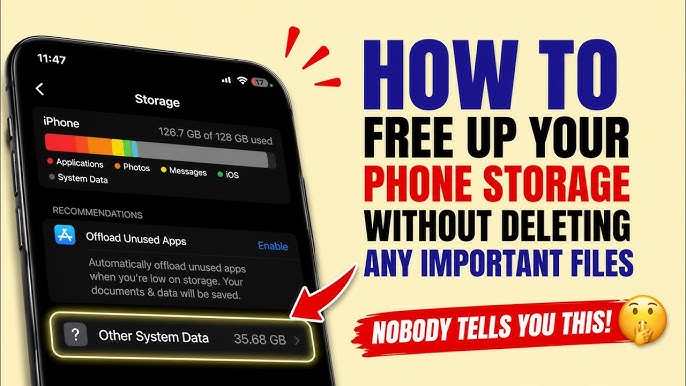
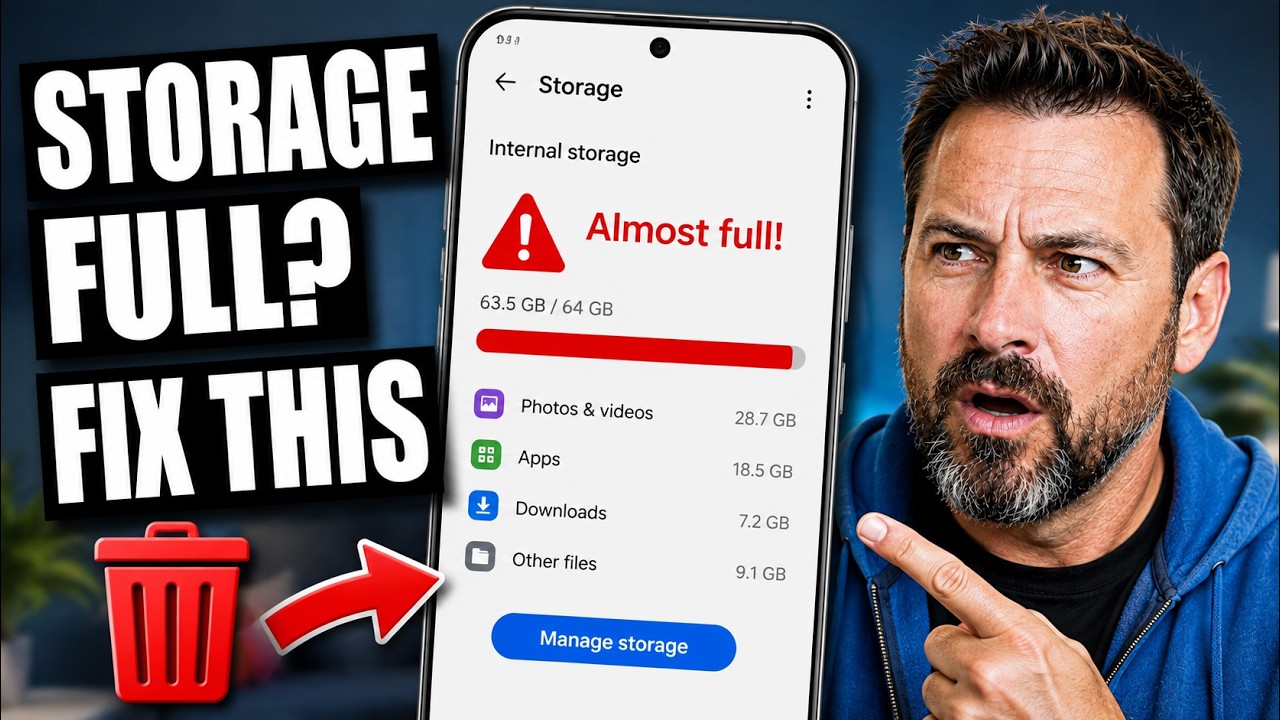
On stock Android: Settings > Storage, which shows total used space and remaining free space at the top of the screen.
On Samsung devices: Settings > Battery and device care > Storage.
On Xiaomi (MIUI/HyperOS): Settings > Storage.
On other manufacturers: Look for “Storage” inside Settings; the total and free space figures are typically shown prominently near the top regardless of manufacturer.
As a general practice, keeping at least 10% of total storage free — more on devices with smaller total capacity, such as 32GB or 64GB models — tends to leave enough room for the system to operate without the kind of slowdown described above, though this isn’t an official, universally documented threshold and can vary by device.
What Actually Fixes the Slowdown
Free up storage space. This is the direct fix, since it addresses the root cause rather than a symptom. Clearing app cache, removing unused downloads, deleting or backing up large photos and videos, and uninstalling unused apps are the most effective starting points. If you’re unsure where your storage is going, checking the storage breakdown by category (Images, Videos, Apps, System, and so on) shows where to focus first.
Restart the phone after freeing up space. Simply deleting files doesn’t always immediately resolve sluggishness that’s already built up — background processes and cached memory states can persist until the phone is restarted, so a reboot after cleaning up storage often produces a more noticeable improvement than the cleanup alone.
Avoid operating consistently near full capacity going forward. Since the slowdown is tied to how much free space is available at any given time, not just a one-time full state, maintaining some buffer of free space prevents the issue from recurring, rather than just resolving it temporarily each time storage nearly fills up again.
Common Mistakes to Avoid
Assuming a slow phone always means it needs to be replaced. Storage-related slowdown is often reversible simply by freeing up space, and doesn’t necessarily indicate the phone’s hardware is failing or that an upgrade is required. It’s worth ruling this out before assuming the device itself is at fault.
Deleting system files manually to free space quickly. Some users attempt to delete files inside system folders using a file manager. This is risky and can cause instability, since these files are used by the operating system itself — stick to Settings > Storage and app-level cache clearing instead.
Only clearing cache without addressing photos and videos. Cache clearing helps, but on most phones the largest contributor to storage use is media files, not app cache. If storage remains high after clearing cache, checking your photo and video storage (and whether it’s backed up to the cloud and safe to remove from the device) usually makes a bigger difference.
Ignoring the problem until storage is completely full. Waiting until you get an explicit “storage full” warning means you’ve likely already been experiencing gradual slowdown for some time beforehand without realizing the cause. Checking storage periodically, rather than only reacting to a warning, catches the issue earlier.
Assuming a third-party “cleaner” or “booster” app is necessary. Android’s built-in Storage settings, along with Google Photos’ “Free up space” feature for backed-up media, generally provide what’s needed to address this without installing an additional app, which in some cases can itself use additional storage and background resources.
When It Might Not Be a Storage Issue
If you’ve freed up a meaningful amount of storage and restarted the phone, but slowdown persists, the cause may be something else entirely:
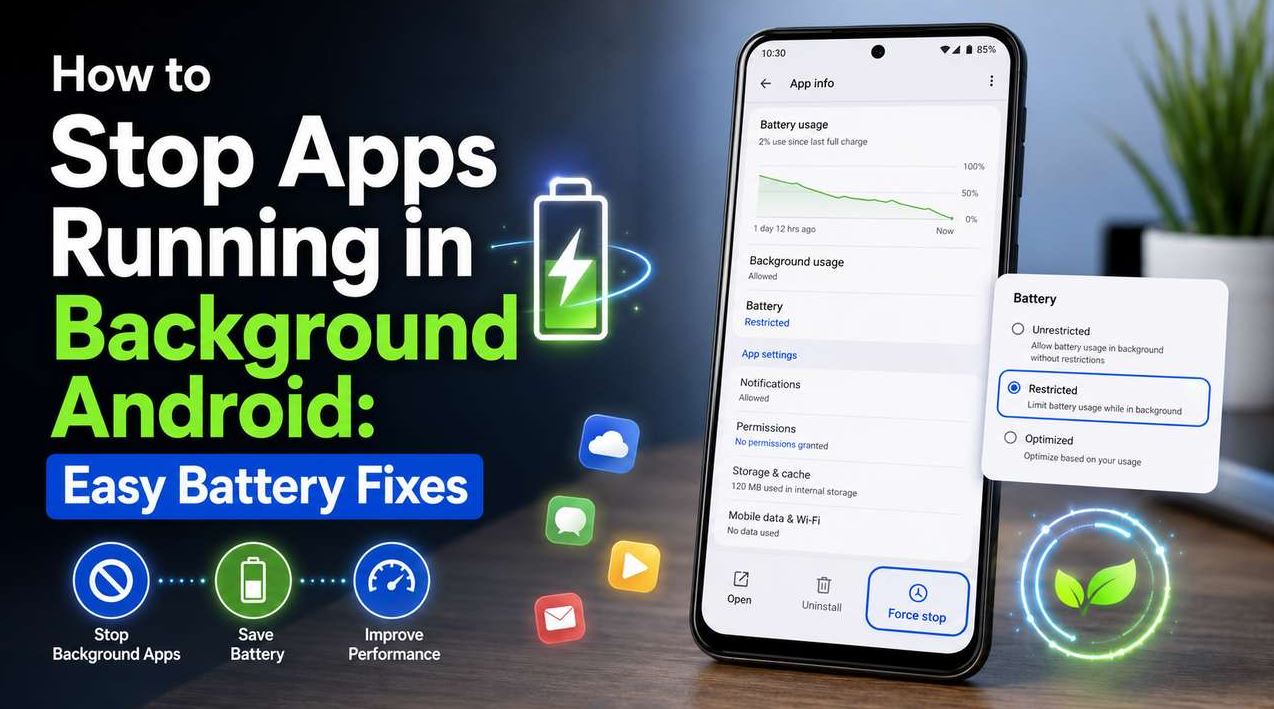
- An app stuck in a background loop, consuming processing power regardless of available storage — checking Settings > Battery > Battery usage can help identify an app using disproportionate resources.
- Too many apps installed with high background activity, which affects available RAM rather than storage specifically — these are related but distinct resources, and freeing storage doesn’t directly free RAM.
- The phone’s hardware limitations relative to current app demands, particularly on older or budget devices running newer, more resource-intensive apps and system updates — in this case, storage cleanup may help somewhat but won’t fully resolve the underlying performance ceiling.
- A pending software update that includes performance fixes — checking Settings > System > System update is worth doing if slowdown persists despite free storage.
Frequently Asked Questions
How much free storage should I keep available to avoid slowdown? There’s no official fixed number, but keeping roughly 10% or more of total storage free is a reasonable general guideline, with more buffer recommended on devices with smaller total capacity (such as 32GB or 64GB models) where that percentage translates to less absolute free space.
Will restarting my phone fix slowdown from low storage? A restart alone won’t create more free space, but it can help clear built-up background processes and cached states that contribute to sluggishness — it’s most effective when combined with actually freeing up storage, not as a standalone fix.
Does this affect all Android phones the same way? The general relationship between low free storage and reduced performance applies broadly across Android devices, but the exact threshold and severity can vary depending on the phone’s storage hardware (eMMC versus UFS, for example) and total storage capacity, so the experience isn’t identical across every device.
Is it the RAM or the storage that’s actually causing the slowdown? Both can be involved, and they’re related but distinct systems. Low storage directly affects performance through the mechanisms described above (swap space, temporary file operations, storage controller efficiency), while separately, too many background apps competing for RAM causes a different kind of slowdown. If freeing storage doesn’t fully resolve the issue, checking background app activity is a reasonable next step.
Can too little storage damage my phone? Operating with very little free storage over a long period isn’t generally described as causing permanent hardware damage, but it can lead to failed operations (such as photos that don’t save correctly or updates that fail partway through), which is a functional problem worth avoiding regardless.
Should I buy a phone with more storage if this keeps happening? If you consistently run low on storage despite regular cleanup, a device with greater total storage capacity — or one that supports expandable storage, if available — can reduce how often this becomes an issue. This is a longer-term consideration rather than an immediate fix for an existing device, though.
Conclusion
Storage running low doesn’t just mean you’re about to run out of room for new files — it directly affects how efficiently the phone’s system can operate, through mechanisms like swap space, temporary file handling, and storage controller performance. The fix is usually straightforward: free up meaningful space, restart the device, and maintain some buffer of free storage going forward rather than routinely running near full capacity. If slowdown persists after doing this, the cause is more likely related to background app activity or the device’s overall hardware capabilities than to storage specifically.