Running out of storage on an Android phone is one of the most common frustrations. The phone slows down, apps refuse to update, the camera stops working, and system messages keep appearing. The good news is that a large portion of the used space is often temporary or redundant data that can be removed safely.
This guide focuses on methods that free up space while protecting your photos, documents, messages, app settings, and other important files. Menu names can vary slightly by manufacturer (Samsung, Google Pixel, Xiaomi, OnePlus, Oppo, etc.) and Android version, so look for similar wording if the exact path differs.
First: Check What’s Using Your Storage
Before deleting anything:
- Open Settings.
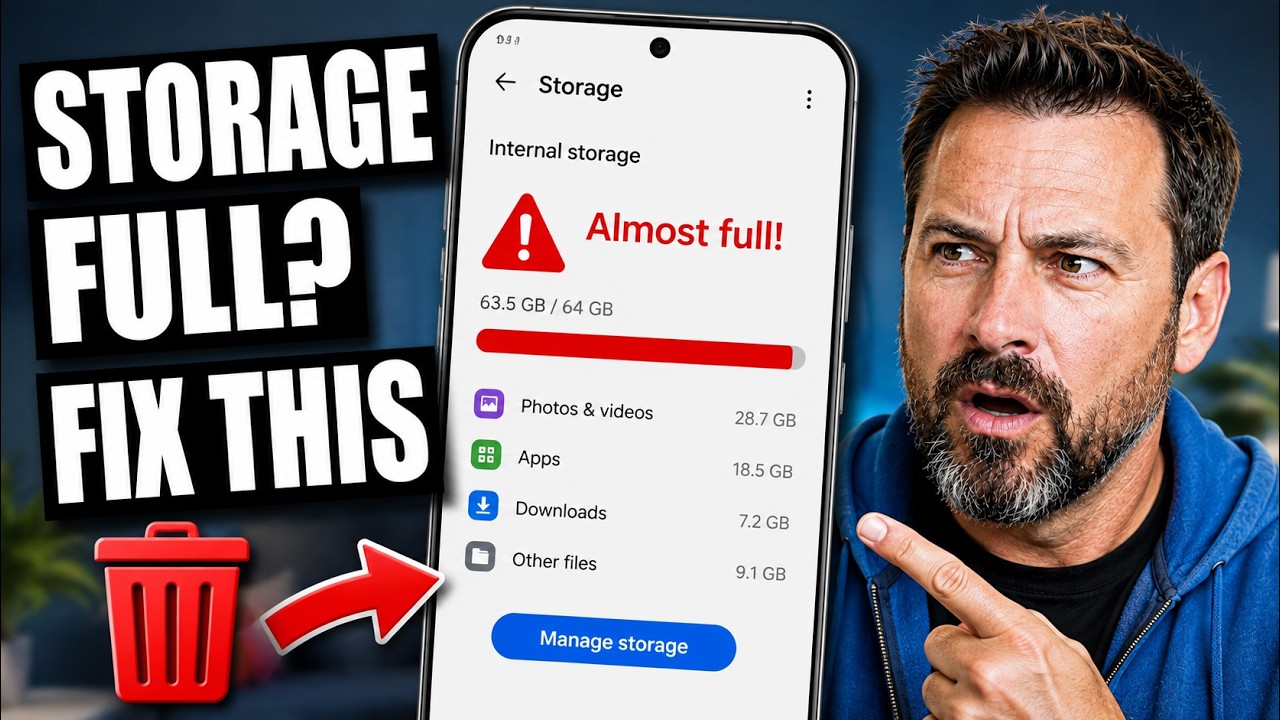
- Tap Storage (on Samsung: Battery and device care → Storage; some phones show it under Device care or About phone).
- Review the breakdown: Apps, Images, Videos, Audio, Documents, Downloads, and Other (or Miscellaneous).
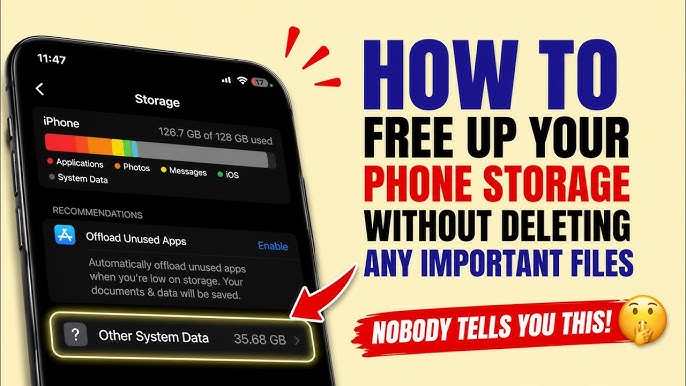
The “Other” category often hides app caches, residual files, and temporary data. Knowing the biggest categories helps you decide where to start.
Aim to keep at least 10–15% of total storage free. Android uses free space for temporary files, virtual memory, and smooth performance. When storage drops below that level, the phone can feel sluggish even if individual apps are fine.
Safe Cleanup Order (Start Here)
Follow this sequence. It prioritizes the lowest-risk actions first.
1. Use Built-in Storage Tools
Most Android phones include a safe cleaner:
- Google Pixel / stock Android: Settings → Storage → Free up space (or open the Files by Google app → Clean).
- Samsung: Settings → Battery and device care → Storage → Clean now or review Suggestions.
- Other brands: Look for Device care, Phone Manager, or Storage optimizer.
These tools typically suggest:
- Junk / temporary files
- Cached data
- Old downloads
- Duplicate files
- Rarely used apps
Review each suggestion. Junk and cache are almost always safe. For large files or downloads, open the list and decide item by item.
2. Clear App Cache (One of the Safest Wins)
Cache is temporary data apps create for faster loading (thumbnails, previews, temporary media). Clearing it does not delete your logins, settings, messages, or downloaded content. The app may load a little slower the first time afterward while it rebuilds the cache.
Steps:
- Go to Settings → Apps (or Applications) → See all apps.
- Sort by size if the option is available.
- Open a large app (Chrome, Instagram, TikTok, YouTube, messaging apps, browsers).
- Tap Storage & cache (or Storage).
- Tap Clear cache.
Repeat for the biggest apps. Avoid Clear storage / Clear data unless you intentionally want to reset the app (this logs you out and deletes local data).
3. Empty the Downloads Folder and Trash
The Downloads folder often fills with PDFs, APKs, images, and documents you no longer need.
- Open Files by Google (or your file manager) → Downloads.
- Sort by size or date and delete what you don’t need.
- Also check the Trash / Recently deleted folder in Files by Google, Gallery, or Samsung’s Trash and empty it permanently after confirming nothing important is there. Files usually stay in Trash for about 30 days.
4. Manage Photos and Videos Without Losing Them
If you use Google Photos with backup enabled:
- Open Google Photos and confirm backup is complete (look for the cloud icon).
- Tap your profile picture → Free up space.
- The tool shows only items already backed up to the cloud. Confirm to remove the local copies.
You can re-download any photo later from Google Photos. This is one of the largest space recoveries for most users and does not delete your photos from the cloud.
On Samsung, Device care → Storage often offers similar suggestions for backed-up or duplicate media.
5. Clean Messaging App Media (WhatsApp, Telegram, etc.)
Messaging apps can silently consume many gigabytes through received media.
WhatsApp:
- Open WhatsApp → Settings → Storage and data → Manage storage.
- Review large files, chats by size, and forwarded media.
- Delete what you don’t need. You can also turn off auto-download for photos, videos, and documents on mobile data or Wi-Fi.
Telegram and similar apps have their own storage management or cache-clearing options in Settings.
These in-app tools are safer than manually deleting folders because they know which files are still referenced by chats.
6. Remove Residual Files from Uninstalled Apps (Carefully)
When you uninstall an app, Android does not always remove every leftover folder. Residual data can remain in locations such as:
- Android/data
- Android/obb
- Android/media
- Downloads or other shared folders
To check:
- Open a file manager (Files by Google works well).
- Navigate to Internal storage → Android → data (or media / obb).
- Look for folders named after apps you no longer have installed.
- Delete only folders of apps you are certain are gone. Deleting the wrong folder can affect a currently installed app.
Some advanced users use tools that specifically find “corpses” (leftover folders), but built-in file managers are sufficient for most people. Be cautious—never delete folders belonging to apps you still use.
7. Uninstall or Archive Apps You Rarely Use
Go to Settings → Apps → sort by size or last used. Uninstall games, tools, or apps you haven’t opened in months. On some phones you can archive apps instead of fully uninstalling them, which frees most of the space while keeping the icon for easy reinstall.
After uninstalling, re-check for residual folders as described above.
Common Mistakes to Avoid
- Clearing data instead of cache — this resets the app and can delete local progress or offline files.
- Deleting folders inside Android/data or Android/obb without confirming the app is uninstalled.
- Relying on third-party “cleaner” or “booster” apps that promise dramatic results. Many request excessive permissions, show ads, or provide little benefit beyond what the built-in tools already offer.
- Emptying Trash without reviewing it first.
- Assuming “Other” storage is all system files that cannot be touched—much of it is often clearable cache and residuals.
Manufacturer Differences Worth Knowing
- Samsung: Device care / Storage has strong built-in duplicate, large-file, and trash tools.
- Google Pixel: Files by Google and the Storage → Free up space path are straightforward.
- Xiaomi, Oppo, Vivo, OnePlus: Look under Device care, Phone Manager, or Optimizer; the principles remain the same even if labels differ.
- Menu paths and available options can also change with major Android updates.
How Much Space Can You Realistically Recover?
Results vary widely. Clearing caches and Downloads often yields a few hundred megabytes to a couple of gigabytes. Offloading backed-up photos and cleaning messaging media can free 5–20 GB or more on heavily used phones. Residual files from old games or apps sometimes add another noticeable amount.
Preventing Storage Problems in the Future
- Keep 10–15% free space as a habit.
- Turn off unnecessary media auto-download in messaging apps.
- Enable Google Photos backup and periodically use Free up space.
- Review Downloads and large files every few weeks.
- Uninstall apps you no longer need instead of leaving them installed “just in case.”
FAQ
Is it safe to clear app cache?
Yes. Cache is temporary. Your accounts, settings, messages, and personal files remain intact. The app rebuilds the cache as needed.
What is the difference between Clear cache and Clear storage/data?
Clear cache removes only temporary files. Clear storage/data resets the app completely (logs you out and deletes local data). Use cache first.
Will Free up space in Google Photos delete my photos permanently?
No. It removes only local copies of items already backed up to your Google account. You can download them again anytime.
Can I delete everything in the Android folder?
No. Deleting active app folders can break those apps. Only remove residual folders from apps you have already uninstalled, and do so carefully.
How much free storage should I keep?
Aim for at least 10–15% of total capacity. More free space generally means better performance and fewer update or camera failures.
Are third-party cleaner apps necessary?
Usually not. Built-in tools and Files by Google handle the majority of safe cleanup tasks for most users.