
A new Android phone works fine right out of the box, but the default settings are built for the broadest possible audience — not for how you specifically plan to use the device. A handful of settings, if left untouched, quietly cost you battery life, storage space, privacy, or security over time. None of these require technical expertise to fix; they just aren’t things most people think to look for during initial setup.
This guide walks through the settings genuinely worth reviewing on a new Android phone, organized by why each one matters, so you can decide which changes fit how you actually use your device.
Security Settings Worth Setting Up First
Screen lock method. Go to Settings > Security (or Settings > Lock screen on some devices) and confirm you have a PIN, pattern, password, or biometric lock set up — not just “swipe” with no authentication. This is the single most important setting on the list, since it’s the first line of defense if the phone is lost or stolen.

Find My Device. Under Settings > Security > Find My Device (or Settings > Google > Find My Device, depending on the manufacturer), confirm this is turned on. It allows you to locate, lock, or erase the phone remotely if it’s lost, and is far more useful to set up in advance than to discover you need after the fact.
Google Play Protect. Found under Settings > Security > Google Play Protect (or accessible through the Play Store app itself under your profile icon), this scans apps for potentially harmful behavior. It’s enabled by default on most devices with Google Play Services, but it’s worth confirming it hasn’t been accidentally disabled.
Two-factor authentication on your Google account. This isn’t a phone setting exactly, but since your Google account controls so much of the Android experience (app purchases, backups, Find My Device), securing it with two-factor authentication through your Google account settings is one of the more impactful steps a new user can take, even though it’s managed outside the phone’s own Settings app.
Privacy Settings Worth Reviewing Early
App permissions. Rather than waiting until permissions become a problem, reviewing them early — under Settings > Privacy > Permission manager — gives you visibility into what location, camera, microphone, and contacts access apps have requested by default. New users often grant permissions quickly during setup without much thought, so a review shortly afterward is a reasonable habit.
Ad personalization. Under Settings > Privacy > Ads (wording and exact location vary by Android version), you can reset your advertising ID or opt out of personalized ads. This doesn’t stop ads from appearing, but it limits how they’re targeted based on your activity.
Location accuracy and app-level location access. Under Settings > Location, you can see which apps currently have location access and adjust it individually. New users frequently leave this at whatever was requested during app installation without revisiting it.
Battery Settings That Affect Daily Use
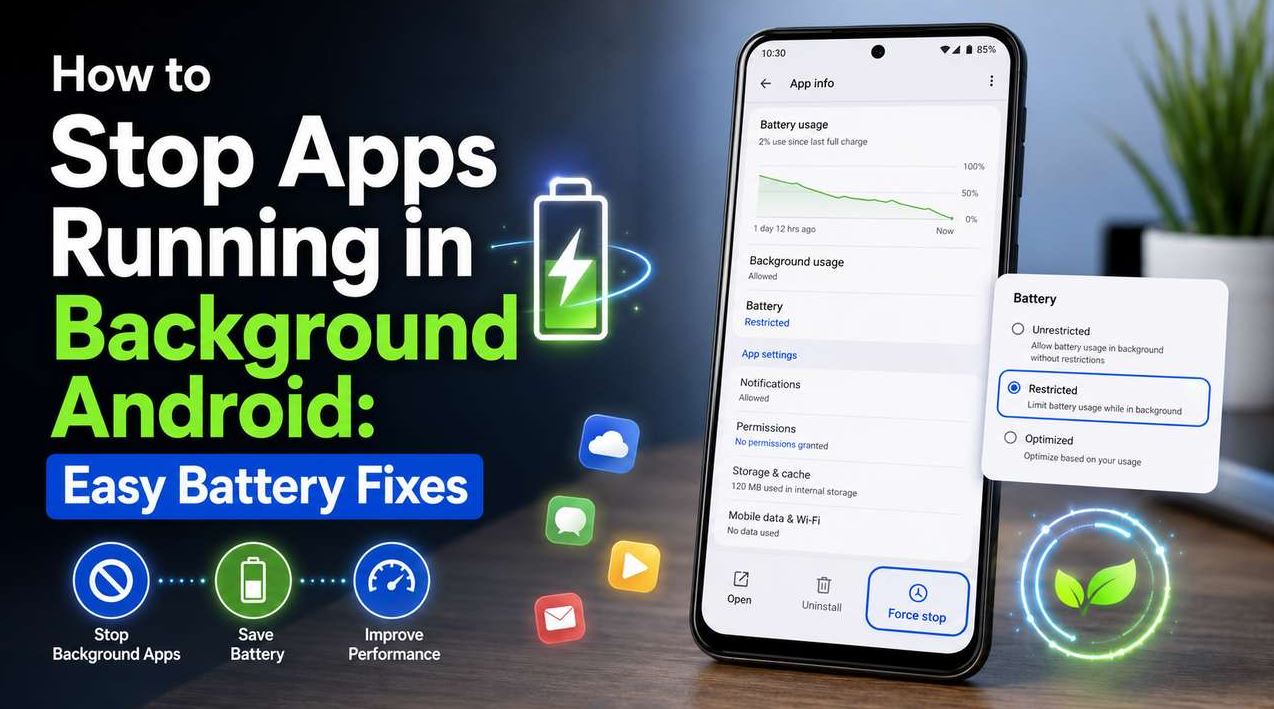
Adaptive Battery. Found under Settings > Battery > Adaptive Battery, this learns your usage patterns over time and limits background activity for apps you rarely use. It’s typically on by default on newer Android versions, but confirming it’s enabled is worth the few seconds it takes.
Battery Saver thresholds. Under Settings > Battery > Battery Saver, you can adjust at what percentage the phone automatically switches into a lower-power mode. The default threshold works for many users, but if you consistently find your phone dying before you expect it to, lowering this threshold — so Battery Saver kicks in earlier — can help.
Display and Accessibility Settings Worth Adjusting
Screen timeout. Under Settings > Display > Screen timeout, the default is often shorter than what many users find convenient, or in some cases longer than necessary for battery efficiency. This is a personal preference setting worth adjusting to match how you actually use the phone, rather than leaving it at whatever came pre-set.
Dark theme. Under Settings > Display > Dark theme, enabling this can reduce battery use on phones with OLED or AMOLED displays specifically (since these display types use less power to render black pixels), though the effect is less pronounced on LCD displays. It’s also a straightforward preference setting for readability in low-light conditions.
Font size and display size. Under Settings > Display > Font size and style (or a similarly named menu), new users sometimes don’t realize these are adjustable, and the default sizing doesn’t work equally well for everyone.
Accessibility features. Under Settings > Accessibility, options like TalkBack, magnification, color correction, and captioning are worth knowing exist, even if you don’t need them immediately, since Android’s accessibility settings are generally more extensive than most users initially assume from a quick glance.
Storage and Backup Settings to Confirm Are Working
Backup settings. Under Settings > System > Backup (or Settings > Google > Backup, depending on the device), confirm that backup is turned on and check what it actually covers — app data, call history, device settings, and photos are sometimes backed up through different systems (Google Photos handles photo backup separately from the general device backup, for example), so it’s worth understanding what is and isn’t included rather than assuming everything is covered by a single setting.
Google Photos backup quality and settings. If you use Google Photos, checking Settings > Backup within the app itself confirms whether backup is active and what quality setting is being used, since this affects both storage use on Google’s servers and, depending on your plan, potentially your device’s own storage through cached originals.
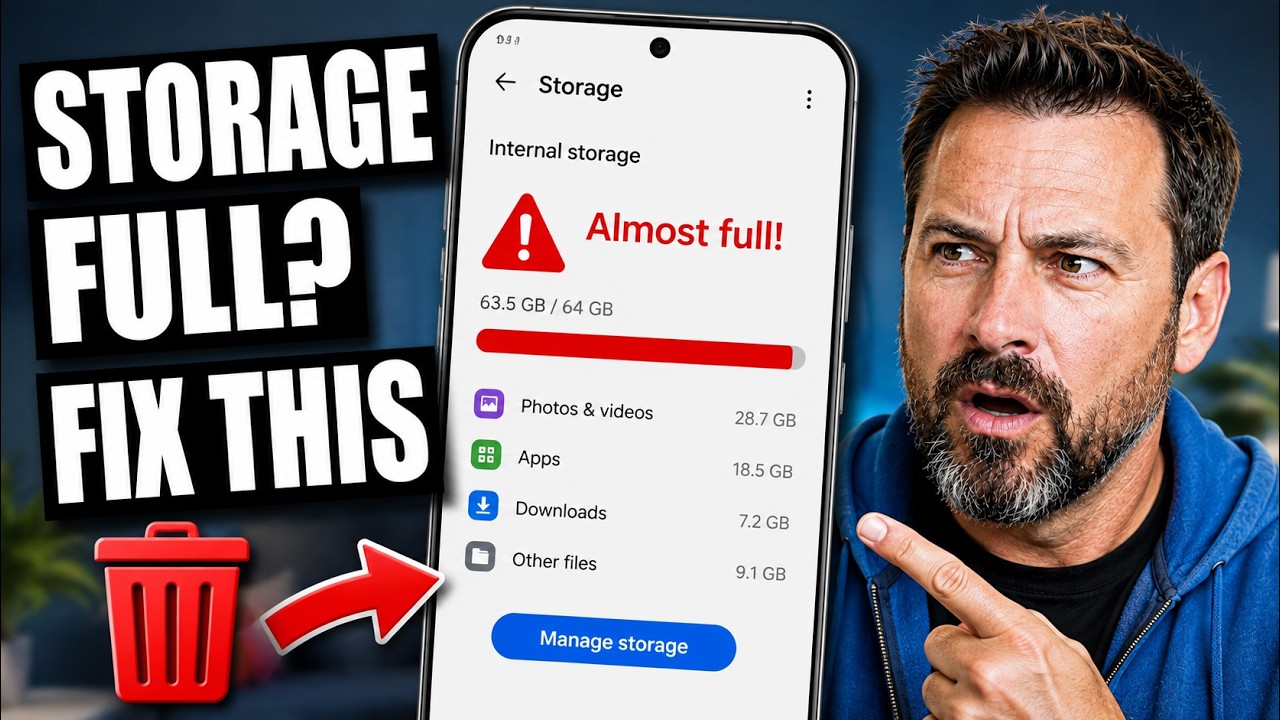
Storage overview. Under Settings > Storage, simply looking at this once during initial setup gives you a baseline for how much space your core apps and system take up before you start adding your own photos, apps, and files — useful context for noticing unusual growth later.
Notification Settings Worth Customizing
Per-app notification controls. Under Settings > Notifications > App notifications, you can control which apps can send notifications and how (banners, sounds, lock screen visibility) individually, rather than accepting whatever each app requested by default during installation. This is particularly useful for reducing notification overload from apps that request broad notification permissions but only occasionally send something you actually want to see.
Do Not Disturb schedules. Under Settings > Notifications > Do Not Disturb, you can set automatic schedules (for example, overnight) rather than needing to remember to enable it manually each time.
Common Mistakes New Users Make With Settings
Leaving default backup settings unconfirmed. Assuming photos and data are automatically backed up without checking is one of the most consequential assumptions to leave unverified, since it only becomes apparent that something wasn’t backed up after a loss has already happened.
Granting every permission requested during app setup without reviewing later. It’s common to tap “Allow” quickly to get past a setup screen without considering whether the permission is actually necessary — this is fine to revisit later, but worth doing rather than never returning to it.
Assuming all settings menus look the same across devices. Since manufacturer skins like Samsung’s One UI, Xiaomi’s MIUI/HyperOS, and others rename and reorganize some settings, searching for a setting by name using the search bar within the Settings app itself (available on virtually all Android devices) is often faster than hunting through menus that may be labeled differently than described in a general guide.
Ignoring Battery Saver and Adaptive Battery because “the phone seems fine.” These settings matter more once you’re a few months into ownership and battery capacity has started to age slightly, so setting them up correctly from the start avoids needing to troubleshoot battery complaints later.
Not setting up Find My Device until after a phone is already lost. This only works if it was enabled beforehand — it can’t be turned on remotely after the fact — making it one of the few settings on this list with a real time-sensitivity to setting it up early.
Frequently Asked Questions
Do I need to change all of these settings, or are the defaults fine? Many defaults are reasonable for average use, so this isn’t a checklist you need to fully complete. The settings most worth prioritizing are screen lock, Find My Device, and backup confirmation, since these have the most consequence if skipped; the rest are more about personal preference and fine-tuning.
Will changing battery settings affect how well my apps work? Adaptive Battery and Battery Saver are designed to reduce background activity without disabling core functionality, though very aggressive battery restriction on individual apps (a separate setting from what’s covered here) can delay notifications for specific apps. The general battery settings discussed in this article are lower-risk than manually restricting individual apps.
How do I find a specific setting if my phone’s menu looks different from what’s described here? Most Android phones include a search bar at the top of the Settings app itself, letting you search for a setting by name (like “backup” or “permissions”) rather than navigating manually through menus that may be organized differently depending on the manufacturer.
Is it necessary to set up two-factor authentication on my Google account specifically for Android, or is that separate from the phone? It’s managed through your Google account rather than the phone’s Settings app directly, but since your Google account is tied to so much of what the phone does — backups, Play Store purchases, Find My Device — securing it has a meaningful effect on the phone’s overall security even though the setting itself lives outside Settings.
Should I turn on Dark theme for battery savings even if I don’t prefer how it looks? The battery benefit is real but generally modest, and mainly applies to devices with OLED or AMOLED screens specifically. If you don’t like how Dark theme looks, the battery trade-off from leaving it off is unlikely to be significant enough to outweigh a display preference you’d be unhappy with daily.
Conclusion
None of the settings covered here require technical expertise, and none of them need to be changed the moment you unbox a new phone — but reviewing them within the first week of ownership, rather than months later after a problem surfaces, tends to prevent the most common regrets new Android users run into: lost photos with no backup, drained battery with no clear cause, or a lost phone with Find My Device never turned on. A short initial review saves considerably more time than troubleshooting these issues after the fact.