
Missing calls without any indication of what happened — no missed call notification, no voicemail, sometimes not even a ring — is one of the more disruptive Android problems, because it can go unnoticed until someone mentions they couldn’t reach you. Unlike issues with apps or Wi-Fi, this touches the phone’s core calling function, and the cause can be anything from a simple setting to a carrier-side issue outside the phone entirely.
This guide walks through how to identify what’s actually causing missed or blocked calls, then how to fix it, organized from the most common and easiest-to-check causes to the less common ones.
Step 1: Check Do Not Disturb and Call Blocking Settings
This is the most common cause, and it’s easy to overlook because it doesn’t always feel like an active setting — it’s easy to enable Do Not Disturb once and forget it’s on.
Do Not Disturb. Go to Settings > Notifications > Do Not Disturb (or Settings > Sound & vibration on some devices), and confirm it isn’t currently active, or check its schedule if it turns on automatically. Depending on how it’s configured, Do Not Disturb can silence incoming calls entirely or send them straight to voicemail without the phone ringing at all.
Blocked numbers. Go to Settings > Apps > Phone > Blocked numbers (the exact path varies — on some devices it’s within the Phone app itself under its own settings menu). If a specific number or contact isn’t reaching you, confirming they haven’t been accidentally added to your blocked list is worth checking before assuming a broader problem.
Call screening or spam filtering. Many Android phones and carriers include a spam-filtering feature that can silently route calls it flags as likely spam to voicemail without notifying you. Check your Phone app’s own settings for something labeled “Caller ID & spam” or similar, and review whether a legitimate number was mistakenly filtered.
Step 2: Check Airplane Mode and Signal Status
This sounds obvious, but it’s a common cause specifically because airplane mode can be toggled on accidentally — for example, through a Quick Settings tile tapped by mistake — without an obvious indication depending on how you use your phone.
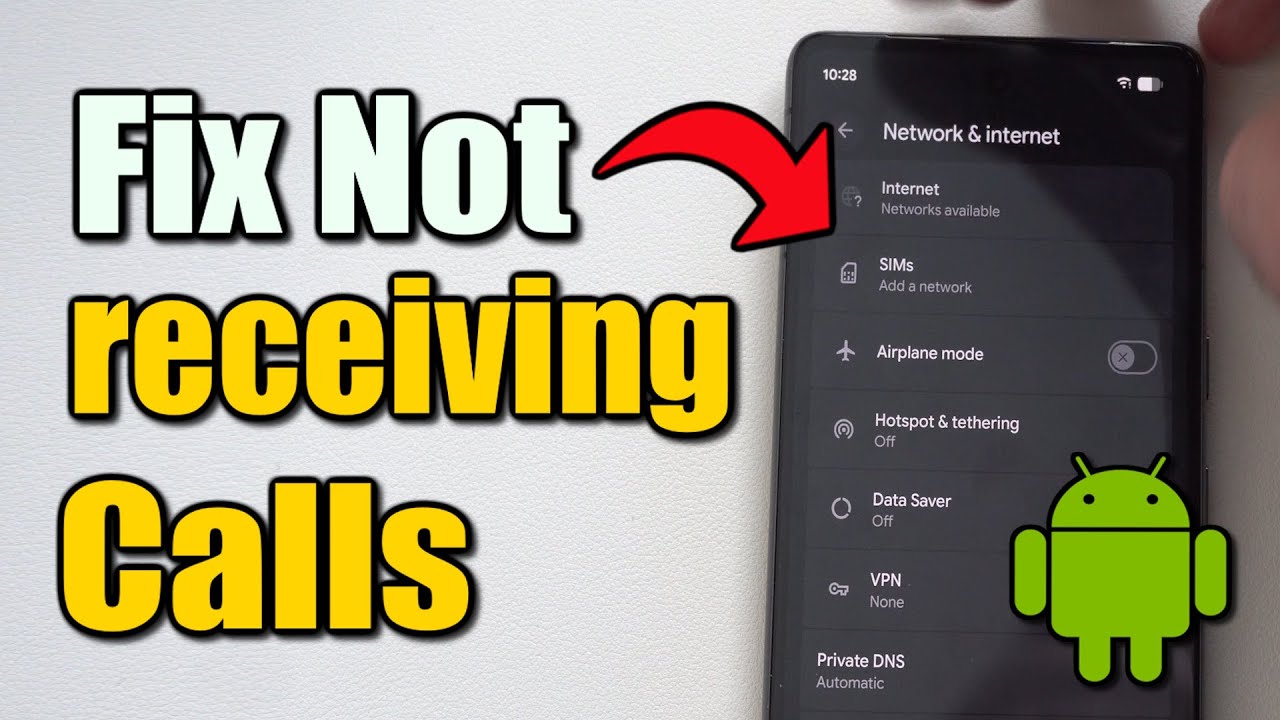
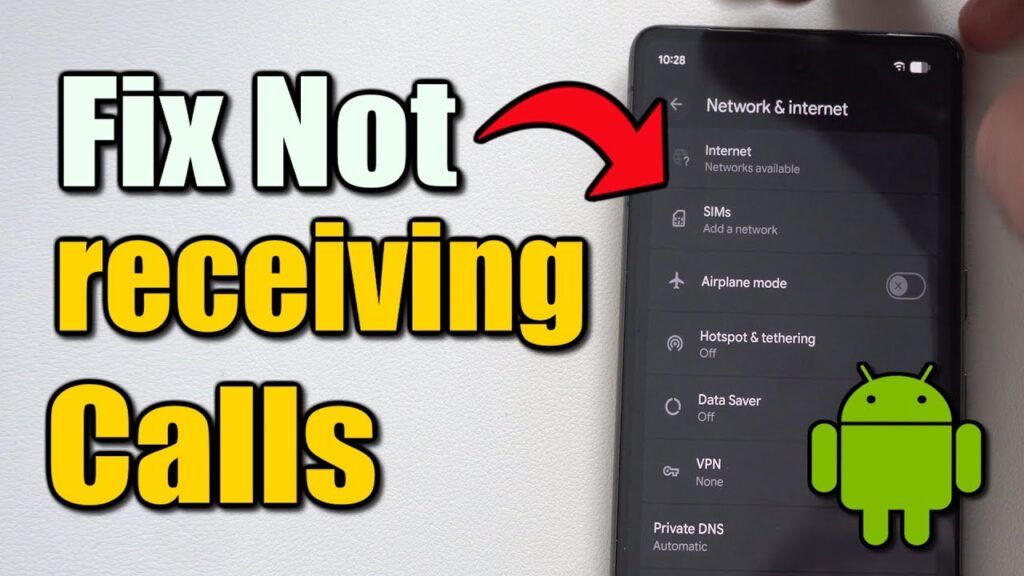
Confirm airplane mode is off under Settings > Network & internet > Airplane mode, or by checking the airplane icon in your status bar. Separately, check your signal strength indicator; a phone with no or extremely weak cellular signal can fail to receive calls even with every setting configured correctly, simply because there’s no connection to the carrier’s network to deliver the call.
Step 3: Check Call Forwarding Settings
Call forwarding, if enabled — sometimes accidentally, through a code entered by mistake, or occasionally through a previous phone setup that wasn’t fully reset — redirects incoming calls to a different number entirely, meaning your phone genuinely never rings.
Go to Settings > Apps > Phone > Calling accounts (or within the Phone app’s own settings, often labeled “Call forwarding” specifically), and confirm call forwarding is turned off unless you set it up intentionally for a specific reason.
A detail worth knowing: Call forwarding can sometimes be configured directly through a carrier code (a specific number sequence dialed like a phone number) rather than through the phone’s own settings menu, meaning it may not always show clearly within Android’s settings depending on how it was originally set up. If you suspect this but don’t see an obvious forwarding setting, contacting your carrier to confirm whether forwarding is active on your line is a reasonable next step.
Step 4: Check SIM Card Status
A SIM card that’s become loose, damaged, or not properly recognized by the phone can cause missed calls, sometimes intermittently rather than consistently, which makes this cause easy to miss during troubleshooting since the phone may otherwise appear to work normally.
Check whether your phone shows a signal bar and carrier name in the status bar at all. If it shows “No SIM” or an unusually weak signal that doesn’t match your typical experience in that location, powering off the phone, removing and reinserting the SIM card carefully, and restarting can resolve a loose connection. If your phone uses an eSIM rather than a physical SIM, this specific step doesn’t apply, but checking your eSIM’s active status under Settings > Network & internet > SIM is the equivalent check.
Step 5: Check for App Conflicts (Especially Third-Party Dialer or Call-Blocking Apps)
If you’ve installed a third-party dialer, call recorder, or spam-blocking app, it’s possible for that app to be intercepting calls in a way that prevents your phone’s default calling behavior from working correctly — either through a bug in the app or a permission conflict with the phone’s built-in Phone app.
Check whether the issue started around when you installed a specific call-related app, and if so, try temporarily disabling or uninstalling it to see whether normal call reception resumes. If it does, the app is the cause, and checking for an update to that app (or reporting the issue to its developer) is the more targeted next step, rather than continuing to check phone-wide settings.
Step 6: Restart the Phone
If none of the specific settings above explain the issue, a full restart is worth trying, since it clears any stuck background process related to the phone’s cellular or calling service that a targeted settings check wouldn’t necessarily catch.
Step 7: Check for a Carrier-Side Issue
If you’ve checked every phone-side setting and calls still aren’t coming through, the cause may be with your carrier rather than the phone itself:
- A network outage in your area, which your carrier’s status page or customer support line can confirm.
- An account issue, such as a billing problem or plan restriction affecting incoming calls specifically — this is less common than other causes but worth ruling out if nothing phone-side explains the issue.
- A porting issue, if you recently switched carriers or phones, where your number wasn’t fully transferred and calls may still be routing to a previous device or carrier temporarily.
These require contacting your carrier directly, since they aren’t something that can be diagnosed or fixed through the phone’s own settings.
Common Mistakes to Avoid
Assuming missed calls always mean the caller didn’t actually call. Since a call routed to voicemail through Do Not Disturb, spam filtering, or call forwarding may never register as a “missed call” the way a normal unanswered ring would, it’s worth checking these settings even if your call log doesn’t clearly show the call attempt.
Overlooking Do Not Disturb’s specific call-handling settings. Do Not Disturb often has separate, more granular settings for how it handles calls specifically (versus notifications generally), including an option to allow repeat callers through — checking these specific call-related settings, not just whether Do Not Disturb is on or off, gives a fuller picture.
Not checking spam/caller ID filtering as a distinct setting from Do Not Disturb. These are separate systems that can each independently prevent a call from reaching you normally, and it’s possible to have one correctly configured while the other is the actual cause.
Assuming a SIM card issue only happens after physical damage. A SIM can become loose or lose proper contact with the phone’s SIM tray simply through normal handling over time, without any dramatic incident causing it — this is worth checking even if you can’t recall anything that would have specifically damaged it.
Not considering a recently installed app as a possible cause. Since third-party call-related apps can occasionally interfere with normal calling behavior, ruling this out (Step 5) is worth doing, particularly if the issue started around the same time as installing a new call-related app, rather than assuming it must be a phone or carrier issue.
When It Might Not Be Fixable From the Phone Alone
Some causes genuinely require your carrier’s involvement rather than phone-side troubleshooting:
- Confirmed network outages affecting calls in your area specifically.
- Account-level restrictions tied to your specific plan or billing status.
- Number porting issues, particularly in the days immediately following a carrier or phone switch.
In these cases, phone-side settings won’t resolve the issue regardless of how thoroughly they’re checked, and contacting your carrier directly is the appropriate next step.
Frequently Asked Questions
Why would my phone not ring at all, with no notification of a missed call? This typically points to Do Not Disturb, spam call filtering, or call forwarding — all of which can redirect or silence a call before it reaches your phone’s normal ringing behavior, sometimes without leaving an obvious trace in your call log. Checking these three settings specifically (Step 1 and Step 3) usually identifies the cause.
Could a specific person’s calls be blocked without me realizing it? Yes — checking your blocked numbers list (Step 1) confirms whether a specific contact was added, intentionally or accidentally. This is worth checking if the issue is isolated to one particular caller rather than affecting calls broadly.
Is it common for a SIM card to cause intermittent call issues rather than a complete failure? Yes, a loose or partially recognized SIM card can cause inconsistent behavior rather than a total loss of signal, which is part of why this cause is sometimes overlooked — the phone may still show a signal and work normally most of the time, making the SIM connection easy to rule out incorrectly without specifically checking it.
How do I know if the problem is my phone or my carrier? If someone else with a different phone on the same carrier is also having trouble reaching people, or if your phone shows no signal or “No SIM” in the status bar despite being in an area with normally reliable coverage, this points toward a carrier-side issue. If the phone shows a strong signal and everything appears normal but calls still don’t come through, it’s more likely a phone-side setting.
Can a recently installed app really interfere with something as basic as receiving calls? Yes, particularly apps designed to handle calls directly, like third-party dialers, call recorders, or spam blockers, since these request permissions and access related to your phone’s core calling function specifically. This is less likely with unrelated apps (like a game or a photo editor), which generally don’t have any interaction with call handling.
Should I contact my carrier or troubleshoot the phone first? Checking phone-side settings first (Do Not Disturb, blocked numbers, call forwarding, airplane mode) is worth doing before contacting your carrier, since these are faster to check and resolve the majority of cases. If none of these explain the issue, or if you suspect a carrier-side problem specifically (like a known outage), contacting your carrier directly is the appropriate next step.
Conclusion
Missed or blocked calls on Android almost always trace back to a specific, identifiable cause: an active Do Not Disturb setting, a blocked number, call forwarding, a SIM connection issue, or occasionally a conflicting third-party app. Working through these settings in order — starting with Do Not Disturb and call blocking, since they’re the most common causes — resolves the large majority of cases without needing to involve your carrier. If everything on the phone checks out and the problem persists, a carrier-side issue is the more likely remaining explanation.