
The panic of realizing you can’t find your phone is made worse by the fact that your phone is often the tool you’d normally use to solve exactly this kind of problem. Fortunately, Android includes a built-in way to locate a lost or misplaced device using any other device with internet access — a browser, a tablet, or a friend’s phone — provided a few settings were already turned on beforehand.
This guide covers how to actually locate a lost Android phone, what to do depending on whether it’s nearby or genuinely missing, and what to set up now so you’re prepared if this happens again.
The Tool You Need: Find My Device
Google’s built-in tool for this is called Find My Device, and it works by using your Google account to locate any Android phone that’s signed into that account, has location services enabled, and has an internet connection (either Wi-Fi or mobile data).
Important: This only works if Find My Device was turned on before the phone was lost. It cannot be enabled remotely after the fact. If you’re reading this because your phone is already missing and you’re not sure whether this was set up, skip to the “If Find My Device Wasn’t Set Up” section below.
How to Use Find My Device to Locate Your Phone
You can access Find My Device in two ways:
From a web browser on any device: Go to android.com/find and sign in with the same Google account used on your lost phone.
From another Android phone or tablet: Open the Find My Device app (available on the Google Play Store if not already installed) and sign in with the same Google account.
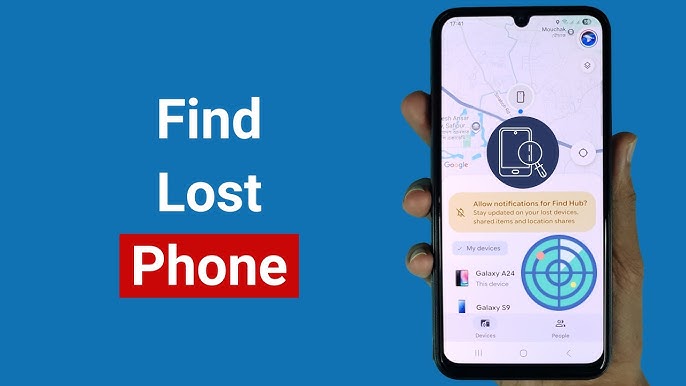
Once signed in, if your lost phone is on and connected to the internet, you’ll see its approximate location on a map, along with a few available actions:
- Play Sound. This makes the phone ring at full volume for about five minutes, even if it’s set to silent or vibrate — useful if the phone is nearby, such as somewhere in your home, but you can’t see it.
- Secure Device (sometimes labeled Lock Device). This locks the phone with your existing screen lock (or lets you set one if none was configured) and can display a message and contact number on the lock screen for whoever finds it.
- Erase Device. This permanently deletes all data on the phone. This is a last-resort option, since once triggered, Find My Device generally can no longer track the phone’s location afterward — only use this if you’re confident the phone won’t be recovered and you’re prioritizing protecting your data over the possibility of getting the device back.
What to Do Based on the Situation
If the Phone Is Likely Nearby (Lost at Home or a Familiar Place)
Use Play Sound first. This is the fastest way to locate a phone that’s simply misplaced somewhere in a house, car, or office, since it overrides silent or vibrate mode.
If the Phone Was Left Somewhere Specific (a Restaurant, Store, or Friend’s House)
Check the location shown in Find My Device to confirm where it is, then contact the location directly if possible, since staff or the friend may already have it. If the location shown is moving (indicating someone may have picked it up and left with it), this is a different situation — proceed to the next section.
If the Phone May Have Been Stolen or Taken
If the location shown is moving away from where you last had it, or somewhere you don’t recognize, don’t attempt to physically go there and confront anyone. Use Secure Device to lock the phone and display a contact message, which protects your accounts and data while leaving a way for the phone to be returned if it was found rather than stolen. If you’re confident it was stolen, contacting local law enforcement with the phone’s location details from Find My Device is the appropriate next step, rather than personally attempting recovery.
If the Phone Shows as Offline or Can’t Be Located
If Find My Device can’t show a current location, this typically means the phone is turned off, out of battery, or doesn’t have an internet connection at the moment. In this case, Find My Device will often show the last known location before it went offline, which is still useful information even if it’s not real-time. Some devices also support a feature that allows the phone to be located even when it’s offline in certain circumstances, using Bluetooth signals shared anonymously between nearby devices, though availability and specifics of this depend on your device and Android version — check your device manufacturer’s official support documentation for confirmation of what’s supported on your specific phone.
If Find My Device Wasn’t Set Up
If Find My Device wasn’t previously enabled, or you’re not sure whether it was, unfortunately there’s no way to activate location tracking remotely after the phone is already lost — this requires the setting to have been turned on in advance. In this situation:
- Contact your mobile carrier. They can suspend your SIM card to prevent unauthorized calls or data usage on your line, even if they can’t help locate the phone itself.
- Change your Google account password and review account activity, since anyone with access to an unlocked phone could potentially access accounts signed in on it. This can be done from any other device by going to your Google Account settings.
- Check whether the phone had a screen lock enabled. If it did, whoever has the phone likely can’t access your data even without Find My Device’s remote lock feature, which somewhat limits the immediate risk.
- Report it to local authorities if you believe it was stolen rather than simply lost, providing the phone’s IMEI number if you have it recorded (often found on the original box or receipt, or through your carrier’s account records).
Setting Up Find My Device Now (Before You Need It)
Since this only works if configured in advance, setting it up now — regardless of whether you’ve lost a phone before — is worth doing immediately if you haven’t already.
Go to Settings > Security (or Settings > Google > Find My Device, depending on the manufacturer), and confirm Find My Device is turned on. You’ll also want to confirm:
- Location is enabled under Settings > Location, since Find My Device relies on this to show an accurate position.
- A screen lock is set up (PIN, pattern, password, or biometric), since this protects your data even before you’re able to remotely secure the phone through Find My Device.
- You’re signed into a Google account on the device, since Find My Device is tied to that account specifically.
Common Mistakes to Avoid
Assuming Find My Device works if the phone is off or has no signal. Location tracking requires the phone to be on and connected to the internet; if it’s off or the battery has died, you’ll only see its last known location before it went offline, not real-time tracking.
Using Erase Device too early. Since erasing the phone typically ends the ability to track its location afterward, it’s worth trying Secure Device first, especially if there’s still a reasonable chance the phone will be found or returned. Erasing is best reserved for situations involving sensitive data and little realistic chance of recovery.
Confronting someone in person based on a tracked location. If a phone’s location suggests it was taken rather than lost, involving local authorities is the safer approach rather than personally going to the shown location, since the situation and the safety risk involved aren’t something Find My Device’s location data alone can fully clarify.
Forgetting that Find My Device is tied to the Google account, not just the phone. If you’re trying to locate a family member’s phone, you’ll need to sign in with their Google account specifically, not your own, since Find My Device shows devices linked to the account you’re currently signed into.
Not setting up Find My Device until after a phone is already lost once. This is the most consequential mistake on this list, precisely because it can’t be corrected after the fact — setting it up now, before it’s needed, is the only way to ensure it’s available if this happens again.
When Find My Device Might Not Help
Even with everything set up correctly, there are situations where this tool has limits:
- If the phone’s battery has fully died, it can no longer report its location, and you’ll only see the last location before it lost power.
- If someone resets the phone to factory settings, Find My Device’s tracking generally stops working from that point (though Android includes Factory Reset Protection, which can prevent someone from fully setting up the phone under a different account without your original Google credentials, adding a layer of protection even if tracking itself is lost).
- If mobile data and Wi-Fi are both disabled on the phone, it can’t communicate its location even if it’s otherwise powered on.
Frequently Asked Questions
Does Find My Device work if my phone is turned off? No, real-time tracking requires the phone to be on and connected to the internet. If it’s off, Find My Device shows the last known location recorded before it went offline, which can still be useful information even if it isn’t current.
Can I set up Find My Device after my phone is already lost? No — this needs to be enabled beforehand while you still have access to the phone’s settings. If it wasn’t set up in advance, Find My Device won’t be able to help locate that specific device, though the account protection and carrier steps described above are still worth taking.
Will erasing my lost phone remotely delete everything, including things backed up to my Google account? Erasing the phone deletes data stored locally on the device itself. Anything already backed up to your Google account (like contacts, photos backed up via Google Photos, or app data included in Google’s backup service) remains safe in your account and isn’t affected by erasing the physical device.
What’s the difference between Find My Device and Factory Reset Protection? Find My Device is the tool you actively use to locate, lock, or erase a lost phone. Factory Reset Protection is a separate, automatic security feature that prevents someone from fully setting up your phone under a new account after a factory reset, unless they know your original Google account credentials — it works even if Find My Device tracking itself has stopped.
Can someone else track my phone without my knowledge using Find My Device? Find My Device requires signing into the specific Google account associated with the phone, so someone without your Google account credentials generally can’t use this tool to track your device. If you’re concerned about unauthorized account access more broadly, reviewing your Google Account’s security settings and recent activity is a reasonable additional step.
Does this work the same way on every Android phone? The core Find My Device feature works across virtually all Android phones with Google Play Services, though some manufacturers include their own additional device-tracking features alongside it (for example, some Samsung devices offer a similar “Find My Mobile” service tied to a Samsung account rather than Google’s). Checking your specific device manufacturer’s support documentation can clarify whether an additional manufacturer-specific option is also available to you.
Conclusion
Find My Device is the most direct way to locate a lost Android phone, but it only works if it was set up before the phone went missing — which makes taking a few minutes to confirm it’s enabled right now, before you need it, one of the more useful things you can do for your phone’s security. If you’re currently dealing with a lost phone and Find My Device wasn’t previously set up, focusing on securing your accounts and contacting your carrier is the most productive path forward, since remote tracking itself isn’t something that can be activated after the fact.