
Is your Android phone starting to feel sluggish? Apps taking forever to open, the screen freezing mid-scroll, or the battery draining before noon — these are frustrating signs that your phone needs attention.
The good news is that you do not always need to buy a new device. In most cases, a few smart changes can make your Android phone noticeably faster, smoother, and more responsive. Whether you own a budget phone or a flagship model from a couple of years ago, the tips in this guide apply to you.
This article covers everything from clearing junk files to adjusting system settings, all explained in plain, beginner-friendly language. No technical background required.
What Does “Speeding Up an Android Phone” Actually Mean?
When people say their phone is slow, they usually mean one of a few things: apps take too long to load, the interface feels laggy when swiping between screens, videos buffer unnecessarily, or the phone heats up quickly under light use.
Speeding up an Android phone means reducing these delays by freeing up RAM, clearing storage clutter, stopping background processes, and making sure the software is running efficiently. It is not about overclocking hardware or using risky third-party tools. It is about smart maintenance — similar to how you would keep a computer running smoothly.
In 2026, Android phones come with more powerful processors and larger RAM than ever before. But even the best hardware slows down when storage is full, too many apps run in the background, or the operating system has not been optimized in months.
Why Android Phones Slow Down Over Time
Understanding the cause helps you fix the problem properly. Here are the most common reasons Android phones slow down:
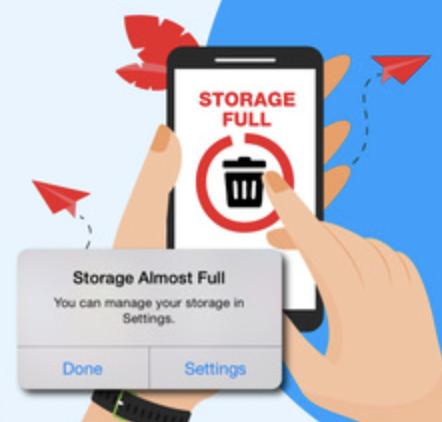
- Storage getting too full: When your internal storage is more than 80 percent full, Android has less space to manage temporary files, which causes noticeable slowdowns.
- Too many background apps: Apps running silently in the background consume RAM and battery, leaving fewer resources for the apps you are actually using.
- Outdated software: An old version of Android or outdated apps can have performance bugs that have since been fixed in newer updates.
- Cache buildup: Over time, cached data from apps can become corrupted or bloated, slowing things down.
- Animations and visual effects: These look nice but consume processing power, especially on older or mid-range devices.
- Malware or adware: Malicious apps secretly running in the background can drain both resources and battery life.
Key Benefits of Optimizing Your Android Phone
Taking time to optimize your phone regularly offers more than just speed improvements. Here is what you gain:
Better battery life: When fewer processes run in the background and animations are reduced, your battery lasts significantly longer throughout the day.
Cooler device temperature: An overloaded phone runs hot. Freeing up resources helps manage heat, which also protects the processor and battery over time.
More storage space: Clearing out junk files, cached data, and unused apps frees up gigabytes of space you did not know you had.
Improved app performance: Apps respond faster, crash less frequently, and load content more quickly when the system has the resources they need.
Extended phone lifespan: A well-maintained phone can stay useful for years beyond what most people expect, saving you money.
How to Speed Up Your Android Phone: Step-by-Step
Step 1: Free Up Internal Storage
Start by checking how much storage you have left. Go to Settings, then Storage, and look at what is taking up the most space.
Delete photos and videos you no longer need, or move them to Google Photos or another cloud service. Uninstall apps you have not opened in the past month. Clear downloaded files from your Downloads folder.
A good rule of thumb is to keep at least 15 to 20 percent of your storage free at all times. For a 128 GB phone, that means keeping around 20 to 25 GB available.
Step 2: Clear App Cache
Cached data helps apps load faster initially, but over time it builds up and can actually slow things down. Clearing it regularly is safe and often provides an immediate speed boost.
Go to Settings, then Apps. Select any app that feels slow, tap Storage, and then tap Clear Cache. You do not need to clear the data — just the cache. Do this for your browser, social media apps, and streaming apps especially.
Step 3: Reduce or Disable Animations
This is one of the most effective tricks most people do not know about. Android uses animations when you open apps, switch between screens, or navigate menus. Reducing these makes the phone feel dramatically faster.
To access this setting, go to Settings, then About Phone, and tap Build Number seven times to unlock Developer Options. Then go back to Settings, find Developer Options, and look for Window Animation Scale, Transition Animation Scale, and Animator Duration Scale. Set all three to 0.5x or turn them off entirely.
The difference is immediate and noticeable on almost any Android device.
Step 4: Manage Background Apps
Android is generally good at managing background apps, but some apps are notorious for running constantly and consuming resources.
Go to Settings, then Battery, and look for battery usage by app. If you see apps consuming battery in the background that you rarely use, restrict their background activity. You can also go to Settings, then Apps, select an app, go to Battery, and choose Restricted.
Be careful not to restrict apps that genuinely need background access, like messaging apps or navigation tools.
Step 5: Update Android and Your Apps
Software updates are not just about new features. They often include performance improvements, bug fixes, and security patches that directly affect how fast your phone runs.
Go to Settings, then System, then System Update to check for the latest Android version. To update apps, open the Google Play Store, tap your profile icon, and select Manage Apps and Device.
Keeping both the OS and apps updated is one of the simplest and most overlooked ways to maintain performance.
Step 6: Use Lite Versions of Heavy Apps
Many popular apps — Facebook, Messenger, LinkedIn — have Lite versions available on the Play Store. These are designed to use less RAM, less storage, and less battery. If you use these apps regularly but notice they slow your phone down, switching to the Lite version can make a real difference.
Step 7: Restart Your Phone Regularly
This sounds almost too simple, but it works. Restarting clears the RAM, stops background processes, and gives your phone a fresh start. If you never restart your phone, temporary files and processes accumulate over days or weeks.
Aim to restart your phone at least once or twice a week.
Step 8: Check for Malware
Unexpected slowdowns, excessive battery drain, and strange pop-ups can be signs of malware. Use a reputable security app like Malwarebytes or Bitdefender Mobile Security (available on the Play Store) to run a scan.
Avoid installing apps from unknown sources, and regularly review the apps you have installed to remove anything suspicious.
Step 9: Factory Reset as a Last Resort
If your phone is still slow after trying everything else, a factory reset returns it to its original state. This erases all data, apps, and settings, so back everything up first using Google Backup or a manual backup to your computer.
A factory reset is particularly effective on phones that have been in use for three or more years. It can genuinely feel like a brand new device afterward.
Advantages and Limitations of These Methods
Advantages
These methods are free, safe, and do not require any technical skills. Most of them take only a few minutes and produce results you can feel immediately. They work on virtually all Android devices regardless of brand or age — Samsung, OnePlus, Xiaomi, Motorola, and others.
They also address the root causes of slowdown rather than masking them, which means the improvements tend to last as long as you maintain the habits.
Limitations
Not all slowdowns can be fixed with software changes. If your phone’s processor or RAM is genuinely underpowered for today’s apps and operating systems, optimization can improve performance but cannot work miracles. A five-year-old entry-level phone will still feel limited compared to a current mid-range device.
Similarly, if your phone’s battery has degraded significantly, replacing it (through an authorized service center) may be the only meaningful fix for battery-related slowdowns.
Best Practices to Keep Your Android Phone Fast Long-Term
Follow these habits consistently and your phone will stay fast for much longer:
Regularly delete apps you no longer use. Most people have dozens of apps they installed once and never opened again. Do a monthly cleanup.
Use streaming instead of downloading. If your storage allows, streaming music and video uses less local space than downloading everything.
Avoid using task killer apps. Contrary to popular belief, most task killer apps do not improve performance. Android manages memory efficiently on its own, and these apps can actually cause slowdowns by forcing apps to restart constantly.
Keep your home screen simple. Heavy live wallpapers and excessive widgets consume RAM and slow down the home screen. A clean setup performs better.
Monitor your storage monthly. Set a reminder to check your storage once a month so it never gets critically full.
Enable Adaptive Battery. This Android feature (found in Settings under Battery) learns which apps you use most and limits background activity for the rest. It is one of the best built-in tools for long-term performance.
Common Mistakes to Avoid
Clearing app data instead of app cache: Clearing data removes your login information, preferences, and saved progress. Only clear cache unless you specifically need to reset an app entirely.
Installing RAM booster or cleaner apps: These are almost universally ineffective and often contain adware. Android does not need third-party RAM boosters.
Disabling core system apps: In Developer Options, some people disable system apps thinking it frees up resources. This can break essential phone functions. Only modify settings you clearly understand.
Ignoring software updates: Many people avoid updates fearing they will slow down their phone. In 2026, Android updates are generally well-optimized and tend to improve performance, not hurt it.
Running too many widgets: Widgets refresh constantly and consume background resources. Keep only the widgets you actively check every day.
Using an outdated Android version: Older Android versions miss out on memory management improvements that can significantly affect day-to-day performance.
Frequently Asked Questions
Does clearing the cache delete my personal data or photos?
No. Clearing the app cache only removes temporary files that the app created to load faster. It does not delete your photos, messages, login information, or any personal data. It is completely safe to do regularly.
How often should I optimize my Android phone?
A light monthly maintenance routine is sufficient for most users. This includes clearing cache, reviewing installed apps, and checking storage. A deeper optimization — like reviewing background app permissions — can be done every three to six months.
Will reducing animations break anything on my phone?
Not at all. Reducing or disabling animations only affects the visual transitions on your screen. The phone works exactly the same way — apps open, close, and function normally. The only difference is that transitions happen faster or instantly.
Is it safe to enable Developer Options on Android?
Yes, enabling Developer Options does not harm your phone. However, you should only change settings you understand. The animation scale settings mentioned in this article are completely safe. Avoid experimenting with other Developer Options settings unless you know what they do.
Why does my phone slow down even after clearing storage?
Storage is one factor, but not the only one. If clearing storage did not help significantly, check for background apps consuming RAM, review recent app updates (an app update sometimes introduces performance bugs), and consider whether a software update is available for your device.
Does a factory reset really help speed up an old phone?
Yes, in most cases it makes a significant difference. Over years of use, phones accumulate fragmented data, lingering background processes, and software conflicts. A factory reset eliminates all of that. Just ensure you back up your data first, since the reset erases everything on the device.
Conclusion
Speeding up your Android phone in 2026 does not require any special software, technical knowledge, or expensive repairs. It comes down to regular maintenance and a few smart settings changes that most people have never tried.
Start with the basics — free up storage, clear your app cache, and restart your phone regularly. Then go a step further by reducing animations, managing background apps, and keeping your software updated. These steps together can transform a sluggish device into one that feels sharp and responsive again.
The key is consistency. A phone that is well-maintained over months and years will outperform a neglected device with better hardware. Think of it the same way you would think about maintaining any tool you depend on every day.
If you found this guide helpful, explore further articles on Android tips, battery optimization, and getting the most from your device — no matter how old it is.