
If you have ever been deep into a mobile game — just about to win a match or reach a new level — and your phone suddenly drops to 5% battery, you know exactly how frustrating that feels. Gaming is one of the most power-hungry activities you can do on a smartphone, and without the right setup, your battery drains faster than you might expect.
The good news is that there are several smart, practical ways to extend your gaming sessions without needing to plug in every hour. This article covers everything from display settings and app management to battery modes and hardware habits that genuinely make a difference. Whether you are a casual player or someone who games for hours every day, these tips will help you get more out of every charge.
What Does “Saving Battery While Gaming” Actually Mean?
Saving battery while gaming on Android does not mean switching off your phone or lowering settings so much that the game becomes unplayable. It means finding the right balance between performance and power consumption.
When you play a game, your processor, GPU, screen, network chip, and speakers all run at the same time. Each one draws power. The goal is to reduce the load on components that are not critical to your gameplay — without ruining the experience.
Think of it like driving a car. You cannot turn off the engine, but you can avoid blasting the air conditioning, carrying unnecessary weight, or flooring the accelerator at every light. The result is a longer, smoother ride.
Why Does Gaming Drain Android Battery So Fast?
Before diving into solutions, it helps to understand what is actually happening under the hood when you game.
High-performance games push your phone’s CPU and GPU to their limits. The processor handles game logic, physics, and AI, while the GPU renders all the visuals. Both components generate heat and consume a significant amount of power.
On top of that, your screen is usually at its brightest, your speakers or headphones are active, and if you are playing online, your mobile data or Wi-Fi radio is constantly sending and receiving information. Location services, background app refresh, and push notifications add even more to the load.
All of this combined is why a phone that lasts 12 hours on normal use might only give you 3 to 4 hours of gaming.
Key Factors That Affect Battery Life During Gaming
Understanding these factors helps you know exactly where to focus your energy-saving efforts.
Display Brightness: The screen is often the single biggest battery drain on a smartphone. Gaming at full brightness can account for 30 to 40 percent of total battery usage in some cases.
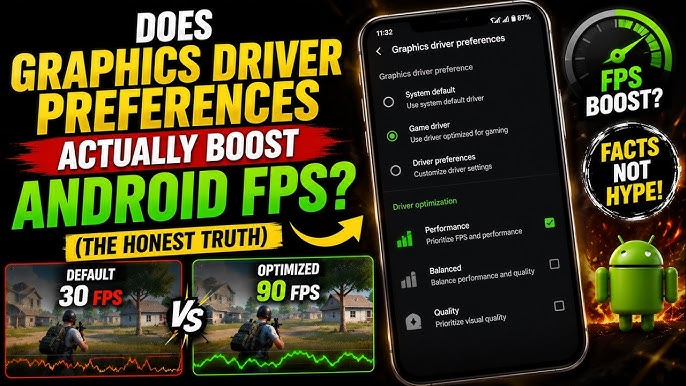
Graphics and Frame Rate Settings: Higher frame rates, like 60fps or 90fps, and high-resolution graphics modes demand more from the GPU. This directly translates to faster battery drain.
Network Activity: Online games constantly communicate with servers. Mobile data uses more power than Wi-Fi in most scenarios, and a weak signal forces the radio chip to work even harder.
Background Apps: Apps running silently in the background — whether refreshing content, sending notifications, or syncing data — still consume battery even while you are gaming.
Screen-On Time: The longer you play, the more total battery is consumed. While this is obvious, optimizing the above factors means you can game for longer before the battery runs low.
How to Save Battery While Gaming on Android: Step-by-Step
Here are the most effective methods, explained clearly so anyone can apply them.
1. Lower Your Screen Brightness
Go to your notification shade or display settings and reduce brightness to a comfortable level. You do not need full brightness unless you are gaming outdoors in direct sunlight. Even dropping from 100% to 60% can meaningfully extend your session.
Enable adaptive brightness if your phone supports it, but consider setting a lower baseline manually for gaming sessions.
2. Enable Battery Saver or Game Mode
Most Android phones come with a built-in Battery Saver mode. Activating this limits background activity, reduces visual effects, and can lower screen refresh rates. Some phones even have a dedicated Gaming Mode that balances performance with battery efficiency.
On Samsung devices, look for Game Booster settings. On OnePlus, check Game Space. Xiaomi has a Game Turbo feature. These tools are designed specifically for mobile gaming and often include battery optimization options.
3. Reduce In-Game Graphics Settings
Open the settings menu inside your game and lower the graphics quality, shadow detail, or rendering resolution. Most games offer options like Low, Medium, and High settings. Switching from High to Medium often has a minimal visual impact but noticeably reduces GPU load.
Also consider capping the frame rate. If a game supports 90fps, dropping to 60fps or even 30fps for less action-heavy moments saves a measurable amount of power.
4. Switch to Wi-Fi Instead of Mobile Data
If you have access to a reliable Wi-Fi network, always prefer it over mobile data when gaming online. Wi-Fi consumes less power in most situations, especially when the signal is strong. Mobile data, particularly 5G in areas with inconsistent coverage, forces the radio to constantly search for and maintain a connection, which burns through battery quickly.
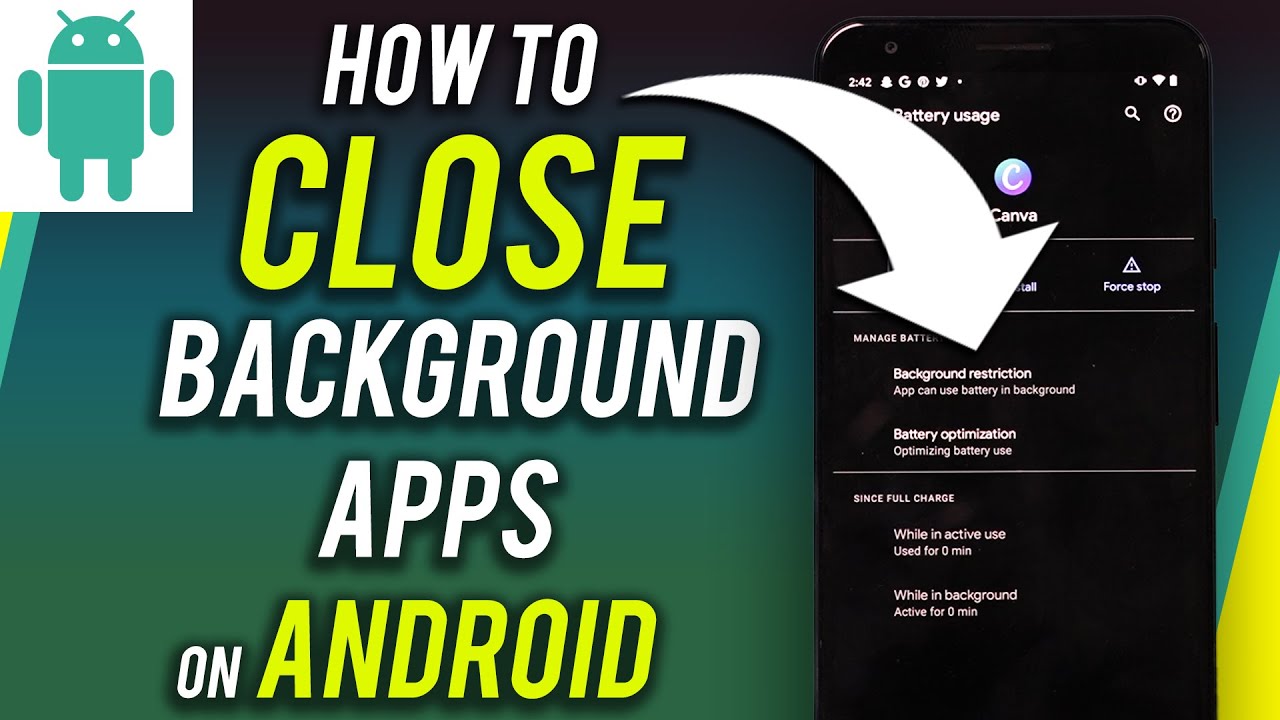
5. Close Background Apps Before You Start
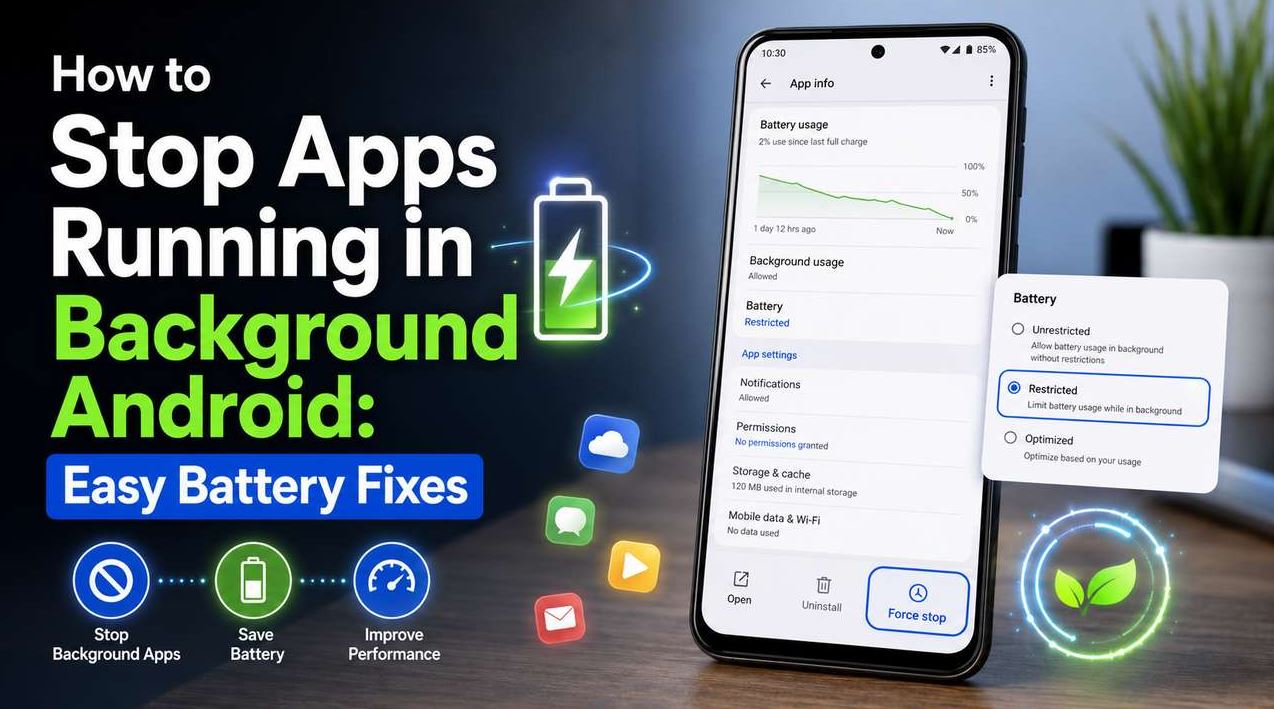
Before launching a game, take a moment to close apps running in the background. Swipe them away from the recent apps screen. Streaming apps, social media, and email clients are common culprits that refresh data in the background even when you are not using them.
You can also go to Settings, then Apps, and restrict background activity for apps you do not need running while gaming.
6. Turn Off Features You Do Not Need
Several phone features consume battery in the background without contributing anything to your game. Consider disabling the following while gaming:
Bluetooth, unless you are using wireless headphones or a controller. Location or GPS services, unless the game requires them. Auto-sync for email and cloud services. Nearby Share or NFC if they are on by default.
These small changes add up. Turning off even two or three unnecessary features can add meaningful time to your session.
7. Use Airplane Mode for Offline Games
If the game you are playing does not require an internet connection, switching to Airplane Mode is one of the most effective battery-saving tricks available. It disables all wireless radios at once — mobile data, Wi-Fi, Bluetooth, and GPS. For offline puzzle games, single-player RPGs, or similar titles, this can significantly extend your playtime.
8. Keep Your Phone Cool
Heat is the enemy of battery life. When a phone overheats, it throttles performance and battery management becomes less efficient. Avoid gaming while the phone is charging in a hot environment, do not cover the phone with a thick case that traps heat, and take short breaks during long sessions.
If your phone feels uncomfortably hot, that is a sign it is working harder than it should. A brief rest can actually restore performance and protect long-term battery health.
9. Adjust Your Screen Refresh Rate
Many modern Android phones offer 90Hz or 120Hz display refresh rates. These look smooth and responsive, but they consume more power than 60Hz. If your phone allows it, switch the refresh rate to 60Hz while gaming, unless you genuinely notice and value the extra smoothness.
Go to Settings, then Display, then look for Screen Refresh Rate or Motion Smoothness. Dropping to 60Hz is a simple change that can make a real difference.
10. Keep Your Software Updated
Game developers regularly release updates that improve performance optimization, including battery efficiency. Similarly, Android system updates often include improvements to power management. Keeping both your phone’s operating system and your games up to date ensures you benefit from the latest efficiency improvements.
Advantages and Limitations of These Tips
These methods are practical and accessible to anyone. They do not require rooting your device, installing third-party software, or spending money. Most of the changes take under a minute to apply.
However, there are trade-offs worth acknowledging. Lowering graphics settings means a less visually impressive experience. Reducing frame rates can make fast-paced games feel slightly less responsive. Using Airplane Mode means losing online features and leaderboards for games that support them.
The key is finding your personal balance. Some players prefer a slightly lower-quality visual experience in exchange for longer playtime. Others would rather charge more frequently and keep settings maxed out. Neither approach is wrong — it depends on your priorities.
One limitation worth noting is that these tips manage battery usage but cannot fix a worn-out battery. If your phone is several years old and the battery has degraded significantly, even optimal settings will only go so far. In that case, a battery replacement may be worth considering.
Best Practices for Long-Term Battery Health
Beyond individual gaming sessions, taking care of your battery over time helps maintain capacity and performance for years.
Avoid charging your phone to 100% every single time. Keeping the battery between 20% and 80% is widely considered better for long-term health. Many Android phones now include settings to stop charging at 85% automatically.
Do not leave your phone plugged in overnight repeatedly if you can avoid it. Modern phones manage this better than older ones, but the habit still puts wear on the battery over time.
Avoid letting the battery drop to 0% regularly. Deep discharges are harder on lithium-ion batteries than frequent partial charges.
These habits will not make a noticeable difference after a week, but over 12 to 24 months, they can meaningfully slow the natural decline of your battery’s maximum capacity.
Common Mistakes to Avoid
Many players unintentionally make battery drain worse through habits that are easy to change.
Leaving brightness at maximum is one of the most common. Most games are perfectly playable at 50 to 70 percent brightness, especially indoors.
Ignoring game-specific battery settings is another. Many popular games — including titles like PUBG Mobile, Call of Duty Mobile, and Genshin Impact — have built-in graphics and power settings. Skipping these menus means missing easy wins.
Running on mobile data when Wi-Fi is available nearby is a habit that wastes both data and battery. Even if the Wi-Fi is slightly slower, it is usually the better choice for gaming.
Forgetting to close the camera app or navigation app before gaming is surprisingly common. GPS-based apps keep location hardware active, which drains battery even when not visible on screen.
Finally, gaming while charging with a low-quality or non-compatible charger can generate excess heat, which harms the battery and may actually slow charging speed rather than helping.
Frequently Asked Questions
Does Dark Mode Save Battery While Gaming on Android?
Dark mode can save battery on phones with OLED or AMOLED screens, because those displays turn off individual pixels for black areas instead of lighting them. If your phone has an OLED screen and your game or launcher supports dark mode, enabling it can provide a small but real battery benefit. On LCD screens, dark mode does not save battery in any meaningful way.
Is It Bad to Play Games While Charging?
Playing games while charging is generally fine as a habit, but it generates more heat than charging without use. Excess heat can gradually degrade battery health over time. If you notice your phone getting very hot during charging and gaming together, it is worth taking a break or using a cooler charging environment.
Does Closing Apps in the Background Really Help?
Yes, particularly for apps that actively refresh content, sync data, or use location services in the background. For apps that are truly idle, the impact is smaller, but closing resource-hungry background apps before gaming is still a good habit that reduces competition for memory and processing power.
How Much Battery Does a Typical Mobile Game Use Per Hour?
This varies significantly depending on the game. A simple casual game might use 10 to 15 percent per hour. A graphically intensive online game like Genshin Impact or PUBG Mobile can use 20 to 35 percent per hour or more, depending on settings and network conditions.
Can a Phone Case Affect Battery Life While Gaming?
Indirectly, yes. Thick or insulating cases trap heat around the phone. Since heat degrades battery performance during sessions and accelerates long-term wear, using a thinner case or removing the case during intensive gaming sessions can help keep temperatures down.
Does Low Power Mode Affect Game Performance?
It depends on the phone and the game. Low Power Mode or Battery Saver typically limits background activity, reduces refresh rates, and may lower processor speeds. For less demanding games, you may not notice any difference. For high-performance games that require consistent GPU output, Battery Saver can cause frame drops or slower loading. Experiment to find the right setting for each game.
Conclusion
Gaming on Android does not have to mean constantly hunting for a charger. With a few deliberate adjustments — lowering brightness, managing background apps, tweaking in-game graphics, and using the right network connection — you can significantly extend your playtime without giving up the gaming experience you enjoy.
The most impactful changes are often the simplest. Start with screen brightness and background apps, then explore your phone’s built-in gaming or battery modes. Layer on the additional tips as needed, and over time these habits will become second nature.
Your phone’s battery is a limited resource, but it is one you have more control over than most people realize. Apply these strategies consistently, and you will notice the difference in your very next gaming session.
For more ways to get the most out of your Android device, explore guides on optimizing performance, managing storage, and choosing the right settings for different use cases.