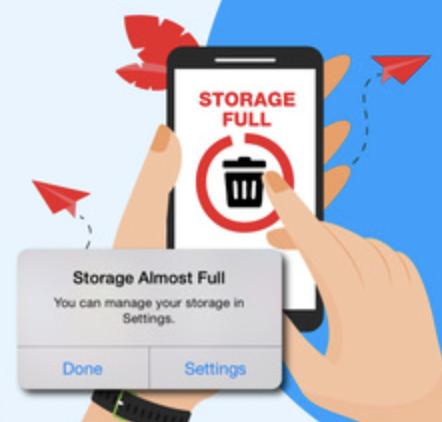

Is your Android phone constantly showing a “storage full” warning? You are not alone. Millions of Android users deal with this frustration every day. Whether it is a budget phone with 32GB of built-in storage or a flagship device packed with apps and photos, storage fills up faster than most people expect.
The good news is that you do not need to delete everything you love or buy a new phone. With the right steps, you can recover a surprising amount of space in just a few minutes. This guide walks you through everything — from quick wins to deeper cleanup strategies — so your phone runs smoother, faster, and without those annoying storage alerts.
What Does “Free Up Storage Space” Mean on Android?
When your Android phone runs low on internal storage, it affects more than just your ability to install new apps. A full or nearly full storage can slow down your device, prevent app updates, stop your camera from saving photos, and even cause apps to crash.
Freeing up storage space means removing, compressing, or moving data that is taking up room on your phone’s internal memory. This includes unused apps, cached files, duplicate photos, large videos, offline downloads, and more.
Android phones come with a set amount of internal storage — typically 32GB, 64GB, 128GB, or 256GB. But a portion of that is already used by the operating system and pre-installed apps. So if you have a 64GB phone, you might realistically start with around 50GB of usable space. It fills up quicker than you think.
Key Benefits of Freeing Up Android Storage
Taking time to clean up your Android storage is worth the effort. Here is what you gain:
- Faster performance: A phone with plenty of free space runs system processes more efficiently. Apps open quicker and multitasking becomes smoother.
- Better camera experience: Your camera app needs temporary storage to save photos and videos. Low storage can cause your camera to freeze or fail to save images entirely.
- Smoother app updates: Google Play Store requires free space to download and install app updates. If storage is tight, updates get stuck or fail.
- Fewer crashes: Many apps, including social media and browsers, use cache storage actively. When storage is full, these apps can become unstable.
- More room for what matters: Whether it is new apps, downloaded music, or travel photos, having free space means you are always ready to capture or store something important.
How Android Storage Works
Before you start deleting things, it helps to understand what is actually eating your storage. Android divides storage into a few key categories:
Apps and app data: Every app you install takes up space, and over time, apps accumulate data — saved game files, login sessions, downloaded content, and settings. This data can grow to several gigabytes for a single app.
Cache files: These are temporary files that apps create to load faster. Your browser stores website data here. Streaming apps store thumbnail images. Over time, the cache from all your apps can add up to several hundred megabytes or even a few gigabytes.
Media files: Photos, videos, music, and downloaded files are usually the biggest storage consumers. A single one-minute 4K video can take up over 300MB. A few months of casual phone photography can easily fill 10GB or more.
System files: Android itself and your manufacturer’s software take up space. These are generally untouchable, but knowing they exist helps set realistic expectations about usable storage.
Downloads folder: This is one of the most overlooked areas. Every PDF, image, or file you open from an email or message gets saved here and rarely gets cleaned up.
Step-by-Step: How to Free Up Storage Space on Android
Follow these steps in order. Start with the easiest methods and work your way down to the more thorough ones.
Step 1: Check Your Current Storage Usage
Go to Settings, then Storage. This gives you a breakdown of what is using the most space on your device. On most Android phones, you will see categories like Apps, Images, Videos, Audio, and Other. Tap each one to drill into the details.
This overview tells you exactly where to focus your cleanup efforts.
Step 2: Clear App Cache
Cached data is safe to delete. It does not remove your accounts, settings, or personal data — apps simply rebuild the cache the next time you use them.
To clear the cache for a specific app, go to Settings, then Apps, select the app, tap Storage, and then tap Clear Cache. Do this for your browser, social media apps, and streaming services first — they tend to hold the most cached data.
On Android 6 and later, you can also go to Settings, then Storage, then Cached Data to clear cache for all apps at once (availability varies by manufacturer).
Step 3: Delete Unused Apps
Think about when you last used each app on your phone. If it has been more than a month and it is not something essential, consider removing it. Some apps you may have downloaded once for a specific purpose — a hotel app, a shopping discount, a game you tried once — and never opened again.
To uninstall an app, long-press its icon on the home screen and select Uninstall, or go to Settings, then Apps, select the app, and tap Uninstall.
Step 4: Move Photos and Videos to Cloud Storage
Photos and videos are typically the largest consumers of storage space. Moving them to a cloud service like Google Photos is one of the most effective strategies.
Google Photos offers free high-quality backup for photos and videos (with some compression). Once your photos are safely backed up, you can delete local copies from your phone without losing them permanently.
Open Google Photos, go to Library, then Utilities, and look for the Free Up Space option. It will show you how much space you can recover by removing photos that are already backed up to the cloud.
Step 5: Clean Up Your Downloads Folder
Open the Files app (or any file manager on your device) and navigate to the Downloads folder. Scroll through it — you will likely find old PDFs, installer files, images sent via messaging apps, and documents you no longer need.
Delete anything you do not recognize or no longer need. This single step can often free up several hundred megabytes.
Step 6: Delete Offline Downloads from Streaming Apps
Apps like Spotify, YouTube, Netflix, and similar platforms let you download content for offline use. These downloads take up significant space. If you have finished watching or listening, there is no reason to keep them stored locally.
Open each streaming app, go to its downloaded content section, and remove anything you no longer need.
Step 7: Use Android’s Built-In Storage Manager
Most Android phones running Android 8 or higher have a built-in storage cleaner. Go to Settings, then Storage, and look for a Free Up Space or Smart Storage button. This tool scans your device and suggests files to delete — including duplicates, large files, and items you have not accessed in a long time.
It is a safe, system-level tool that handles the cleanup intelligently without touching things you still need.
Step 8: Use a microSD Card (If Available)
If your phone has a microSD card slot, this is a great long-term solution. You can move photos, music, and some app data to the card, keeping your internal storage free for system functions and essential apps.
Go to Settings, then Storage, and look for an option to transfer data to your SD card. Some phones also allow you to set the SD card as default storage for new photos and downloads.
Advantages and Limitations of Common Methods
Clearing Cache
Advantage: Fast, safe, and requires no decisions about what to keep or delete. Limitation: Cache rebuilds over time, so this is a temporary fix. It also does not recover as much space as deleting large files or apps.
Cloud Backup for Photos
Advantage: You do not lose any photos — they are simply stored online instead of on your device. Limitation: Requires a stable internet connection to view backed-up photos. Free tiers have storage limits; Google One offers 15GB free across Gmail, Drive, and Photos.
Uninstalling Apps
Advantage: Permanent and effective. Removing a large app can instantly free up gigabytes. Limitation: If you uninstall an app, you lose its locally stored data. For games, this means losing your progress unless it is synced to an account.
microSD Card
Advantage: Physical, reliable expansion of storage without ongoing costs. Limitation: Not all Android phones support microSD cards. Premium flagships like Google Pixel and some Samsung models have dropped the slot entirely.
Best Practices for Managing Android Storage Long-Term
Freeing up space once is great, but keeping it that way requires a few habits.
Set up automatic cloud backups: Go into Google Photos settings and enable Backup. This way your photos are always backed up without you having to think about it.
Audit your apps every month: Make it a habit to scroll through your installed apps once a month and remove anything you are not using regularly.
Use streaming instead of downloading: Rather than keeping local copies of music or movies, use streaming when you have a reliable internet connection. Save offline downloads only for travel or situations where you know you will not have access.
Be selective with messaging app media: WhatsApp, Telegram, and similar apps auto-download photos and videos. Go into each app’s settings and disable auto-download, or at least limit it to Wi-Fi only. This prevents your storage from quietly filling up with media you did not ask for.
Keep your Downloads folder clean: Set a reminder to check your Downloads folder every two weeks. Most of what lands there does not need to be kept permanently.
Common Mistakes to Avoid
Deleting system files: Do not use third-party cleaners that claim to remove system files or boost RAM by clearing memory. These can cause instability and are generally unnecessary. Android manages its own RAM — you should not interfere.
Relying entirely on cache cleaners: Many users install dedicated cache-cleaning apps and think that solves the problem. In reality, clearing cache is only a small part of storage management, and constantly clearing cache can actually slow apps down as they have to reload data from scratch.
Skipping the Downloads folder: This is the single most overlooked storage location. Most people spend time on photos and apps but ignore the Downloads folder, which silently accumulates files over months.
Forgetting messaging app media: WhatsApp and similar apps can store gigabytes of photos and videos you never even consciously saved. Check these regularly.
Not enabling Google Photos backup before deleting local photos: Always confirm your photos are fully backed up before tapping delete. Open Google Photos and wait for the backup to complete — look for the “Backup is on” confirmation before removing anything.
Frequently Asked Questions
What is the fastest way to free up storage on Android?
The fastest method is to clear app cache, delete unused apps, and remove old downloads. These three steps combined can often free up several gigabytes within just a few minutes, and none of them risk losing important personal data.
Is it safe to clear cache on Android?
Yes, it is completely safe. Clearing an app’s cache only removes temporary files that the app created to load faster. Your personal data — login details, saved preferences, account information — is stored separately and will not be affected. The app will simply recreate its cache the next time you use it.
How do I find the largest files on my Android phone?
Open the Files by Google app (available free on the Play Store). Tap Browse, then look under Storage for a section called Large Files. This lists files sorted by size, making it easy to identify and delete the ones you no longer need.
Does deleting WhatsApp messages free up storage?
Deleting old chats does help, but the bigger impact comes from clearing the WhatsApp media folder. Go to Settings within WhatsApp, then Storage and Data, then Manage Storage. Here you can see exactly how much space WhatsApp is using and delete large or old media files selectively.
Will clearing storage make my Android phone faster?
Yes, in most cases. When internal storage is very low — typically under 10% free — Android performance can degrade noticeably. Freeing up space gives the system more room to write temporary files, manage swap space, and handle background processes efficiently.
Should I use a third-party cleaner app to free up storage?
Generally, no. Android has solid built-in storage management tools in modern versions. Most third-party cleaner apps add little value, and some can be aggressive about requesting permissions or showing ads. Stick with Google’s Files app or your manufacturer’s built-in storage manager for safe, effective results.
Conclusion
Running out of storage on your Android phone is one of the most common frustrations users face — but it is also one of the most fixable. By following the steps in this guide, you can reclaim gigabytes of space without losing anything important.
Start with the quick wins: clear your app cache, clean out your Downloads folder, and set up Google Photos backup. Then work through the deeper strategies — removing unused apps, managing messaging media, and using your phone’s built-in storage manager. Build a few simple habits going forward, and you will rarely have to deal with a full storage notification again.
Your phone will feel faster, your camera will work reliably, and you will have room for the things that actually matter to you.
Explore the Google Files app on the Play Store — it is one of the most practical tools for ongoing Android storage management and makes the entire process much simpler.