
Missing a notification isn’t just an inconvenience — it can mean a missed message, a forgotten reminder, or an app that seems broken when it’s actually working fine in the background. Notifications not appearing on Android usually comes down to one of a handful of settings, and the fix depends on whether the problem affects every app, one specific app, or only shows up under certain conditions like Do Not Disturb or battery restriction.
This guide walks through how to identify exactly where the problem is coming from, then how to fix it, starting with the most common causes first.
Start Here: Is the Problem Affecting One App or All Apps?
This distinction determines which fix actually applies, so it’s worth confirming before changing any settings.
If notifications aren’t showing for one specific app, the cause is almost always an app-level permission or setting — something specific to that app rather than the phone as a whole.
If notifications aren’t showing for multiple or all apps, the cause is more likely a system-wide setting, such as Do Not Disturb being active, a notification setting turned off globally, or a battery optimization setting affecting several apps at once.
Step 1: Check Notification Permission for the App
Since Android 13, apps must explicitly request permission to send notifications, and users can deny this — either at setup or later. If this permission was denied, either intentionally or accidentally, the app simply won’t be able to notify you at all, regardless of its own internal settings.
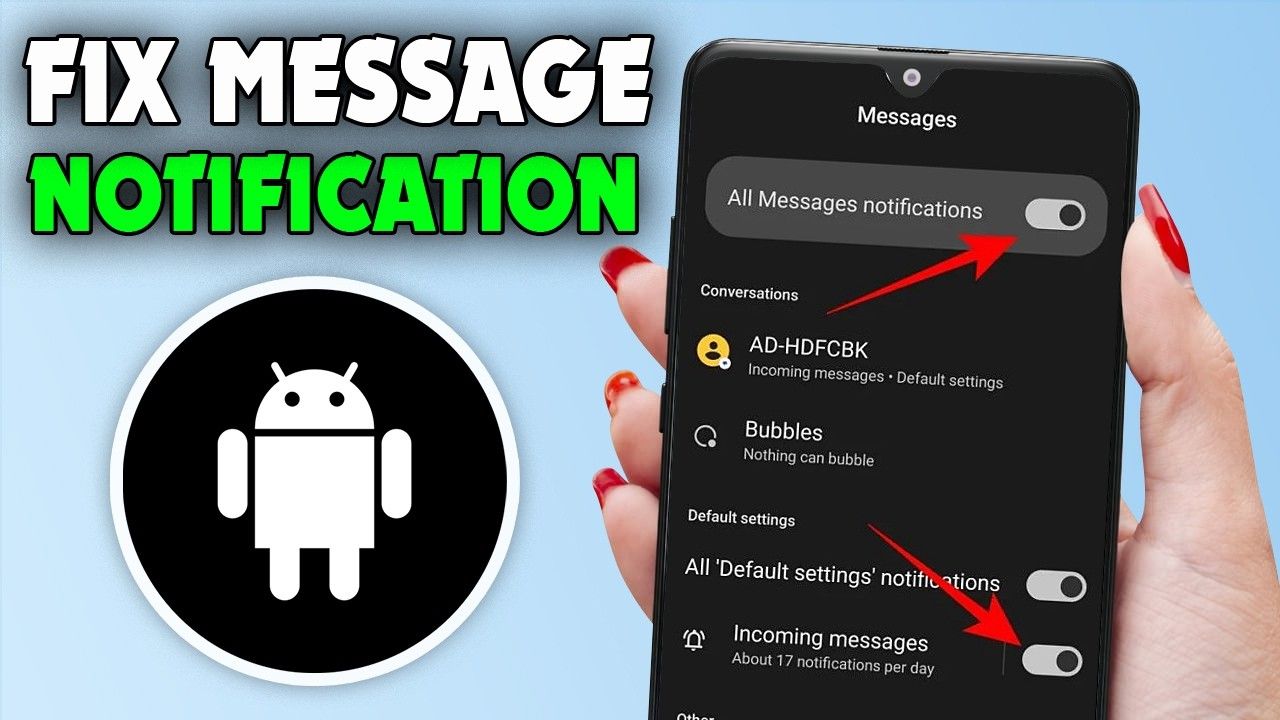
Go to Settings > Apps > [app name] > Notifications, and confirm the main toggle is turned on. If it’s off, turning it on immediately resolves the most common single cause of missing notifications from one specific app.
On Android versions before 13, this permission system works slightly differently, and notification control is typically found in the same Settings > Apps > [app name] > Notifications location, though without the explicit allow/deny prompt introduced in newer versions.
Step 2: Check Do Not Disturb
Do Not Disturb silences notifications, and depending on how it’s configured, may also prevent them from appearing visually, not just audibly. It’s easy to leave this on accidentally, especially if it was enabled during a meeting or overnight and never manually turned off.
Go to Settings > Notifications > Do Not Disturb (sometimes found under Settings > Sound & vibration depending on the Android version), and check whether it’s currently active. If it is, you can turn it off directly, or review its schedule if it’s set to activate automatically at certain times.
A detail worth checking specifically: Do Not Disturb often includes an exceptions list for specific contacts or apps allowed to notify you even while it’s active. If a specific contact or app suddenly stops notifying you, checking whether they were removed from this exceptions list (intentionally or not) is worth doing before assuming something else is wrong.
Step 3: Check Battery Restriction Settings for the App
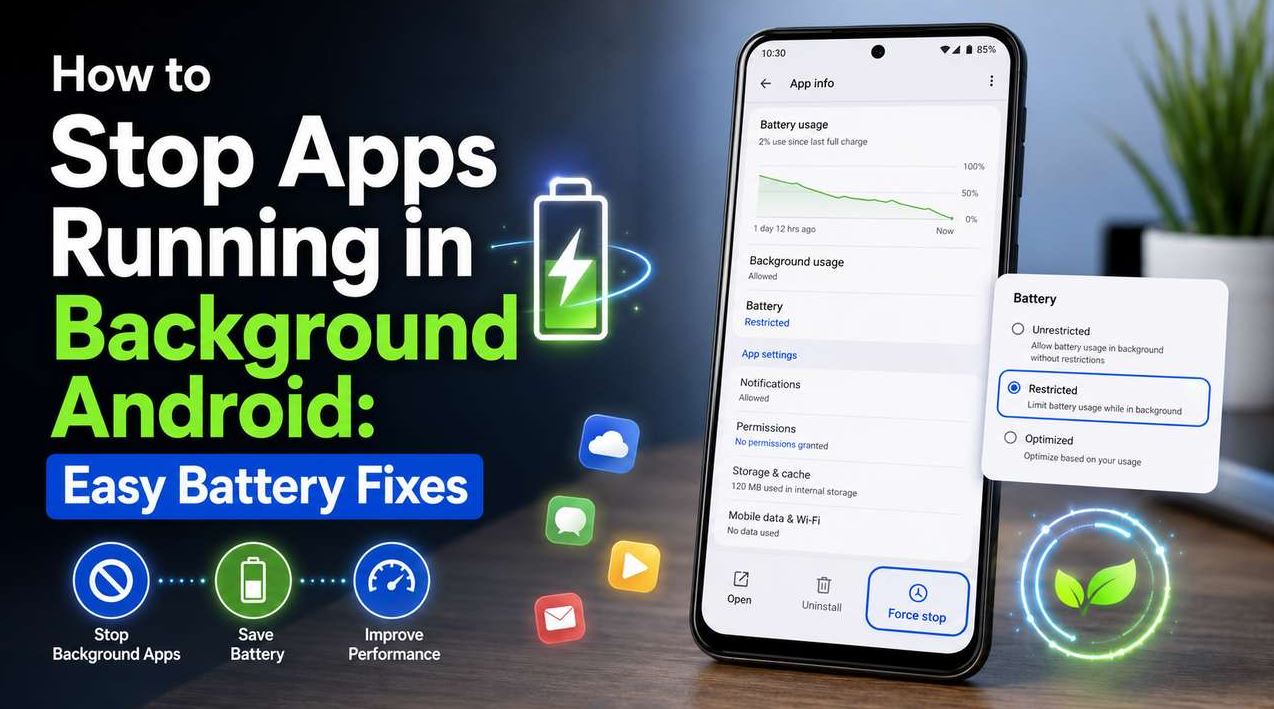
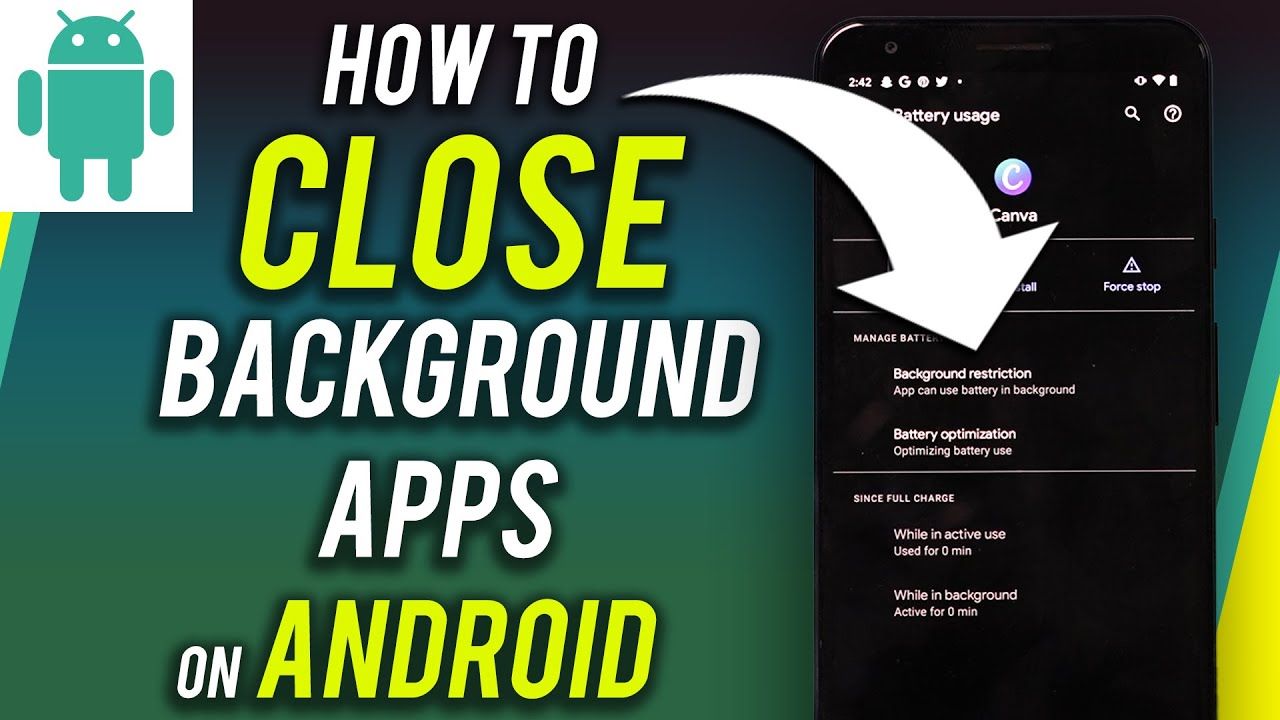
If an app’s background activity is set to “Restricted” (covered in more detail in Android’s battery management settings), the app may be prevented from running in the background long enough to deliver a notification in real time — instead, the notification may only appear once you manually open the app.
Go to Settings > Apps > [app name] > Battery, and check whether it’s set to Restricted. If real-time notifications matter for this app (a messaging app, for example), changing this to Optimized or Unrestricted allows it more consistent background access needed to deliver notifications promptly.
This is a common, often-overlooked cause specifically because the notification setting itself (Step 1) can be correctly turned on while background restriction still prevents the notification from actually arriving on time.
Step 4: Check Notification Categories Within the App Itself
Many apps break notifications into multiple categories internally — for example, a messaging app might have separate settings for direct messages, group messages, and app updates — and Android reflects this as expandable categories under that app’s notification settings.
Go to Settings > Apps > [app name] > Notifications, and check whether there’s a list of sub-categories beneath the main toggle. It’s possible for the main notification permission to be enabled while a specific category within it (like group chat notifications, or a particular type of alert) is turned off individually.
Additionally, some apps include a separate, internal notification settings menu within the app itself, distinct from Android’s system-level notification settings. If Android’s settings look correct but you’re still missing a specific type of alert, checking the app’s own in-app notification settings is worth doing as well.
Step 5: Check Notification Display Settings
Beyond whether notifications are allowed at all, Android includes settings that control how they’re displayed, which can make it seem like notifications aren’t showing when they’re technically being delivered but not visibly appearing where you’d expect.
Lock screen notifications. Under Settings > Notifications > Notifications on lock screen (wording varies by Android version and manufacturer), confirm this isn’t set to hide notification content or hide notifications entirely on the lock screen specifically.
Notification dot / app icon badges. If you’re relying on the small dot on an app icon to know you have a notification, confirm this feature is enabled under Settings > Notifications > Notification dot (or similarly named), since some manufacturers disable this by default.
Pop-up or banner notifications. Some manufacturer skins have a separate toggle specifically for pop-up/banner style notifications versus notifications that only appear in the notification shade — check both if you’re only seeing one type but not the other.
Step 6: Check Manufacturer-Specific Battery Management (Beyond Standard Android Settings)
This is one of the more overlooked causes, particularly on certain manufacturer devices. Some manufacturers, in addition to standard Android background restriction, include their own separate battery management systems that can independently limit which apps run in the background — sometimes more aggressively than the standard Android settings alone.
On Xiaomi (MIUI/HyperOS): Check Settings > Apps > Manage apps > [app name] > Autostart, and confirm it’s enabled for apps you want to reliably notify you, since MIUI’s autostart permission is separate from Android’s standard background restriction and can independently prevent notifications if disabled.
On Samsung devices: Check Settings > Battery and device care > Battery > Background usage limits, and confirm the app isn’t listed under “Sleeping apps” or “Deep sleeping apps” if you need it to notify you reliably.
On other manufacturers (Oppo, Vivo, OnePlus): Look for a similar battery or app management menu, since these manufacturers commonly layer additional background restriction systems on top of standard Android — the exact naming and location vary, so checking the device’s own battery settings menu specifically (beyond the standard Android Settings > Apps path) is worth doing if notifications remain unreliable after checking the standard settings above.
This layered restriction system is a common reason a notification setting can look completely correct in standard Android settings while notifications still don’t arrive reliably — the manufacturer’s own battery management system is overriding it separately.
Common Mistakes to Avoid
Only checking the main notification toggle and stopping there. As covered above, a correctly enabled notification permission can still be undermined by battery restriction, Do Not Disturb exceptions, or manufacturer-specific autostart settings — checking only the first, most obvious setting often misses the actual cause.
Assuming the app is broken. Missing notifications are frequently a settings issue rather than a sign the app itself has a bug, especially if the app was working correctly before and nothing about the app itself changed recently.
Forgetting to check manufacturer-specific settings on non-Pixel devices. Standard Android troubleshooting advice sometimes overlooks that Samsung, Xiaomi, and other manufacturers add their own additional layers of background and notification management beyond what stock Android includes, which is why Step 6 is worth checking even after Steps 1–5 look correct.
Not distinguishing between “no notification at all” and “delayed notification.” These point to different causes — a fully blocked notification usually traces back to a permission or Do Not Disturb issue, while a delayed one more often points to battery restriction or a manufacturer-specific background limit.
Disabling Do Not Disturb entirely instead of adjusting its schedule. If Do Not Disturb was set up intentionally (for example, overnight), turning it off completely to fix a notification issue removes a feature you may have wanted for a different reason. Adjusting the schedule or exceptions list is often a better fix than disabling the feature outright.
When the Problem Might Be Something Else
If you’ve checked all the settings above and notifications still aren’t arriving reliably:
- Check for a pending app update. A bug introduced in a recent app update is possible, and developers typically patch notification-related bugs once reported — checking the Play Store listing for a pending update is worth doing if the issue started suddenly.
- Check your internet or mobile data connection. Since many notifications require an active internet connection to be delivered (particularly for messaging apps), a spotty connection can delay or prevent notifications from arriving even with every setting configured correctly.
- Consider a recent system update. As with other Android bugs, a system update can occasionally introduce notification delivery issues that get resolved in a follow-up patch — checking Settings > System > System update for a pending update is worth doing if the issue is widespread across multiple apps.
Frequently Asked Questions
Why did I stop getting notifications from an app that used to work fine? This is most often caused by a setting changing — sometimes through a system update resetting battery restriction settings, sometimes accidentally through user interaction like force-stopping the app previously. Checking notification permission (Step 1) and battery restriction (Step 3) first usually identifies the cause.
Does restricting an app’s battery usage always block its notifications? Not entirely, but it can delay them, since a restricted app has less consistent background access needed to deliver notifications the moment they arrive. Whether this matters depends on the app — for apps you check manually rather than needing real-time alerts, this delay may not be noticeable or important.
Why do I get notifications on the lock screen but not as a pop-up, or the other way around? These are controlled by separate settings on many devices — lock screen display settings and pop-up/banner notification settings aren’t always the same toggle, especially on manufacturer skins that separate them further than stock Android does. Checking both settings individually (Step 5) resolves this.
Is there a difference between notification settings in Android’s system settings and inside the app itself? Yes. Android’s system-level notification settings control whether the app can notify you at all and how, while many apps include their own additional internal settings for specific notification categories (like muting a specific chat or group) that exist separately within the app itself. Checking both is sometimes necessary.
Why do some manufacturers seem to block notifications more aggressively than others? Manufacturers like Xiaomi, Samsung, Oppo, and others often add their own battery and background management systems on top of standard Android, sometimes prioritizing battery life more aggressively by default. This isn’t unique to one manufacturer, but the specific settings and their names vary, which is why checking your device’s manufacturer-specific battery settings (Step 6) matters in addition to standard Android settings.
Will turning off battery restriction for every app fix this permanently? It could help notification reliability, but doing this broadly for every app trades away the battery savings background restriction is designed to provide. A more targeted approach — restricting apps you don’t need real-time notifications from, while leaving apps you do need them from unrestricted — is generally a better balance than removing restriction across the board.
Conclusion
Missing Android notifications almost always trace back to one of a specific set of causes: a blocked notification permission, an active Do Not Disturb setting, background battery restriction, a muted category within the app itself, or a manufacturer-specific battery management layer beyond standard Android. Working through these in order, starting with the notification permission itself and checking manufacturer-specific settings if the standard ones look correct, resolves the large majority of cases without needing to reinstall the app or reset the phone.