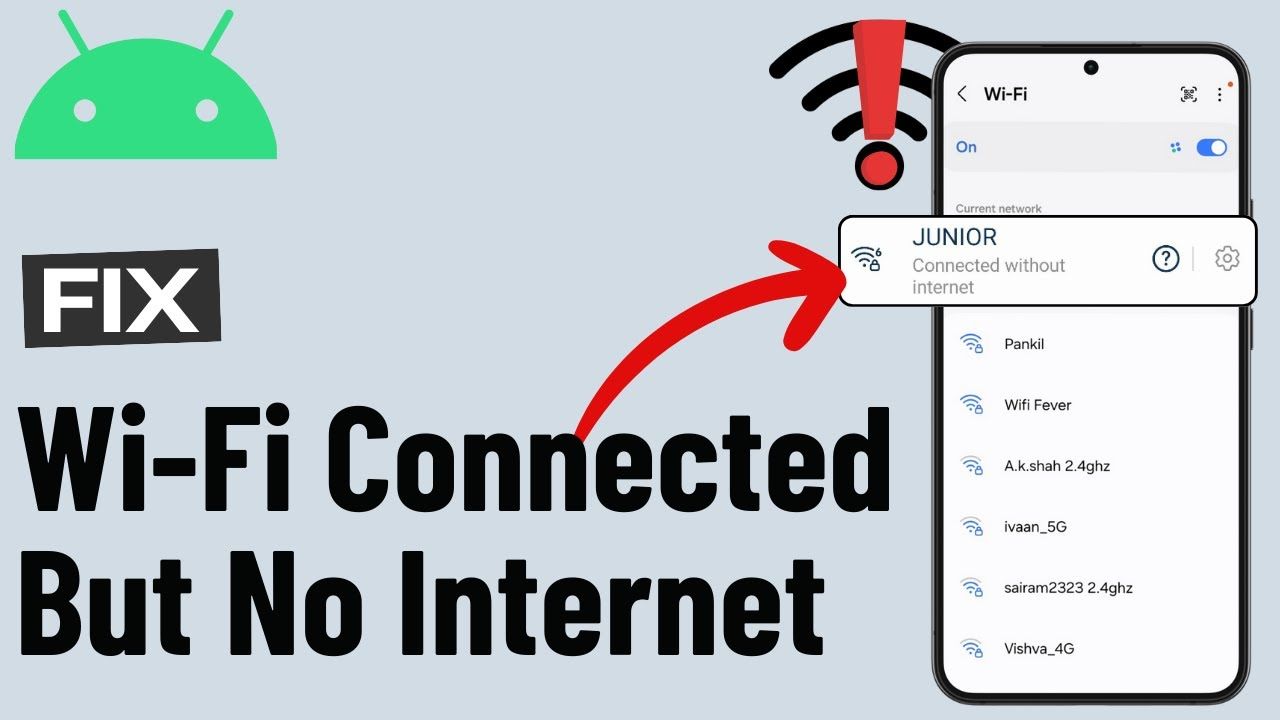

Seeing the Wi-Fi icon fully connected while nothing actually loads is one of the more confusing Android problems, because everything about the connection looks fine except that it doesn’t work. This usually isn’t a sign of anything seriously wrong with your phone — it’s typically a specific, identifiable issue with either the router, the network configuration, or occasionally the phone’s own Wi-Fi settings.
This guide walks through how to figure out where the problem actually is, then how to fix it, starting with the simplest and safest steps first.
Why This Happens: Connected Doesn’t Mean Online
Your phone’s Wi-Fi icon shows whether you’re connected to a wireless network — meaning the phone has successfully linked to the router. It doesn’t confirm that the router itself has a working internet connection, or that your phone can successfully reach the internet through it. These are two separate things, and understanding that distinction is the key to fixing the problem efficiently rather than guessing.
Common underlying causes include:
- The router is connected to Wi-Fi devices but has lost its own connection to your internet service provider
- The phone has a stuck or corrupted IP address configuration
- DNS (the system that translates website names into addresses) isn’t resolving correctly
- The network has a captive portal (a login page, common on public or hotel Wi-Fi) that hasn’t been completed
- The router’s Wi-Fi band or settings are incompatible with something specific to your phone
Step 1: Confirm Whether It’s Your Phone or the Network
Before troubleshooting your phone specifically, rule out whether the problem is actually with the router or internet connection itself, since fixing phone settings won’t help if the router is the actual issue.
Check if other devices have the same problem. If a laptop, tablet, or another phone connected to the same Wi-Fi network also can’t reach the internet, the issue is almost certainly with the router or your internet service, not your phone specifically. In that case, restarting the router (unplugging it for about 30 seconds, then plugging it back in) is the most effective first step, and contacting your internet service provider is the next one if that doesn’t help.
Check if the problem is specific to your phone. If other devices connect fine and only your phone shows “connected, no internet,” the issue is more likely with your phone’s Wi-Fi configuration, and the steps below are worth working through in order.
Step 2: Toggle Wi-Fi Off and On
This sounds basic, but it resolves a meaningful share of cases because it forces the phone to release and re-request its network configuration from the router, clearing a stuck connection state without any deeper changes.
Go to Settings > Network & internet > Wi-Fi, turn Wi-Fi off, wait about 10 seconds, then turn it back on. Alternatively, swipe down for Quick Settings and tap the Wi-Fi icon off and on from there.
Step 3: Forget the Network and Reconnect
If toggling Wi-Fi doesn’t help, forgetting the network and reconnecting clears any corrupted saved network settings tied to that specific Wi-Fi connection, which is a common cause of a “connected but no internet” state that persists across simple toggles.
- Go to Settings > Network & internet > Wi-Fi.
- Tap the network you’re having trouble with, then select Forget.
- Reconnect by tapping the network again and entering the Wi-Fi password.
What to expect: You’ll need to re-enter the Wi-Fi password, so make sure you have it before starting this step. Any custom settings tied to that specific network connection (like a static IP, if you had one configured) will also need to be re-entered.
Step 4: Check for a Captive Portal (Common on Public Wi-Fi)
If this is happening on public Wi-Fi — a hotel, airport, café, or similar — the issue is very often a captive portal: a login or terms-of-service page the network requires you to complete before granting internet access, which your phone may not automatically open.
Try opening a web browser and navigating to any website manually; this often triggers the captive portal login page to appear. If it doesn’t appear automatically, check for a notification from Android specifically prompting you to “Sign in to network,” which sometimes appears separately from the main Wi-Fi connection notification and is easy to miss.
Step 5: Check and Reset IP and DNS Settings
If the issue persists on a network you trust (like your home Wi-Fi) and other devices work fine, the phone’s specific network configuration for that connection may be the cause.
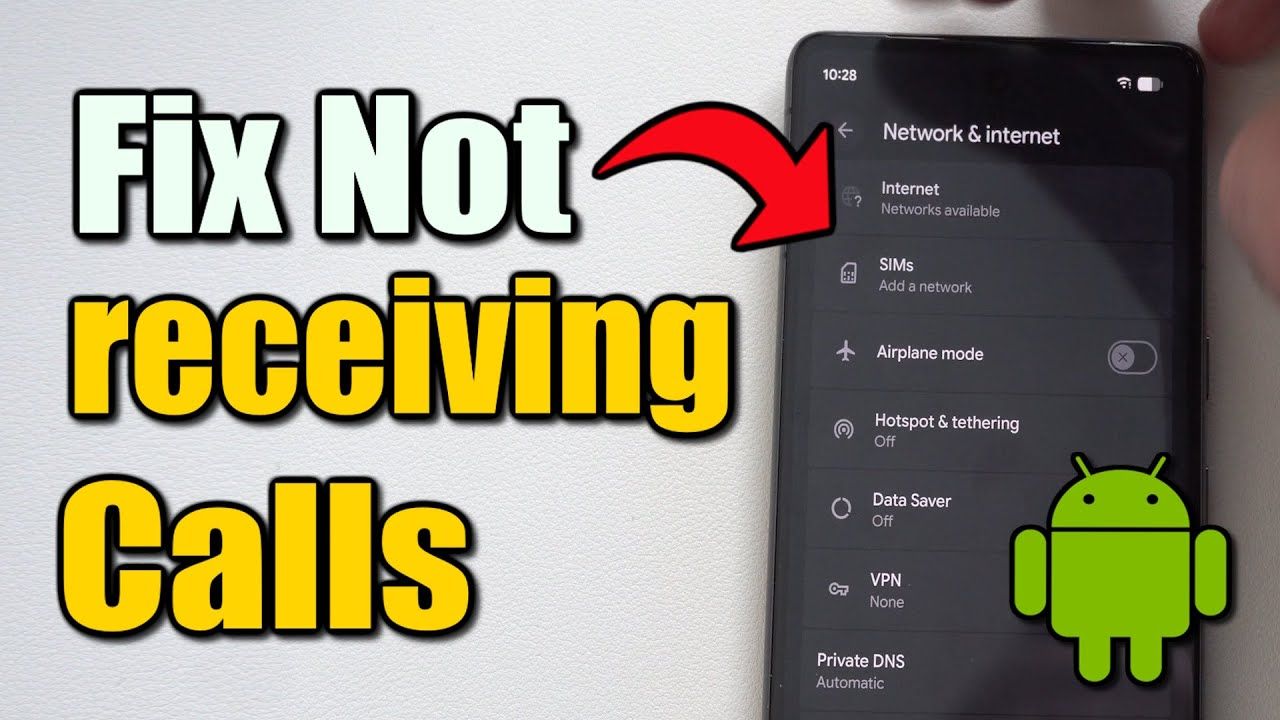
Switch DNS settings. Under Settings > Network & internet > Internet, tap the gear icon next to your connected network, then look for Private DNS under Network & internet settings (the exact path varies slightly by Android version). Setting this to a public DNS provider, or setting it to “Automatic,” can resolve issues where the router’s default DNS isn’t resolving correctly. If you’re unsure what to enter, “Automatic” is the safest default to return to.
Check for a static IP misconfiguration. Under the same network’s advanced settings, confirm the IP settings are set to DHCP rather than Static, unless you specifically configured a static IP intentionally and know the correct values. An incorrect static IP is a common, often-overlooked cause of a connected-but-no-internet state, especially if it was set up once for a specific reason and forgotten about.
Step 6: Check Router-Side Settings That Can Affect Specific Phones
If only your phone has this issue while other devices on the same network work fine, a router-side setting worth checking (through the router’s own admin settings, not your phone) includes:
- MAC address filtering, which can block specific devices from full network access even while allowing them to connect superficially, if the phone’s MAC address isn’t on an allowed list.
- Band-specific issues, particularly with older phones on newer routers using Wi-Fi 6 exclusively on certain bands, or newer phones having compatibility quirks with certain older router firmware — this is less common but worth checking if the phone connects fine to other networks but consistently has trouble with this specific router.
These require accessing the router’s own settings, typically through a web browser and the router’s admin address (often printed on the router itself or in its manual), and the exact process varies by router brand and model, so checking the manufacturer’s documentation for your specific router is the most reliable way to proceed here.
Step 7: Restart the Phone
If none of the above resolves it, a full restart clears any temporary network stack issues that might not be resolved by toggling Wi-Fi alone. This is worth trying before moving to more involved steps like a network settings reset.
Step 8: Reset Network Settings (Last Resort)
If the problem persists across multiple networks (not just one specific router) and nothing else has worked, resetting network settings returns Wi-Fi, mobile data, and Bluetooth configurations to their defaults, clearing any deeper corrupted configuration.
Go to Settings > System > Reset options > Reset Wi-Fi, mobile & Bluetooth (labeling varies slightly by manufacturer and Android version).
What to expect: This removes all saved Wi-Fi networks and passwords, along with any paired Bluetooth devices, so you’ll need to reconnect to every network and re-pair every Bluetooth device afterward. Because of this, it’s worth trying only after the more targeted steps above haven’t resolved the issue.
Common Mistakes to Avoid
Assuming it’s always the phone’s fault. Since “connected but no internet” frequently stems from the router or internet service rather than the phone, skipping Step 1 (checking other devices) can lead to unnecessary phone troubleshooting when the real fix is restarting the router or contacting your internet provider.
Overlooking captive portals on public Wi-Fi. This is one of the most common causes in public settings specifically, and it’s easy to overlook because it doesn’t look like a typical connectivity problem — the network shows as connected because, technically, it is; it’s just not authorized for full internet access yet.
Jumping straight to a network settings reset. This is a broad, disruptive fix that clears every saved network and Bluetooth pairing on the phone. Since more targeted steps (like forgetting a single problematic network) resolve most cases, resetting everything should be a later step, not an early one.
Not checking whether a static IP was configured previously and forgotten. This is a subtle, often-overlooked cause specific to a persistent issue on one particular network. If you or someone else configured a static IP at some point for a specific reason, it can silently cause this exact problem later if the network’s configuration changes.
Confusing this issue with a mobile data problem. Since the phone shows “connected,” it’s easy to assume the issue is purely internet-related rather than Wi-Fi-specific, and to overlook Wi-Fi-specific fixes like forgetting the network in favor of unrelated troubleshooting.
When It Might Not Be Fixable From the Phone Alone
Some causes are outside what phone-side troubleshooting can resolve:
- An internet service outage affecting your provider — checking your provider’s status page or contacting them directly is the appropriate step here, not further phone troubleshooting.
- Router hardware issues, particularly with older routers that may need a firmware update or eventual replacement — this is worth suspecting if the same “connected, no internet” issue affects every device on the network, not just your phone, and persists even after restarting the router.
- ISP-side restrictions or account issues, such as a suspended account or a data cap being reached on certain plans, which can sometimes present as a connectivity issue rather than an explicit notification, depending on the provider.
Frequently Asked Questions
Why does my phone say “connected” if there’s no actual internet? “Connected” only confirms your phone successfully linked to the Wi-Fi router itself — it doesn’t confirm the router has a working connection to the internet, or that your phone can successfully reach it through the router. These are separate checks, which is why the issue can look confusing at first.
Will forgetting a Wi-Fi network delete anything important? No, forgetting a network only removes the saved connection details (including the password) for that specific network from your phone. It doesn’t affect any files, apps, or other data. You’ll just need to re-enter the password to reconnect.
Is this problem more common on public Wi-Fi than home Wi-Fi? Captive portal issues specifically are more common on public networks (hotels, airports, cafés), since these networks are more likely to require a login or agreement step. Home Wi-Fi issues are more often related to router problems, saved network configuration, or DNS settings rather than a login page.
Should I reset my network settings if this keeps happening? Only if the issue persists across multiple different networks and more targeted fixes (like forgetting a specific network) haven’t worked. If the problem is isolated to one specific network or router, a network reset on the phone won’t address a router-side cause and may not be necessary at all.
Can a Wi-Fi router setting really affect only one specific phone and not others? Yes — MAC address filtering, band-specific compatibility issues, or router firmware quirks can occasionally affect one device differently from others on the same network, though this is less common than a general router or phone-side issue and typically requires checking the router’s own settings to confirm.
Does switching to mobile data confirm the Wi-Fi is the problem? Yes, in a sense — if switching from Wi-Fi to mobile data restores internet access, it confirms the issue is specifically with the Wi-Fi connection (either the phone’s Wi-Fi configuration or the network itself) rather than a broader phone issue.
Conclusion
A Wi-Fi connection that shows as active but doesn’t provide internet access is almost always traceable to one of a few specific causes: a router-side issue, a captive portal that hasn’t been completed, or a stuck or misconfigured network setting on the phone. Working through the steps in order — starting with checking whether other devices have the same issue, then toggling and forgetting the network, and only resorting to a full network reset if nothing else works — resolves the large majority of cases without needing anything more drastic.