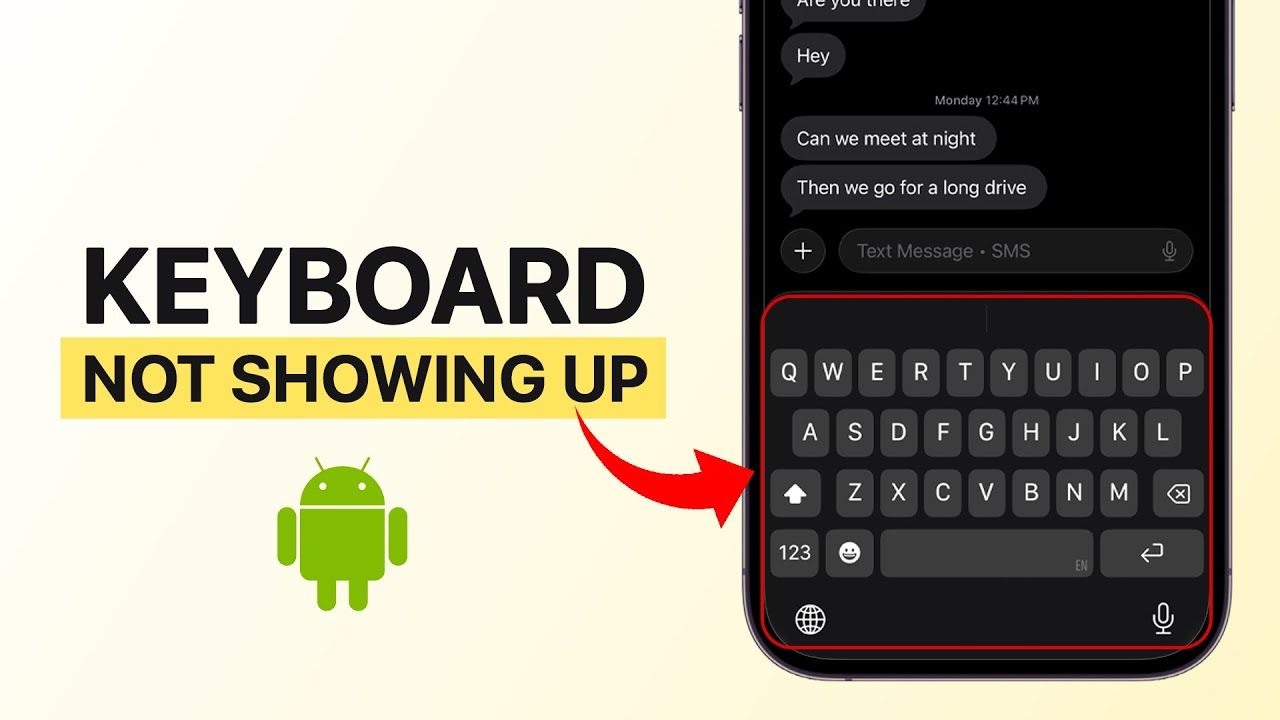

Tapping into a text field and getting nothing — no keyboard, no cursor response, just a blank space where you’d normally type — is one of those Android problems that can make the phone feel unusable in the moment, even though the underlying cause is usually minor. This typically comes down to a keyboard app that’s crashed, gotten disabled, or lost its default status, rather than anything wrong with the phone’s hardware.
This guide walks through how to get the keyboard working again, starting with the fastest fixes and moving toward more specific causes if the simple steps don’t resolve it.
Step 1: Restart the App You’re Having Trouble In
Before touching any settings, close the specific app where the keyboard isn’t appearing and reopen it. Sometimes an individual app’s text field loses its connection to the keyboard service due to a temporary glitch specific to that app, rather than a phone-wide keyboard issue.
If the keyboard works fine in other apps (like a text message or a search bar) but not in the one you first noticed the problem in, this points to an app-specific issue rather than a keyboard problem, and restarting or updating that specific app is more likely to help than any keyboard settings change.
Step 2: Restart the Phone
If the keyboard doesn’t appear in multiple apps, a full restart is worth trying next. This resolves keyboard issues caused by a stuck background process more often than most users expect, since it fully reloads every system service, including the keyboard (technically called an Input Method Editor, or IME) that Android relies on.
Step 3: Confirm a Keyboard Is Actually Selected as Default
This is one of the most common causes, and it’s easy to overlook because it isn’t obviously connected to “the keyboard not showing up” — from the user’s side, it just looks like nothing happens when you tap a text field.
Go to Settings > System > Languages & input > On-screen keyboard (the exact path varies — on some devices it’s Settings > General management > Keyboard list and default, and on others simply Settings > Keyboard). Confirm that a keyboard is actually selected as the default. If this setting is empty, disabled, or pointing to a keyboard app that’s been uninstalled, no keyboard will appear when you tap a text field, even though everything else about the phone works normally.
If you have multiple keyboard apps installed (for example, Gboard alongside a third-party keyboard), confirm the one you intend to use is the one actually set as default, not just installed.
Step 4: Check Whether the Keyboard App Was Accidentally Disabled
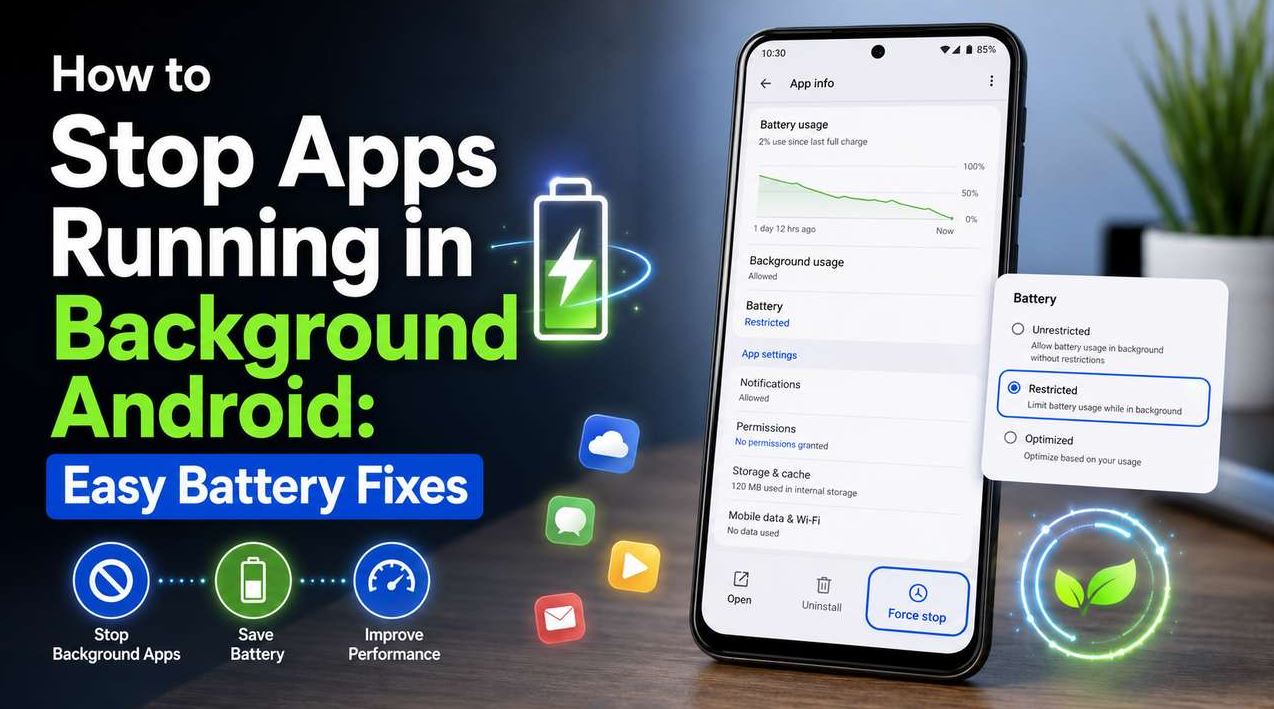
If you’re using a downloadable keyboard app (rather than the one that came pre-installed), confirm it hasn’t been disabled, either manually or through a battery optimization setting that prevented it from running.
Go to Settings > Apps, find your keyboard app, and confirm it’s enabled (not disabled) and hasn’t been force-stopped. If it shows as disabled, tap Enable.
What to expect: If the keyboard app was disabled, re-enabling it should restore keyboard functionality without needing to reinstall anything. If it was uninstalled entirely rather than just disabled, you’ll need to reinstall it from the Play Store and set it as default again (Step 3).
Step 5: Clear the Keyboard App’s Cache
If the keyboard app is enabled and set as default but still isn’t appearing, a corrupted cache for that specific app can be the cause, similar to how cache issues affect other apps.
Go to Settings > Apps > [keyboard app name] > Storage > Clear cache. This doesn’t remove your keyboard’s learned dictionary or settings, only temporary files, so it’s safe to try without losing personalization like custom words you’ve added over time.
If clearing cache doesn’t help, clearing the app’s data (Clear data, a different option from cache) is a stronger step, but be aware this will reset the keyboard app’s settings and learned dictionary to default, so use it only if the cache clear alone doesn’t resolve the issue.
Step 6: Check for a Pending Keyboard App Update
An outdated version of a keyboard app, particularly after a recent Android system update, is a realistic cause of this kind of issue. Open the Play Store listing for your keyboard app and check whether an update is available — developers typically patch compatibility issues with new Android versions fairly quickly once they’re identified.
Step 7: Try a Different Keyboard App Temporarily
If none of the above resolves the issue, temporarily switching to a different keyboard app — Android’s default Gboard, if you were using a third-party keyboard, or vice versa — helps determine whether the problem is specific to one keyboard app or something broader with the phone’s input system overall.
If a different keyboard works normally, the issue is isolated to your original keyboard app specifically, and reinstalling that app (after confirming it’s up to date) is the more targeted next step rather than continuing to troubleshoot system-wide settings.
Step 8: Check for a System-Wide Software Issue
If the keyboard doesn’t appear regardless of which keyboard app you try, and the issue started after a recent system update, this may point to a broader software issue rather than something isolated to a specific keyboard app.
Check Settings > System > System update for a pending update, since manufacturers frequently release follow-up patches for bugs introduced in a previous update. If no update is available and the issue persists across every keyboard app tried, this is a reasonable point to consider contacting your device manufacturer’s support resources, since it may indicate a deeper system-level issue beyond standard settings adjustments.
Common Mistakes to Avoid
Assuming the phone itself is broken. In the large majority of cases, this issue traces back to a keyboard app setting rather than a hardware problem or a phone that needs replacing — it’s worth working through the steps above before assuming anything more serious is wrong.
Uninstalling and reinstalling the keyboard app as the first step. This can work, but it’s a more drastic step than necessary if the actual cause is simply that no keyboard is set as default (Step 3) or the app was accidentally disabled (Step 4) — both of which are faster to check and fix without needing to reinstall anything.
Not checking whether the issue is app-specific. If the keyboard works everywhere except one particular app, the fix is more likely related to that specific app (an update, a bug, or a permission issue) rather than the keyboard itself, and troubleshooting keyboard settings broadly won’t resolve an issue that’s actually isolated to a single app.
Confusing a missing keyboard with a keyboard that’s present but glitching. A keyboard that appears but doesn’t register keypresses correctly, lags significantly, or displays incorrectly is a different issue from a keyboard that doesn’t appear at all — if this describes your situation instead, checking for a keyboard app update (Step 6) or clearing its cache (Step 5) is still relevant, but the underlying cause may be different from a keyboard that never shows up in the first place.
Clearing app data before trying cache clearing first. Since clearing data resets the keyboard app’s settings and learned dictionary, it’s worth trying the less disruptive cache-clearing option first, and only using a full data clear if that doesn’t resolve the issue.
When It Might Not Be a Keyboard App Issue
If you’ve worked through the steps above and the keyboard still doesn’t appear:
- A specific text field’s coding within an app can occasionally prevent keyboard focus from registering correctly, particularly in apps that haven’t been updated recently or use non-standard text input methods — this is an app-specific bug rather than a keyboard issue, and reporting it to that app’s developer, or checking for an app update, is the more relevant fix.
- Accessibility services that interact with text input (screen readers, voice input tools, or third-party accessibility apps) can occasionally conflict with keyboard display in specific circumstances — if you use any accessibility services, temporarily disabling them to test whether the keyboard reappears can help isolate this as a possible cause.
- A physical or Bluetooth keyboard connected to the phone can sometimes suppress the on-screen keyboard automatically, since Android assumes you don’t need the on-screen keyboard while a physical one is connected — disconnecting a paired keyboard, if you have one, is worth checking if this applies to your situation.
Frequently Asked Questions
Why did my keyboard suddenly stop appearing after a system update? System updates occasionally reset default app selections, including which keyboard is set as default, or introduce a temporary compatibility issue with a specific keyboard app. Checking Settings > System > Languages & input to confirm a keyboard is still selected as default (Step 3) is the first thing worth checking after an update.
Will clearing my keyboard app’s cache delete my custom dictionary or learned words? No — clearing cache only removes temporary files and doesn’t affect your saved dictionary, learned words, or settings. Clearing app data is different and does reset these, so it’s worth trying cache clearing first if you want to avoid losing personalization.
Is it normal to have more than one keyboard app installed at once? Yes, and it’s common — many users have both Gboard and a specialized third-party keyboard installed simultaneously. Only one can be set as the active default at a time, though, which is why confirming the correct one is selected (not just installed) matters if the keyboard isn’t appearing as expected.
Can a third-party keyboard app be less reliable than Android’s built-in keyboard? Reliability can vary by app and how frequently it’s updated to stay compatible with the current Android version, but this isn’t a universal rule — many third-party keyboards are actively maintained and generally reliable. If you’re experiencing frequent issues specifically with one keyboard app, checking for updates or comparing behavior against a different keyboard (Step 7) helps determine whether the issue is specific to that app.
Does a connected Bluetooth keyboard prevent the on-screen keyboard from working? It can — Android often suppresses the on-screen keyboard automatically while a physical or Bluetooth keyboard is connected, assuming you don’t need both at once. If you want the on-screen keyboard to still appear in this situation, checking your keyboard settings for an option related to showing the virtual keyboard even with a physical keyboard connected (availability varies by device) is worth doing.
Should I be worried this is a sign of a bigger phone problem? In most cases, no — this is typically an isolated software or settings issue rather than a sign of broader hardware trouble. It’s only worth considering something more serious if the issue persists across every keyboard app you try, after a full restart, and with no pending system update available to install.
Conclusion
A missing on-screen keyboard is almost always traceable to a specific, fixable cause: no keyboard set as default, a disabled or outdated keyboard app, a corrupted cache, or occasionally a conflict with a connected physical keyboard or accessibility service. Working through the steps in order — starting with a simple restart, then confirming your keyboard’s default status and settings — resolves the large majority of cases without needing to reinstall anything or contact support.