There’s no single “best” graphics setting for an Android game, because the right choice depends entirely on your specific phone’s hardware, the game itself, and whether you’d rather have sharper visuals or smoother, more consistent performance. What counts as optimal on a high-end gaming phone would likely cause stuttering on a budget device, and settings that look impressive in a screenshot aren’t always the ones that make a game feel good to actually play.
This guide explains what these graphics settings actually control, how to figure out what your specific phone can realistically handle, and how to adjust settings methodically rather than guessing.
What Graphics Settings Actually Control
Most Android games that include adjustable graphics settings offer some combination of the following, though the exact options and naming vary by game:
- Resolution or rendering scale — how many pixels the game renders at; lowering this reduces the processing load significantly and is often the single most effective way to improve performance.
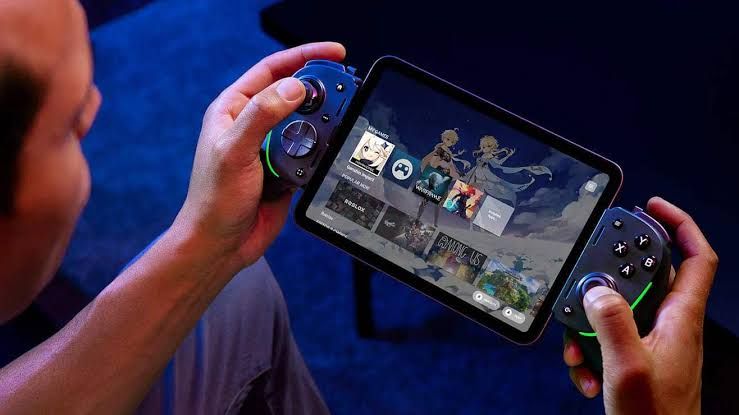
- Frame rate cap — options like 30fps, 60fps, or sometimes 90/120fps on supported devices; higher frame rates feel smoother but demand more from the processor and graphics chip continuously, not just in short bursts.
- Texture quality — how detailed surfaces and objects appear; this affects visual quality more than performance in many cases, but can also increase memory (RAM) usage, which matters on devices with limited RAM.
- Shadow quality and effects (particle effects, reflections, anti-aliasing) — these tend to be among the more demanding individual settings, since they require ongoing calculation during gameplay rather than being a one-time rendering cost.
- Draw distance — how far into the game world detailed objects are rendered before switching to simpler versions or disappearing; more relevant in open-world or 3D games than in simpler mobile titles.
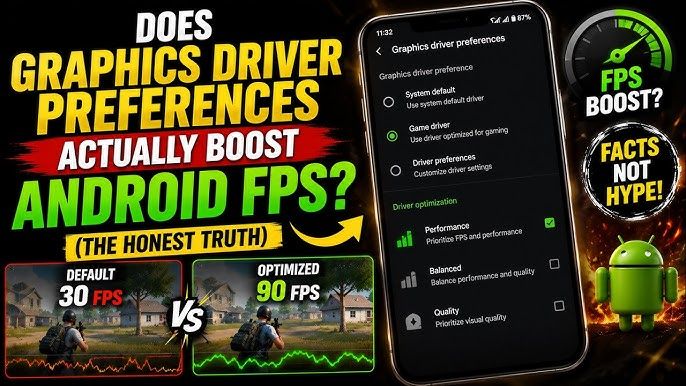
Not every game exposes all of these individually — some offer only a simple “Low / Medium / High” preset, while others provide granular control over each setting separately. Games with granular controls generally give you more ability to fine-tune the balance between visual quality and performance than games that only offer broad presets.
Step 1: Understand What Your Phone Can Realistically Handle
Before adjusting any in-game setting, it helps to have a general sense of where your phone falls in terms of gaming performance, since this shapes what’s actually worth trying.
Check your phone’s processor and RAM. This information is usually available under Settings > About phone, though the exact processor model may require checking the phone’s original specifications from the manufacturer’s website, since Android’s own About phone screen doesn’t always name the chip explicitly. Newer, higher-tier processors and more RAM generally support higher graphics settings without performance issues, while older or budget-tier hardware benefits more from lower settings prioritizing smooth performance over visual detail.
Check whether your phone has a high refresh rate display. Under Settings > Display > Screen refresh rate (naming varies by manufacturer), phones with 90Hz or 120Hz displays can potentially show smoother gameplay if the game supports higher frame rates and your phone can sustain them — but pushing for a higher frame rate than your hardware can consistently maintain often results in inconsistent performance, which usually feels worse than a stable, lower frame rate.
This isn’t about needing to know precise benchmark numbers — it’s about having a general sense of whether your phone is on the higher or lower end of what’s currently common, which helps set realistic expectations before you start adjusting settings.
Step 2: Start With the Game’s Recommended or Automatic Setting
Many Android games include an “Auto” or “Recommended” graphics option that detects your phone’s hardware and selects settings accordingly. This is a reasonable starting point rather than something to skip past immediately, since game developers often calibrate this detection specifically for a wide range of devices.
From this starting point, you can then make targeted adjustments based on what you actually notice during gameplay, rather than starting from scratch by guessing at every individual setting.
Step 3: Prioritize Frame Rate Stability Over Visual Detail (for Most Games)
For the majority of games, especially competitive or fast-paced ones, a stable, consistent frame rate makes a bigger practical difference to how the game feels than higher visual detail. A game running smoothly at a lower resolution or with reduced shadow effects is generally more enjoyable to play than one that looks sharper but stutters or drops frames during gameplay.
If you’re not sure where to start, this is a reasonable general approach:
- Lower resolution or rendering scale first, since this often has the biggest performance impact for the least noticeable visual trade-off during actual gameplay (as opposed to when closely examining a static screenshot).
- Reduce shadow quality and particle effects next, since these are typically among the more performance-intensive individual settings.
- Keep texture quality relatively higher if your phone has enough RAM, since this affects visual quality noticeably but generally has less impact on frame rate consistency than the settings above.
This order isn’t a strict rule for every game, but it reflects where performance gains are usually found first with the least noticeable visual cost.
Step 4: Test Settings During Actual Gameplay, Not Just Menus
Performance can look fine in a game’s main menu or a loading screen but behave differently during actual gameplay, particularly in busy scenes with multiple effects, characters, or objects on screen simultaneously. After changing a setting, play for a few minutes in a demanding part of the game (not just the calmest section) before deciding whether the change actually helped.
Some games include a built-in frame rate counter or performance overlay in their settings menu, which can help you see actual, real-time performance rather than relying purely on how the game feels subjectively — though not every game offers this, and it’s not something you need to rely on to reasonably determine the right settings.
Step 5: Watch for Overheating and Battery Drain, Not Just Frame Rate
Higher graphics settings don’t only affect visual quality and frame rate — they also increase how much heat the phone generates and how quickly the battery drains during extended play sessions. A setting that runs smoothly for the first ten minutes can start to stutter later in a longer session as the phone heats up and the processor throttles its own performance to manage temperature, a built-in protective behavior on virtually all modern phones.
If you notice a game that performed well initially starting to stutter or feel less responsive during longer sessions, this thermal throttling is a common — and often overlooked — explanation, separate from the graphics settings themselves. In this case, slightly lower settings that generate less heat may actually provide more consistent long-session performance than higher settings that perform well only briefly.
Common Mistakes to Avoid
Maxing out every setting without testing performance. It’s tempting to assume higher settings are always better, but on hardware that can’t sustain them consistently, this often results in a worse overall experience — stuttering, lag, and inconsistent frame timing — than choosing settings your phone can maintain reliably throughout a session.
Chasing the highest possible frame rate cap without confirming your phone can sustain it. Selecting a 90fps or 120fps cap on a device that can only reliably manage 45–60fps in demanding scenes often results in inconsistent, uneven performance that feels worse than simply capping the frame rate at a level your phone can hold steadily.
Judging graphics settings from screenshots or short clips rather than actual play sessions. Visual differences between settings are often more noticeable in a static image than during fast-paced gameplay, where you’re focused on the action rather than examining textures or shadow detail closely.
Ignoring battery and heat as part of the “best” settings decision. The technically highest-quality settings aren’t necessarily the best choice if they cause the phone to overheat or the battery to drain unusably fast during a session you intend to play for an extended period.
Assuming all games scale their settings the same way. Some games are more efficiently optimized than others, meaning a lower setting in one game might still look noticeably better, or perform noticeably worse, than a similarly labeled setting in a different game. Testing each game individually rather than assuming universal behavior across all titles gives a more accurate picture.
When Adjusting In-Game Settings Isn’t Enough
If you’ve adjusted every available in-game graphics option and performance still isn’t acceptable, a few things worth checking outside the game itself:
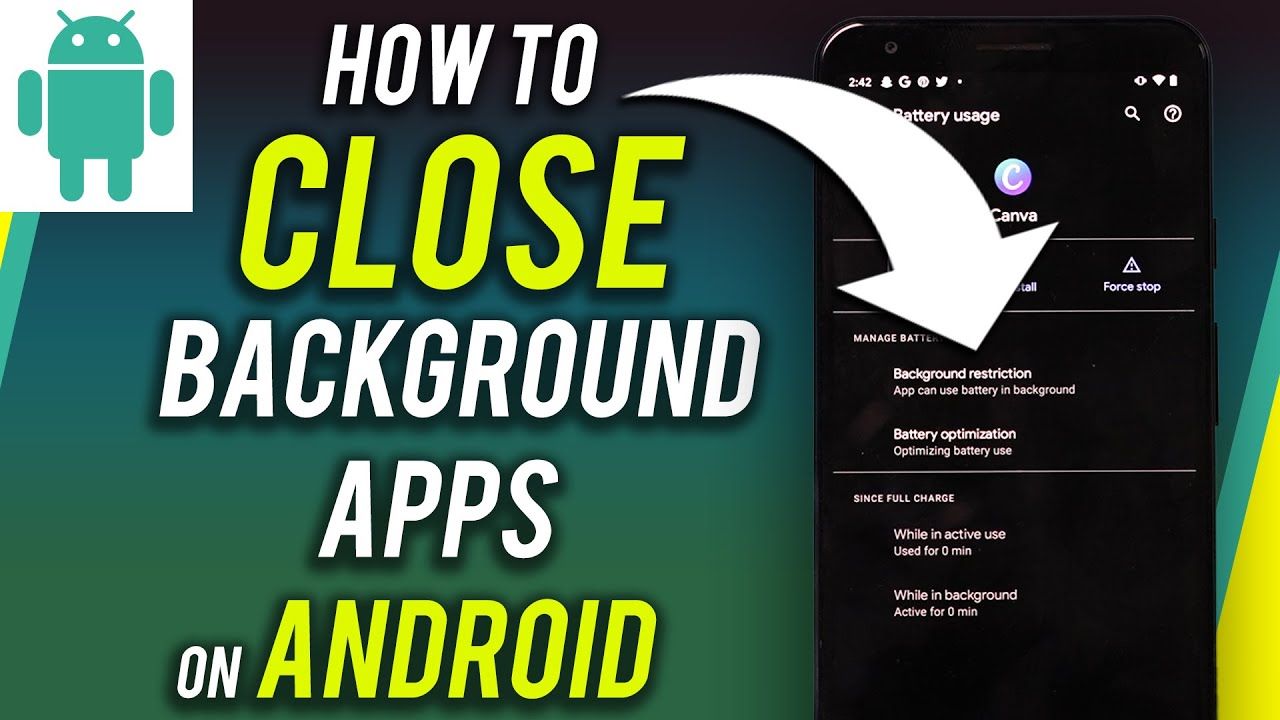
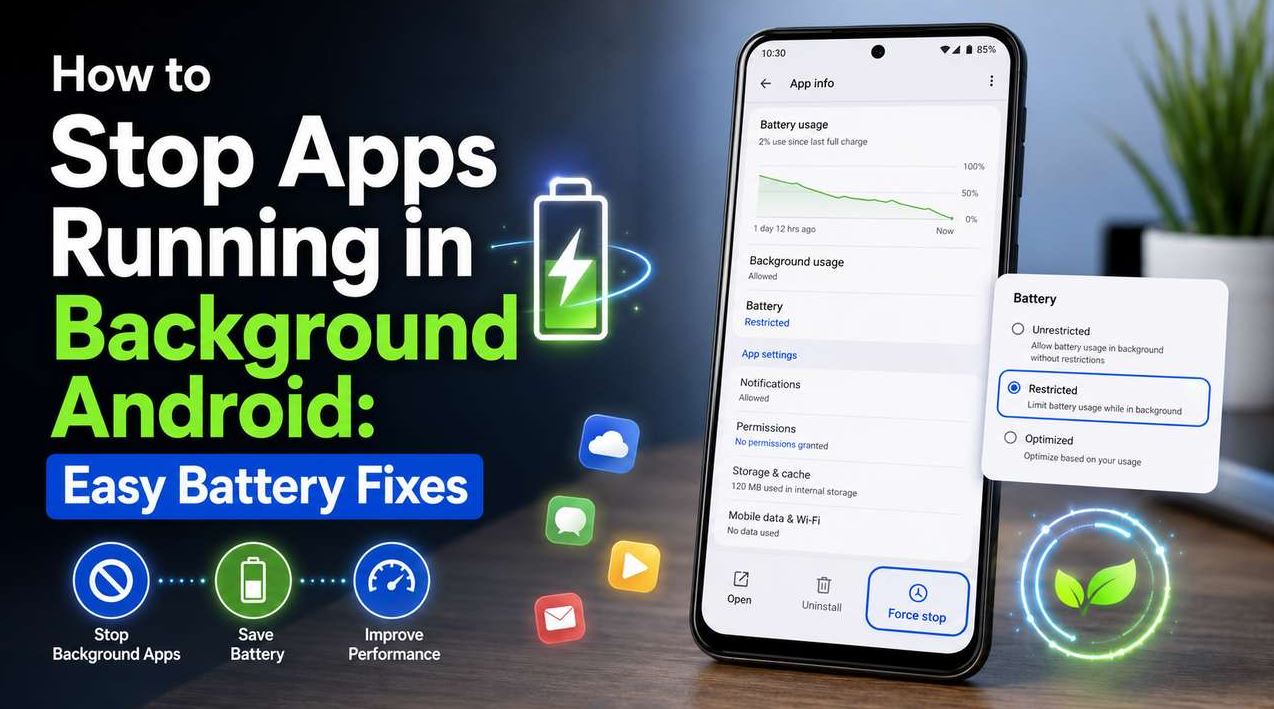
- Close other background apps before playing, since apps consuming RAM or processing power in the background compete with the game for the same limited resources.
- Check for a pending game update, since developers frequently release performance-related patches after a game’s release, particularly for newer titles still being optimized across a wide range of devices.
- Check your phone’s own performance or gaming mode, if it has one — many manufacturers include a dedicated gaming mode (often labeled “Game Booster,” “Game Space,” or similarly, depending on the manufacturer) that can prioritize system resources toward the active game and temporarily limit background app activity.
- Consider whether the phone’s hardware is simply not well-suited to the specific game, particularly with newer, more demanding titles on older or lower-tier devices — in this case, no combination of in-game settings will fully resolve consistent performance issues, since the underlying hardware itself is the limiting factor.
Frequently Asked Questions
Should I always use the highest graphics settings my phone allows? Not necessarily. The highest settings your phone can technically run aren’t always the best experience if they cause overheating, battery drain, or inconsistent performance during longer sessions. Testing during actual gameplay, rather than assuming “highest available” equals “best,” gives a more accurate answer for your specific situation.
Does a higher frame rate cap always mean better performance? Only if your phone can sustain it consistently. Selecting a higher frame rate cap than your hardware can reliably maintain in demanding scenes often results in uneven, inconsistent performance, which typically feels worse during actual play than a lower but steady frame rate.
Why does a game run well at first but start stuttering after playing for a while? This is often related to thermal throttling — the phone’s processor automatically reducing performance as it heats up during extended use, which is a built-in protective behavior rather than a bug. Slightly lower graphics settings can sometimes result in more consistent performance over a longer session for this reason.
Do texture quality settings matter as much as frame rate settings for performance? Generally, texture quality has more of an effect on visual detail and RAM usage than on frame rate specifically, while settings like resolution, shadows, and effects tend to have a more direct impact on frame rate. This isn’t a universal rule for every game, but it’s a reasonable general pattern.
Is it worth using a manufacturer’s built-in gaming mode? If your phone includes one, it can help by prioritizing system resources toward the game and limiting background app interference during play, which may improve performance beyond what in-game settings alone can achieve. Availability and specific features vary by manufacturer and device.
Can adjusting graphics settings fix a game that’s fundamentally too demanding for my phone? Lower settings can help, but if a game is genuinely beyond what your phone’s hardware is capable of running smoothly, there’s a practical limit to how much in-game settings adjustments alone can compensate for that underlying hardware limitation.
Conclusion
The best graphics settings for an Android game aren’t a fixed formula — they depend on your specific phone’s hardware, the demands of the individual game, and whether you personally prioritize visual detail or smooth, consistent performance. Starting from a game’s recommended settings, then testing changes during actual gameplay rather than in menus or screenshots, and paying attention to heat and battery drain alongside frame rate, gives a more reliable path to finding what actually works well for your device than assuming higher settings are automatically better.