
Switching to Android for the first time is exciting. You have a powerful device in your hands, access to the Google Play Store with millions of apps, and total freedom to customize your experience. But that freedom can also feel overwhelming.
Where do you start? Which apps are actually worth installing? Which ones will slow your phone down or drain your battery?
This guide answers all of that. Whether you just unboxed your first Android phone or recently moved from iOS, this article walks you through the essential apps every new Android user should have. These apps are safe, free or freemium, widely trusted, and genuinely useful in daily life.
No fluff. No filler. Just practical recommendations backed by real-world use.
What Are Must-Have Apps for New Android Users?
Must-have apps for new Android users are applications that cover the core needs most people have right from day one. They fill in the gaps that Android does not cover out of the box, or they replace default apps with better alternatives.
These apps typically fall into a few key categories: productivity, communication, security, media, file management, and browsing. A well-chosen set of apps transforms a basic Android phone into a personal productivity hub, entertainment center, and communication tool.
The apps recommended in this guide are available on the Google Play Store, regularly updated by their developers, trusted by millions of users, and beginner-friendly in terms of setup and use.
Key Benefits of Installing the Right Apps Early
Setting up your Android phone with the right apps from the beginning saves you time, frustration, and even money. Here is what a good app setup delivers:
Better Productivity The right tools help you manage tasks, notes, and schedules without juggling multiple platforms or losing track of important information.
Stronger Security Android is generally secure, but adding a dedicated password manager and a reliable antivirus or privacy tool gives you an extra layer of protection, especially on public Wi-Fi.
Improved Communication Default messaging and email apps work, but better alternatives offer cleaner interfaces, more features, and cross-platform syncing that makes staying in touch much easier.
Smoother Daily Experience From reading articles offline to editing photos quickly, the right apps reduce friction in daily digital life and make your phone more enjoyable to use.
Cost Savings Many premium-quality apps are entirely free or offer generous free tiers. Knowing which ones to pick means you get maximum value without spending anything.
How Android’s App Ecosystem Works
Before diving into specific recommendations, it helps to understand how the Android app ecosystem is structured. This knowledge makes you a smarter app user from day one.
The Google Play Store This is Android’s official app marketplace. Every app mentioned in this guide is available there. The Play Store uses automated scanning and human review to filter out malicious software, though it is always wise to check reviews and ratings before installing anything.
Permissions System When you install an app, it may ask for permissions such as access to your camera, contacts, or location. Always review these requests. If a flashlight app asks for access to your contacts, that is a red flag. Only grant permissions that make logical sense for what the app does.
App Updates Apps update regularly to fix bugs, patch security vulnerabilities, and add features. Enable automatic updates in the Play Store settings so your apps stay current without any manual effort.
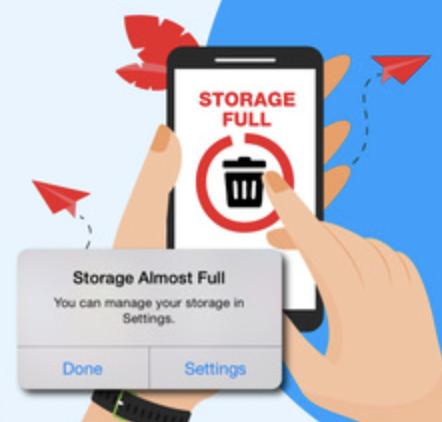
Storage and Battery Awareness Some apps run in the background and consume both storage and battery. Android gives you tools to monitor this under Settings, but choosing lightweight, well-optimized apps from the start prevents these issues.
The Best Must-Have Apps for New Android Users
Here is a curated list organized by category. Each app is described with its purpose, standout features, and why it earns a spot on this list.
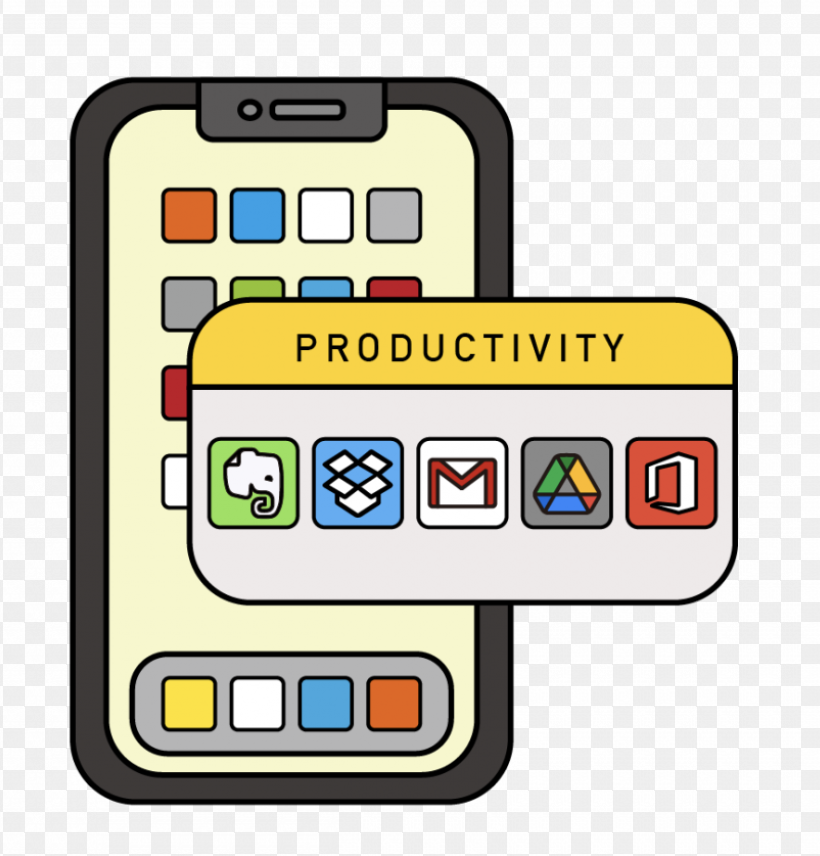
Productivity and Organization
Google Keep or Microsoft OneNote
For quick notes, grocery lists, reminders, and ideas, Google Keep is fast, simple, and syncs across all your devices instantly. It supports voice notes, image attachments, and color-coded labels.
Microsoft OneNote is the better choice if you want more structure, such as notebooks with sections and pages. It is ideal for students and professionals who take detailed notes regularly.
Google Tasks or Todoist
Google Tasks integrates directly with Gmail and Google Calendar, making it perfect for users already in the Google ecosystem. It keeps your to-do list visible alongside your email and schedule.
Todoist is more feature-rich with priority levels, recurring tasks, project organization, and collaboration features. The free tier is generous and sufficient for most users.
Web Browsing
Google Chrome or Mozilla Firefox
Chrome comes pre-installed on most Android devices and is deeply integrated with Google services. It syncs your bookmarks, history, and passwords across devices seamlessly.
Firefox is the better choice for users who prioritize privacy. It offers enhanced tracking protection, a robust extension library, and a clean interface. Both are excellent, and your choice largely depends on your privacy preferences.
Communication
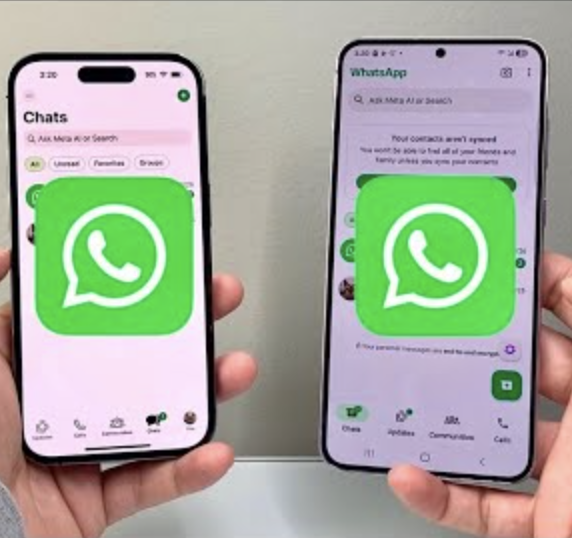
For messaging and voice or video calls, WhatsApp remains one of the most widely used apps globally. It works over Wi-Fi and mobile data, supports group chats, voice messages, and document sharing, and is end-to-end encrypted by default.
Gmail
If you do not already have Gmail set up, installing and configuring it properly should be one of your first steps. Gmail handles multiple email accounts, offers powerful search, smart filtering, and is tightly integrated with other Google services like Drive and Meet.
File Management
Files by Google
This is one of the most underrated apps for new Android users. Files by Google helps you browse all files on your device, free up storage space, transfer files to nearby devices without internet, and back up files to Google Drive. It is clean, fast, and developed by Google itself, making it completely trustworthy.
Cloud Storage and Backup
Google Drive
Every Google account comes with 15 GB of free cloud storage through Google Drive. Use it to back up photos, store documents, and share files with others. The Drive app on Android gives you instant access to everything you have stored in the cloud.
Google Photos
Google Photos is one of Android’s strongest built-in advantages. It backs up your photos and videos automatically, organizes them by date, location, and even the people in them, and lets you free up space on your device by storing originals in the cloud. The free storage tier has limits, but the app itself is invaluable.
Security and Privacy
Bitwarden
A password manager is not optional in 2024. Bitwarden is free, open source, and highly trusted by the security community. It stores your passwords in an encrypted vault, autofills login credentials in apps and browsers, and generates strong passwords for new accounts. The free tier covers everything most individual users need.
Reading and Learning
Pocket or Instapaper
When you find an interesting article but do not have time to read it, Pocket lets you save it and read it later, even offline. It strips away ads and distractions, presenting articles in a clean reading format. Instapaper offers similar functionality with a slightly different design aesthetic.
Google Play Books or Libby
For book lovers, Google Play Books lets you purchase and read ebooks directly on your phone. Libby is even better if you have a public library card — it gives you free access to thousands of ebooks and audiobooks through your local library, at no cost.
Navigation and Travel
Google Maps
Google Maps is the gold standard for navigation. It offers turn-by-turn directions, real-time traffic updates, public transit routes, offline maps for areas with poor connectivity, and reviews and information for local businesses. New Android users should download offline maps for their city right away.
Media and Entertainment
Spotify
For music streaming, Spotify’s free tier gives you access to an enormous library of songs, podcasts, and playlists. The algorithm-driven discovery features are genuinely excellent at surfacing music you will enjoy. The free version includes ads, but it remains fully functional.
VLC for Android
VLC is a free, open-source media player that plays virtually any video or audio file format. It requires no subscription, has no ads, and handles local media files flawlessly. If you have videos stored on your device, VLC will play them without issue.
Utilities and System Tools
Google Lens
Google Lens uses your camera to identify objects, translate text in real time, scan QR codes, search by image, and copy text from physical documents. It is surprisingly capable and deeply useful once you build the habit of reaching for it.
AccuBattery
This app monitors your battery health, tracks charging patterns, and helps you extend your battery’s long-term lifespan by alerting you when to stop charging. Most people charge to 100 percent by default, but lithium batteries last significantly longer when kept between 20 and 80 percent charge.
Advantages and Limitations of Third-Party Apps
Advantages
Third-party apps often outperform pre-installed alternatives in specific areas. Developers focused on a single product tend to iterate faster, add user-requested features, and offer cleaner interfaces than large companies building general-purpose tools.
Many third-party apps are completely free and ad-supported, which means you get a professional-quality tool without spending anything. Cross-platform availability is another major advantage — apps like Bitwarden and WhatsApp work on Android, iOS, and desktop, keeping your data accessible everywhere.
Limitations
Not every app on the Play Store is well-maintained. Some apps have not been updated in years, which creates potential compatibility issues with newer Android versions. Always check the last update date on an app’s Play Store page before installing.
Some free apps are supported by advertising, which can feel intrusive. Others use a freemium model where key features are locked behind a subscription. Reading user reviews carefully before installing helps you set accurate expectations.
Privacy is another genuine concern. Some apps request more permissions than they need. Use Android’s built-in permission manager to review and revoke unnecessary access at any time.
Best Practices for New Android Users
Keep Your App List Lean Install apps you will actually use. A phone cluttered with unused apps wastes storage, slows performance, and increases your attack surface for potential security issues.
Use Google’s Built-In Backup Go to Settings, then Google, then Backup, and make sure it is enabled. This backs up your app data, call history, contacts, device settings, and SMS messages to your Google account automatically.
Review Permissions Regularly Every few months, go to Settings, then Privacy, then Permission Manager, and review which apps have access to sensitive permissions like location, microphone, and camera. Revoke anything that seems unnecessary.
Enable Two-Factor Authentication For your Google account and any other important accounts, enable two-step verification. This is one of the most effective ways to protect your accounts from unauthorized access.
Keep Android Updated System updates patch security vulnerabilities and often improve performance. Check for updates under Settings, then System, then System Update.
Read Reviews Before Installing User reviews on the Play Store are a valuable filter. An app with thousands of positive reviews and a history of regular updates is significantly more trustworthy than one with few reviews and a stale update history.
Common Mistakes New Android Users Make
Installing Too Many Apps at Once It is tempting to fill your new phone with apps immediately, but installing dozens of apps without testing them leads to a cluttered, slow device. Add apps gradually as you identify specific needs.
Ignoring App Permissions Many users tap “Allow” on every permission request without reading it. This is a habit worth breaking. Granting unnecessary permissions can expose your contacts, location, and microphone to apps that have no legitimate need for that data.
Skipping Cloud Backup Setup Failing to set up Google backup means that if your phone is lost, damaged, or factory reset, you lose everything. Backup setup takes less than two minutes and protects months or years of data.
Using Weak Passwords New Android users sometimes use the same simple password across multiple apps and accounts. A password manager like Bitwarden eliminates this problem by generating and storing strong, unique passwords for every account.
Downloading Apps from Outside the Play Store Sideloading apps from unknown websites is one of the fastest ways to compromise your device’s security. Stick to the Play Store, especially as a new user.
Overlooking Battery Optimization Some apps are notorious battery drains. Android allows you to restrict background activity for specific apps. Use this feature on apps you do not need running constantly in the background.
Frequently Asked Questions
What apps should I install first on a new Android phone?
Start with the essentials: a password manager like Bitwarden, a cloud backup solution such as Google Photos and Drive, a reliable browser, a messaging app like WhatsApp, and a file manager like Files by Google. These cover your security, communication, and storage needs immediately.
Are free apps on the Play Store safe to use?
Most free apps from reputable developers are safe. Check that the app has a significant number of positive reviews, has been updated recently, and is published by a known developer. Always review the permissions the app requests before granting them.
How many apps should a new Android user install?
Quality matters more than quantity. Start with ten to fifteen apps that cover your core daily needs. Add more only when you identify a specific gap that a new app would fill. A lean setup is faster, cleaner, and easier to manage.
Do I need antivirus software on Android?
Android has strong built-in security through Google Play Protect, which scans your apps for malicious behavior automatically. For most users who only install apps from the Play Store, a dedicated antivirus app adds minimal protection. Focus instead on good habits: keep apps updated, review permissions, and use strong passwords.
What is the best way to manage storage on a new Android phone?
Install Files by Google, enable Google Photos backup, and regularly delete apps and media you no longer need. Google Photos can remove local copies of photos that have already been backed up to the cloud, freeing up significant space with a single tap.
Can I use iPhone apps on Android?
No. iOS apps are designed exclusively for Apple devices and cannot run on Android. However, almost every major app has an Android version available on the Play Store, including all social media platforms, productivity tools, and entertainment services.
Conclusion
Getting started with Android does not have to be complicated. The right set of apps turns your new device into a powerful, personalized tool within minutes of setup.
The apps covered in this guide — from Google Keep and Bitwarden to Files by Google and Google Lens — are trusted by millions of users, regularly maintained, and genuinely useful for everyday life. They are also free or freemium, meaning you can build a complete, capable app setup without spending a single rupee or dollar.
The most important habits to build early are strong security practices, regular backups, and thoughtful permission management. These habits protect your data and ensure your Android experience stays smooth and enjoyable for years to come.
As you grow more comfortable with Android, you will naturally discover apps tailored to your specific interests and workflow. But the foundation built by these essential apps will serve you well from day one.
Start with the basics, build good habits, and explore further as your needs evolve.