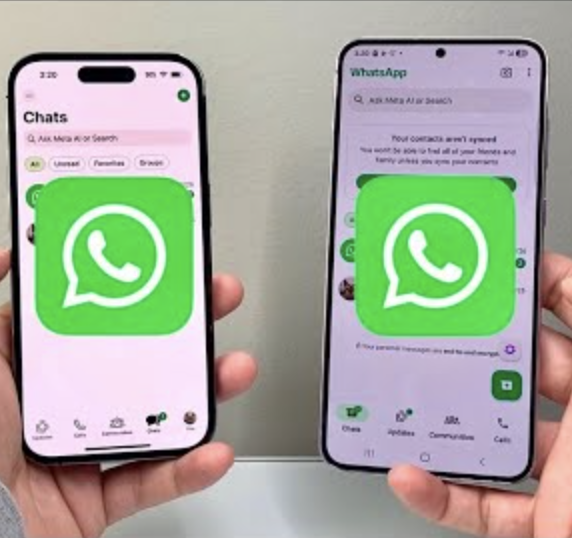

If you have ever wished you could use WhatsApp on your laptop while your phone was charging in another room, or check messages on a tablet without picking up your phone, you are not alone. For years, this was simply not possible. WhatsApp required your phone to be online for any other device to work.
That has changed. WhatsApp now officially supports multi-device use, and it works surprisingly well. In this guide, you will learn exactly how the feature works, how to set it up correctly, what its limitations are, and how to get the smoothest experience across all your devices.
Whether you are a student, a professional, or someone who just wants more flexibility, this article will walk you through everything you need to know.
What Is WhatsApp Multi-Device Support?
WhatsApp’s multi-device feature allows you to link up to four companion devices to a single WhatsApp account. These companion devices can use WhatsApp independently, meaning they do not need your phone to be online or even turned on to send and receive messages.
Before this feature existed, WhatsApp Web and WhatsApp Desktop worked by mirroring your phone. The moment your phone lost internet, your browser or desktop app would disconnect too. This made the experience unreliable for people who work on computers or use tablets frequently.
With the multi-device feature, each linked device runs WhatsApp on its own. Messages are synchronized across all devices, and your conversations stay consistent no matter which device you pick up.
This feature is available on WhatsApp Web, the WhatsApp Desktop app for Windows and Mac, and WhatsApp for iPad. It uses end-to-end encryption on all linked devices, so your privacy is maintained across every connection.
Key Features and Benefits of Using WhatsApp on Multiple Devices
Using WhatsApp across multiple devices is not just a convenience upgrade. It comes with several practical benefits that can improve how you communicate every day.
Independent device operation: Each linked device works on its own once connected. You do not need to keep your phone nearby or have it connected to the internet. This is the single biggest improvement over the older mirror-based system.
Up to four linked devices: You can connect up to four non-phone devices to your account. This can include a combination of WhatsApp Web sessions, desktop apps, and tablets.
Consistent message history: All your messages, sent or received on any device, are synchronized. So if you reply to someone on your laptop, you will see that reply when you open WhatsApp on your phone later.
Full end-to-end encryption: WhatsApp uses the same encryption on all linked devices. This means your messages are private and protected regardless of which device you use to access them.
No second SIM or account needed: Unlike some workarounds people used in the past, the official multi-device feature requires only one phone number and one WhatsApp account. You do not need to create a second account or use unofficial apps.
Seamless switching: You can start a conversation on your phone and continue it on your desktop without any interruption. The experience feels natural once everything is set up.
How WhatsApp Multi-Device Works — Step by Step
Setting up WhatsApp on multiple devices is straightforward. Here is how to do it correctly from start to finish.
Step 1 — Update WhatsApp on Your Phone
Before anything else, make sure your WhatsApp app is fully updated. The multi-device feature requires a recent version. Open your device’s app store, search for WhatsApp, and install any available updates.
Step 2 — Open WhatsApp Settings on Your Phone
On Android, tap the three-dot menu in the top right corner of WhatsApp and select “Linked Devices.” On iPhone, go to Settings within WhatsApp and tap “Linked Devices.” This section shows all currently connected devices and lets you manage them.
Step 3 — Tap “Link a Device”
Once you are inside the Linked Devices section, tap the option to link a new device. Your phone will ask you to authenticate using your fingerprint, face ID, or phone PIN, depending on your device settings.
Step 4 — Open WhatsApp on Your Second Device
On a computer, go to web.whatsapp.com in your browser, or download the WhatsApp Desktop app from the official WhatsApp website. On an iPad, download WhatsApp from the App Store.
When you open WhatsApp on the second device for the first time, it will show a QR code on the screen.
Step 5 — Scan the QR Code
Point your phone’s camera at the QR code displayed on the second device. Your phone will scan it automatically and link the devices within a few seconds.
Once linked, all your recent chats will begin loading on the new device. This may take a minute depending on your internet speed.
Step 6 — Repeat for Additional Devices
You can link up to four devices using the same process. Each one gets its own QR code scan during setup.
Advantages and Limitations — An Honest Look
Like any feature, WhatsApp’s multi-device support has genuine strengths and a few areas where it falls short. Understanding both will help you use it more effectively.
Advantages
Flexibility for professionals: If you spend most of your workday on a computer, being able to use WhatsApp directly on your desktop without touching your phone saves time and reduces distraction.
Works without your phone: The most practical benefit is that your laptop or tablet can send and receive messages even when your phone is off, in another room, or has a dead battery.
No data charges on secondary devices: Linked devices use their own internet connection. There are no extra SIM cards or mobile plans needed.
Privacy-preserving: Since this is an official feature built into WhatsApp, there is no risk of violating terms of service. Your data stays within WhatsApp’s encrypted infrastructure.
Limitations
No two phones: Currently, WhatsApp does not support linking a second smartphone as a companion device. You can only link non-phone devices such as tablets, computers, and the WhatsApp Web browser interface. This means if you have two phones and want the same account on both, the official feature does not support that yet.
Chat history not fully synced on new links: When you link a new device, only recent messages load. Older chat history from months ago may not appear on the newly linked device.
Some features are limited on linked devices: A few WhatsApp features, such as viewing live location shared with you, creating or editing broadcast lists, and certain business account tools, may not be available on all linked devices.
Linked devices log out after long inactivity: If you do not use a linked device for more than 14 days, WhatsApp will automatically unlink it. You will need to scan the QR code again to reconnect.
Account still tied to one phone number: The system still relies on a primary phone with a valid number. You cannot create a fully phone-independent WhatsApp account at this time.
Best Practices and Tips for a Smooth Multi-Device Experience
Getting the most out of WhatsApp on multiple devices requires a few good habits. These tips will help you avoid common frustrations and keep everything running smoothly.
Keep your primary phone active: Even though linked devices can work independently, WhatsApp still uses your phone as the account’s home base. Keep it charged and connected to the internet at least occasionally to maintain synchronization.
Use the desktop app instead of the browser: The WhatsApp Desktop app tends to be more stable than the browser version. It also sends notifications more reliably and does not stop working when you close a browser tab. Download it from the official WhatsApp website.
Check your linked devices regularly: Every few weeks, open the Linked Devices section on your phone and review what is connected. If you see a device you do not recognize, remove it immediately. This is a simple security habit that takes less than a minute.
Enable screen lock on linked devices: On the WhatsApp Desktop app, you can enable a screen lock so that someone who opens the app on your computer cannot read your messages without a password. This is especially useful if you share a computer.
Log out of public or shared devices: If you ever use WhatsApp Web on a library computer, office machine, or a friend’s laptop, always log out when you are done. You can remotely log out of any device from the Linked Devices section on your phone.
Use separate notifications settings: Each device can have its own notification preferences. Customize them so you are not being pinged on every device simultaneously for the same message.
Common Mistakes to Avoid When Using WhatsApp on Multiple Devices
Even with a straightforward feature like this, people run into predictable problems. Knowing what to watch out for will save you a lot of trouble.
Forgetting to log out on shared computers: This is the most common mistake. If you use WhatsApp Web at work or on any shared machine and forget to log out, anyone who uses that computer afterward can read your messages. Always log out and double-check.
Using third-party apps to link a second phone: Some apps claim to let you run one WhatsApp account on two smartphones simultaneously. These are not officially supported and often violate WhatsApp’s terms of service. They can also expose your data to security risks. Stick to the official multi-device feature.
Not updating WhatsApp regularly: Outdated versions of WhatsApp may not support the latest multi-device improvements or may have bugs that affect synchronization. Keep the app updated on all devices.
Ignoring the 14-day inactivity rule: If you link your tablet but do not use it for a couple of weeks, WhatsApp will unlink it automatically. Do not be surprised when it asks you to scan the QR code again. It is not a malfunction — it is by design.
Expecting full chat history on a new device: Many users link a new laptop and then wonder why they cannot see chats from six months ago. Only recent messages load on newly linked devices. This is a known limitation, not a bug.
Linking too many sessions and forgetting about them: You have a maximum of four companion device slots. If you link devices carelessly and never manage them, you may run out of slots or have old sessions sitting open on devices you no longer use.
Frequently Asked Questions
Can I use the same WhatsApp account on two phones at the same time?
Not through the official multi-device feature. WhatsApp currently only supports smartphones as the primary device. You can link tablets, computers, and WhatsApp Web, but you cannot add a second smartphone as a companion device. WhatsApp has indicated this may change in the future, but it is not available as of now.
Do all linked devices need an internet connection?
Yes. Each device uses its own internet connection to send and receive messages. The difference from the old system is that your primary phone no longer needs to be online for your laptop or tablet to work. But the laptop or tablet itself does need an active internet connection.
What happens to my messages if I lose my phone?
If you lose your phone, your linked devices will continue working for up to 14 days without the primary phone being online. After that, they will be logged out. You will need to reinstall WhatsApp on a new phone with the same number and link your devices again.
Is WhatsApp multi-device safe and private?
Yes. WhatsApp uses end-to-end encryption across all linked devices. This means messages are encrypted on your device before being sent and can only be read by the intended recipient. No one in between, including WhatsApp itself, can read your messages.
How do I unlink a device from my WhatsApp account?
Open WhatsApp on your phone, go to Linked Devices, tap on the device you want to remove, and select “Log Out.” The device will be immediately disconnected and will no longer receive your messages.
Can I use WhatsApp on an iPad with the multi-device feature?
Yes. WhatsApp has a dedicated app for iPad available on the App Store. You can link it to your account just like any other companion device by scanning the QR code from your phone’s Linked Devices section.
Conclusion
WhatsApp’s multi-device feature is one of the most practical improvements the platform has made in recent years. It removes the frustrating dependency on your phone being nearby and lets you communicate freely from your laptop, desktop, or tablet.
The setup process takes only a few minutes, and once everything is connected, the experience is smooth and reliable. The key things to remember are: keep your devices updated, manage your linked sessions regularly, log out from shared computers, and stay within the official feature rather than looking for workarounds.
Whether you use WhatsApp for work, staying in touch with family, or both, multi-device support makes the experience significantly more convenient.
If you found this guide helpful, explore WhatsApp’s official support page to learn more about the latest features and updates as they roll out. There is always something new being added, and staying informed helps you get the best out of every tool you use.