
A phone that runs a game smoothly right after a restart but starts stuttering an hour into a session, or during a call notification, or right after switching briefly to check a message, isn’t necessarily a hardware or game problem. Background apps competing for the same limited processing power, memory, and network bandwidth your game is actively using can meaningfully affect performance, even when they aren’t obviously doing anything.
This article explains specifically how background apps interfere with gaming performance, which types of apps tend to cause the most disruption, and what you can do about it without needing to close every other app on your phone permanently.
Why Background Apps Compete With Games in the First Place
A phone’s processor, RAM, and network connection are shared resources — every app running, whether visibly in use or quietly in the background, draws from the same limited pool. Games, particularly graphically demanding 3D titles, tend to use a large share of these resources continuously during play, leaving less headroom than most other apps require.
When a background app suddenly needs more resources — downloading an update, syncing new data, processing a notification, or refreshing content — it can briefly compete with the game for processing time or memory, causing a stutter, a frame drop, or in more severe cases, a temporary freeze.
This is different from a game simply being demanding on its own. A game that runs perfectly smoothly in isolated testing can still stutter in real-world use specifically because of what else happens to be running at the same time.
Which Types of Background Activity Affect Gaming the Most
Not all background apps cause the same level of disruption. Some types of background activity are far more likely to interfere with game performance than others.
Apps actively syncing large amounts of data. Cloud backup apps, photo sync services, and similar tools can use significant processing power and network bandwidth while transferring data, which competes directly with a game’s own network usage (for online multiplayer games specifically) and general system resources.
Messaging and social media apps checking for updates. These typically use less continuous background activity than sync-heavy apps, but frequent notification checks and content refreshes can still cause brief, repeated interruptions rather than one large sustained one.
Apps downloading or installing updates. If an app update happens to be downloading or installing while you’re playing a game, this can use a meaningful share of processing power and network bandwidth simultaneously, particularly for larger app updates.
Widgets and live wallpapers that update continuously. These aren’t traditional “apps” in the sense of something you’d manually close, but widgets that refresh frequently (weather, stock tickers, live sports scores) and animated live wallpapers do consume processing resources continuously in the background, even while a game is the active, foreground app.
Multiple messaging or communication apps with notification-heavy usage. If you use several apps that each check for messages, calls, or updates independently, the cumulative effect of several apps doing this simultaneously can be more noticeable than any single one alone.
How This Shows Up During Gameplay
Understanding what background interference actually looks like during play helps distinguish it from other causes of poor game performance, such as a game simply being too demanding for your hardware.
Sudden, brief stutters rather than consistent lag. Background interference tends to cause short, intermittent drops rather than continuously poor performance throughout — if a game runs smoothly most of the time but occasionally stutters at seemingly random moments, background activity is a reasonable explanation worth checking.
Stutters that correlate with notifications or app activity. If you notice performance dips specifically around the time a notification arrives, or shortly after switching briefly to another app and back, this timing is a useful clue pointing toward background interference rather than a general hardware limitation.
Performance that’s inconsistent across sessions with no other changes. If a game runs noticeably differently at different times without you changing any settings, and you haven’t restarted the phone between sessions, background app activity accumulated since the last restart is a reasonable factor to consider.
What You Can Do About It
Close unnecessary apps before starting a demanding gaming session. This doesn’t need to mean force-stopping every single app on your phone — focus specifically on apps you know sync large amounts of data (cloud backup, photo sync) or that you’re not currently using and don’t need immediate updates from during your session.
Check for pending app or system updates before playing. If a large update is queued to download automatically, either completing it beforehand or temporarily pausing automatic updates during your session (through Settings > Network & internet > [your connection] > Data usage, or within the Play Store’s own auto-update settings) prevents it from competing with the game mid-session.
Consider your phone’s built-in gaming mode, if available. Many manufacturers include a dedicated gaming mode (often labeled “Game Booster,” “Game Space,” or similarly, depending on the manufacturer) that can automatically limit background app activity and prioritize system resources toward the active game while it’s running, without requiring you to manually close apps each time.
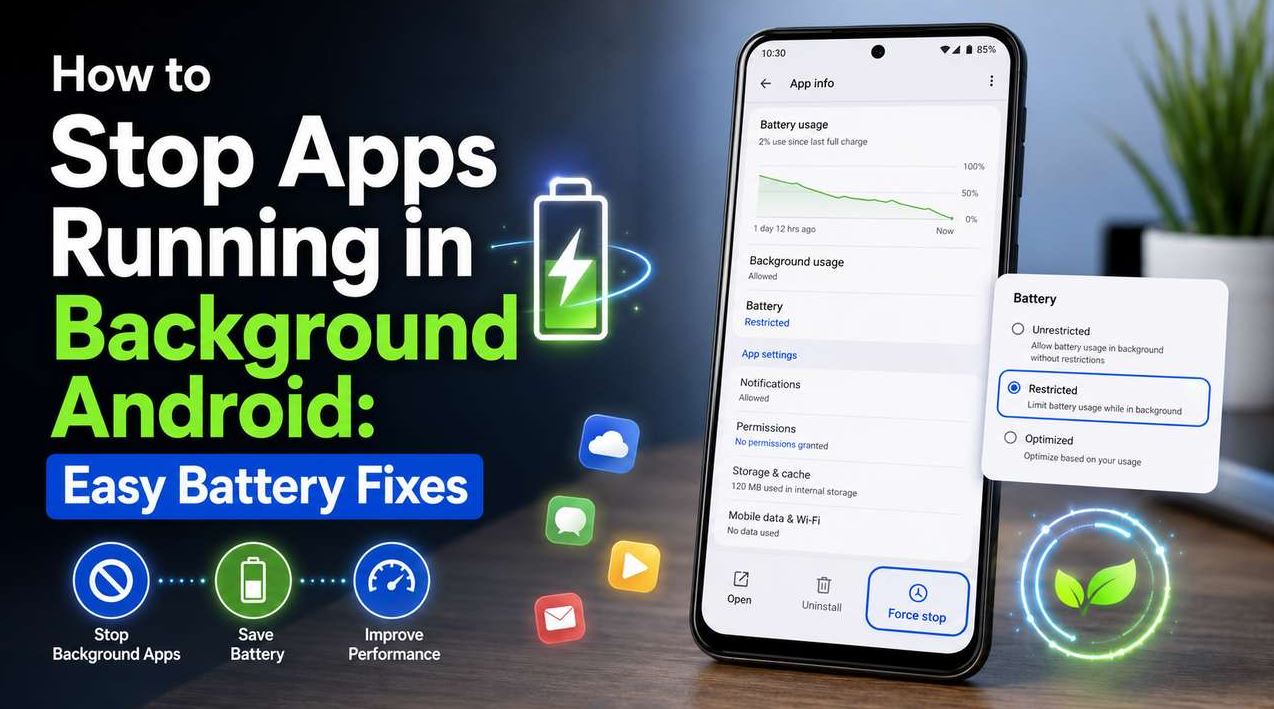
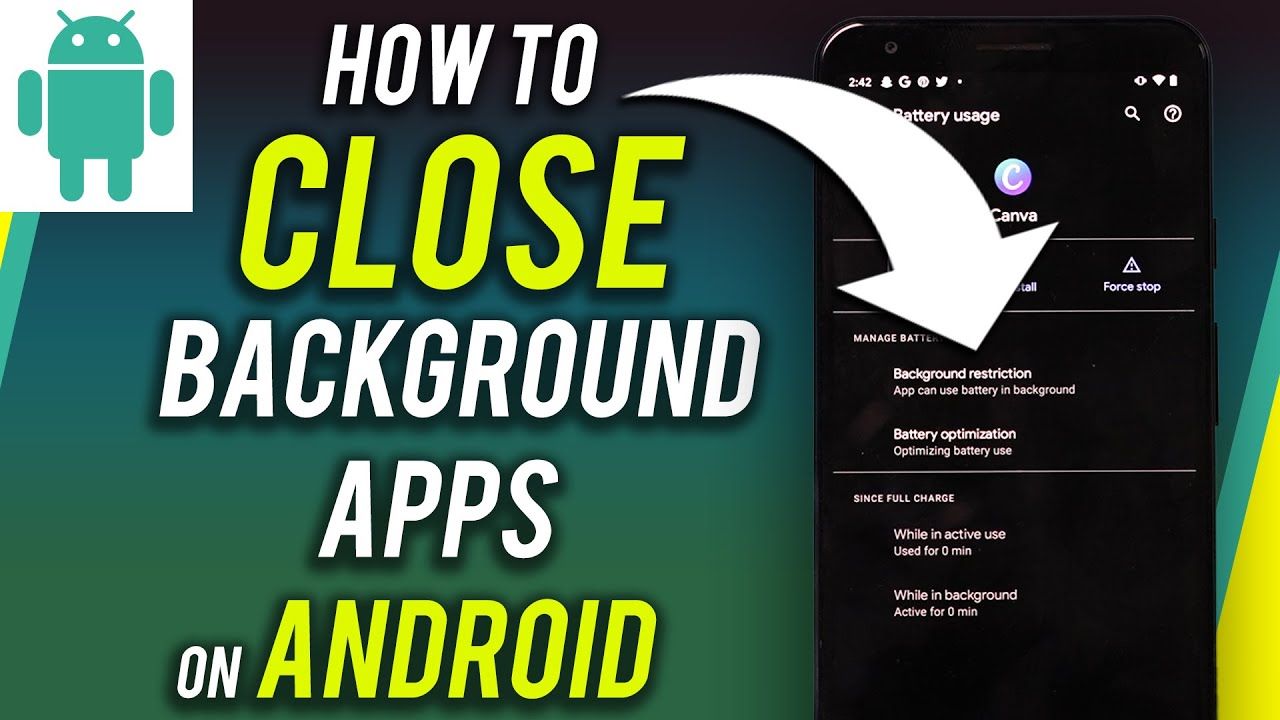
Restrict background activity for specific apps you don’t need real-time updates from. Under Settings > Apps > [app name] > Battery, setting an app to Restricted limits its ability to run background processes, which can reduce the kind of resource competition described above — though this should be applied selectively to apps you’re comfortable delaying notifications from, rather than broadly across every app.
Disable or limit live wallpapers and frequently updating widgets, at least during gaming sessions. Since these run continuously rather than only occasionally, they can have a more consistent (if often smaller) impact than sporadic background app activity.
Common Mistakes to Avoid
Force-closing every app before every gaming session as a routine habit. This can actually work against you — repeatedly force-closing and reopening apps causes them to fully reload rather than resuming from a paused state, which uses more resources in short bursts than simply leaving them paused in the background would. A more targeted approach, focused on apps known to sync heavily or use significant background resources, is generally more effective than closing everything indiscriminately.
Assuming all stuttering during gameplay is caused by background apps. Background interference is one possible cause among several — a game that’s simply too demanding for your phone’s hardware, thermal throttling during long sessions, or an unoptimized game update can all cause similar symptoms. Checking whether stutters correlate specifically with notifications or other app activity helps distinguish background interference from these other causes.
Restricting background activity for messaging apps you rely on for notifications outside of gaming. While reducing an app’s background activity can help gaming performance, doing this for an app you specifically want to notify you promptly (outside of gaming sessions) trades away functionality you actually want, for a benefit that’s only relevant during the relatively limited time you’re actively gaming.
Ignoring widgets and live wallpapers as a source of background load. Since these aren’t “apps” you’d typically think to close, they’re easy to overlook as a contributing factor, even though they can run continuously in a way that periodically-checking apps don’t.
Not considering network-based interference specifically for online multiplayer games. For games requiring a stable, low-latency internet connection, a background app heavily using your Wi-Fi or mobile data (like a large sync or download) can affect connection quality and responsiveness in ways that are separate from, but related to, general processing competition — this matters more for online multiplayer specifically than for offline single-player games.
When Background Apps Aren’t the Real Cause
If you’ve closed unnecessary background apps and checked for pending updates, but performance issues persist, other factors are more likely responsible:
- Thermal throttling during extended sessions, where the phone’s processor automatically reduces performance as it heats up — this happens regardless of background app activity and is more related to how long and how intensively you’ve been playing.
- The game genuinely being too demanding for your phone’s hardware, particularly for newer, graphically intensive titles on older or budget-tier devices — in this case, background app management alone won’t resolve consistent poor performance.
- Low available storage, which can independently affect general system performance, separate from background app activity specifically.
- An unoptimized or buggy game update, where the issue is with the game itself rather than anything related to what else is running on your phone.
Frequently Asked Questions
Do I need to close every app before playing a game? Not necessarily — closing every single app is a broader, more disruptive approach than usually necessary, and can even work against you if it causes apps to fully reload rather than resume. Focusing specifically on apps known to sync large amounts of data or that don’t need immediate background access during your session is generally more effective.
Does a manufacturer’s gaming mode actually help, or is it just marketing? If your phone includes one, it typically does provide a real function — limiting background activity and prioritizing resources toward the active game — rather than being purely cosmetic, though the specific impact can vary by device and how demanding the game is. Availability and features differ by manufacturer.
Why does my game only stutter sometimes, not consistently? Intermittent, rather than constant, stuttering is one of the more distinctive signs of background interference specifically, since it tends to correlate with specific background events (a notification, a sync, an update) rather than being a continuous performance ceiling. If the stuttering happens at random but recognizable moments, background activity is a reasonable explanation to investigate first.
Can background apps affect online multiplayer games differently than single-player games? Yes — for online multiplayer specifically, a background app heavily using your network connection (like a large sync or download) can affect connection stability and responsiveness in addition to general processing competition, which matters less for offline single-player games that don’t rely on a continuous, low-latency connection.
Should I restrict background activity for all my apps to improve gaming performance permanently? This isn’t generally recommended, since it trades away functionality (like real-time notifications) for apps you may want that from outside of gaming sessions. A more targeted approach — restricting specific apps you don’t need real-time updates from, or using a temporary gaming mode if your phone has one — balances gaming performance with normal day-to-day app functionality better than a blanket restriction.
Is background app interference more noticeable on phones with less RAM? Generally, yes — phones with less available RAM have less headroom to run a demanding game alongside background app activity without one affecting the other, so background interference tends to be more noticeable on lower-RAM devices than on phones with more RAM to spare.
Conclusion
Background apps can meaningfully affect mobile gaming performance, particularly through data-heavy syncing, pending updates, and continuously updating widgets or live wallpapers, and this interference often shows up as intermittent stuttering rather than consistently poor performance. Managing this doesn’t require closing every app indiscriminately — a more targeted approach, focused on apps that sync heavily or aren’t needed during a session, combined with your phone’s built-in gaming mode if available, addresses the issue more effectively than a blanket, disruptive approach. If performance issues persist after managing background activity, thermal throttling, hardware limitations, or the game itself are more likely explanations worth checking next.