A game that refuses to install — stuck on a spinning progress icon, failing partway through a download, or showing an error message right after tapping “Install” — is a common but usually solvable problem. In most cases, the cause is something specific and identifiable: insufficient storage, an incompatible Android version, a connectivity issue, or a problem with the Play Store app itself, rather than anything wrong with the phone in a deeper sense.
This guide walks through the most common reasons a mobile game fails to install on Android, in the order worth checking, along with what to do about each one.
Step 1: Check Available Storage Space
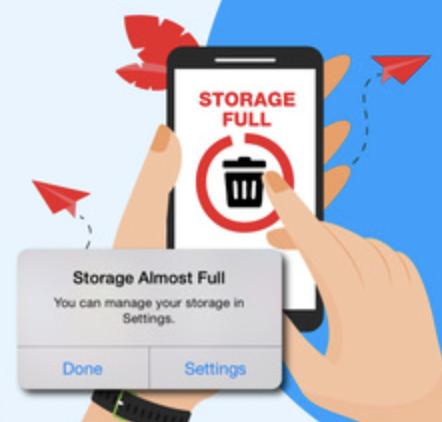
This is the single most common cause of installation failures, and it’s worth checking first since it’s fast to confirm and often overlooked, particularly because the listed download size on the Play Store doesn’t always account for the space needed during the installation process itself.
Go to Settings > Storage to see how much free space is currently available. Compare this against the game’s listed download size on its Play Store page — but keep in mind that some space beyond the listed download size is often needed temporarily during installation and extraction, so having exactly the listed amount free isn’t always sufficient.
If storage is limited, clearing app cache, removing unused apps, or backing up and removing photos and videos (through Google Photos’ “Free up space” feature, if you use it) are the fastest ways to create room without needing to delete anything you actually want to keep.
Step 2: Check Your Internet Connection
An unstable or interrupted connection during download is a common cause of a stuck or failed installation, particularly for larger games with substantial download sizes.
Confirm you have a stable Wi-Fi or mobile data connection, and if possible, try switching between the two to see whether the installation completes more reliably on one versus the other. For very large games specifically, a stable Wi-Fi connection is generally more reliable than mobile data, both for consistency and to avoid using a large portion of a limited data plan.
If the Play Store shows the download as “Paused” or stuck without progressing, tapping directly on the download (usually accessible from the notification shade, or from Play Store > Manage apps & device > Manage) sometimes resumes it manually.
Step 3: Confirm Your Phone Meets the Game’s Minimum Requirements
If a game won’t install at all, rather than getting partway through and failing, an incompatible Android version is a likely cause, since the Play Store generally prevents installation outright when this is the issue rather than allowing a partial attempt.
Check the game’s minimum Android version requirement on its Play Store listing (usually found near the bottom of the page, under technical details), then compare it against your phone’s current version under Settings > About phone > Android version. If your phone is below the required version and no update is available under Settings > System > System update, the game likely can’t be installed on that specific device.
Step 4: Clear the Google Play Store’s Cache and Data
A corrupted cache within the Play Store app itself, rather than anything related to the specific game, can occasionally cause installation failures across multiple different apps and games, not just one.
Go to Settings > Apps > Google Play Store > Storage, and try Clear cache first. If the issue persists, Clear data is a stronger step, though this will sign you out of the Play Store temporarily and reset any of its own internal settings — you’ll simply need to sign back in with your Google account afterward, and none of your installed apps or purchased content will be affected by this specific step.
Step 5: Check for a Pending Google Play Store Update
An outdated version of the Play Store app itself can occasionally cause installation issues, particularly with newer games that may rely on more recent Play Store functionality.
The Play Store typically updates itself automatically in the background, but you can check manually by going to Settings > Apps > Google Play Store, and confirming there’s no available update through the app’s own settings menu (accessible via the profile icon within the Play Store app, then checking version information). In most cases, this updates silently without requiring manual intervention, but it’s worth ruling out if other steps haven’t resolved the issue.
Step 6: Restart the Phone
If the steps above haven’t resolved the issue, a full restart clears any temporary process related to downloading or installing apps that might be stuck, without requiring any further settings changes.
Step 7: Check Whether the Game Is Actually Available in Your Region
Some games have limited regional availability due to publisher licensing decisions, which isn’t something that shows as an obvious error in every case — sometimes the game simply won’t appear as installable, or the install button may not function as expected, without a clearly worded explanation.
Checking the game’s official website or the developer’s social media for any regional availability notices is worth doing if you’ve ruled out every other cause and the installation still won’t proceed, particularly for newer game releases that sometimes roll out to different regions gradually rather than all at once.
Step 8: Check Google Play Protect Warnings
If Google Play Protect (Android’s built-in app-scanning security feature) flags a specific game as potentially harmful, it may block or warn against installation. This is relatively uncommon for games listed directly on the official Play Store, but worth checking under Settings > Security > Google Play Protect if you received any warning message during the installation attempt that you may have dismissed without fully reading.
A caution worth noting: If Play Protect specifically warns about a particular game, this is worth taking seriously rather than working around, since it reflects an automated safety check rather than an arbitrary restriction. If you believe the warning is a false positive for a legitimate, well-known game, checking Google’s own official Play Protect documentation, or reaching out to the game’s developer directly, is a safer approach than disabling the protection to force an installation.
Common Mistakes to Avoid
Assuming a stuck installation means the game itself is broken. In most cases, the cause is on the device or connection side (storage, connectivity, Play Store cache) rather than an issue with the game’s own files, which is why checking these device-side factors first is usually more productive than assuming the download itself is corrupted.
Only checking the listed download size rather than accounting for installation overhead. Some additional temporary space beyond the listed download size is often needed during installation and extraction specifically, so storage that appears “just barely enough” based on the listed size alone sometimes isn’t, in practice.
Downloading large games over an unstable connection without checking signal or Wi-Fi stability first. An interrupted download partway through is a common, avoidable cause of installation failure, particularly for larger games, and confirming a stable connection beforehand prevents having to restart a large download from the beginning.
Disabling Google Play Protect to force through a security warning. While most Play Protect warnings for legitimate, officially listed games are uncommon, dismissing a specific warning by disabling the feature entirely removes a meaningful safety check rather than addressing the underlying reason for the warning.
Not checking for a pending Android system update when a game requires a newer version than currently installed. Some users assume an incompatible Android version means the game simply can’t be played on that phone at all, without first checking whether a system update is available that would resolve the compatibility gap.
When the Problem Might Not Be Fixable From the Phone Alone
A few causes fall outside what device-side troubleshooting can resolve:
- The game’s own servers or Play Store backend experiencing temporary issues, particularly around a major new release when download demand is unusually high — this typically resolves on its own after some time, and checking the developer’s official social media for any acknowledgment of a known issue is worth doing in this specific situation.
- Regional licensing restrictions, as mentioned in Step 7, which are a publisher decision rather than a technical issue that can be worked around through device settings.
- A device that has reached its final supported Android version and genuinely cannot meet a game’s minimum requirement, since some older devices stop receiving major OS updates from the manufacturer entirely.
Frequently Asked Questions
Why does a game download progress partway and then fail repeatedly? This is most often caused by an unstable internet connection or insufficient storage space, both of which can interrupt a download partway through rather than preventing it from starting at all. Checking both factors (Steps 1 and 2) before retrying usually resolves this specific pattern.
Is it normal for a game to need more storage than its listed download size? Yes, to some degree — installation and extraction processes often require some additional temporary space beyond the final installed size, and many games also download additional content after the initial installation. Having a reasonable buffer of free space beyond the exact listed size avoids running into this issue.
Will clearing the Play Store’s data delete my installed apps or purchases? No — clearing the Play Store app’s own cache or data resets the Play Store app’s internal settings and requires signing back in, but it doesn’t uninstall your existing apps or affect any purchases tied to your Google account, which are stored on Google’s servers rather than locally within the Play Store app itself.
Why would a game not install even though my phone meets the listed requirements? If requirements are met but installation still fails, checking Play Store cache and data (Step 4), connectivity (Step 2), and any Play Protect warnings (Step 8) covers the most common remaining causes. A regional availability restriction (Step 7) is also worth checking if the game is a very new release.
Can a phone’s Android version really prevent installation entirely, not just cause poor performance? Yes — unlike RAM or processor limitations, which typically allow installation but affect performance, an Android version below a game’s minimum requirement generally prevents installation from being possible at all, since the Play Store checks this compatibility before allowing the download to begin.
Should I try downloading the game from a source other than the Google Play Store if it won’t install? This isn’t something to do without serious caution — downloading app files (APKs) from outside the official Play Store carries meaningful security risks, since these sources aren’t subject to the same scanning and verification as the official store. Working through the phone-side troubleshooting steps above, or contacting the game’s developer or Google Play support, is a safer path than seeking an unofficial download source.
Conclusion
A mobile game that won’t install almost always traces back to a specific, identifiable cause — insufficient storage, an unstable connection, an incompatible Android version, or a corrupted Play Store cache — and working through these systematically resolves the large majority of cases without needing anything beyond the phone’s own settings. If every phone-side cause has been ruled out and the issue persists, a regional restriction or a temporary server-side issue with the game itself becomes the more likely remaining explanation.