
Your phone hits 20% by noon. Your laptop warns you before the afternoon meeting even starts. Sound familiar? Battery anxiety is real, and it affects nearly every device we rely on daily — from smartphones and tablets to laptops and electric vehicles.
The good news is that extending battery life is not guesswork anymore. In 2026, we have a much clearer understanding of how lithium-ion and solid-state batteries behave, how software drains them silently, and what small daily habits can add hours — or even years — to your device’s battery health.
This guide covers the most effective, up-to-date strategies to preserve battery life across all your devices. Whether you are a casual user or someone who depends on devices for work, these tips are practical, proven, and easy to apply.
What Does “Extending Battery Life” Actually Mean?
Before diving into tips, it helps to understand what we are really talking about. Battery life has two distinct meanings:
- Daily runtime: How long your battery lasts on a single charge.
- Long-term battery health: How well your battery holds a charge over months and years.
Both matter. You can squeeze more hours out of today’s charge, and you can slow down the natural degradation that causes your battery to hold less charge over time. Most people focus only on the first — but protecting long-term health is often more valuable.
A lithium-ion battery typically retains around 80% of its original capacity after 500 full charge cycles. Treat it poorly, and that number drops faster. Treat it well, and your battery can stay healthy well beyond the manufacturer’s estimate.
Key Factors That Drain Your Battery Faster
Understanding what kills battery life helps you fight it more effectively.
- Screen brightness: The display is usually the single biggest power consumer on a smartphone or laptop. Running it at full brightness constantly burns through charge fast.
- Background app activity: Apps that refresh in the background — social media, email, news — silently consume battery even when you are not using them.
- Wireless radios: Bluetooth, Wi-Fi, and mobile data are always scanning and connecting. Each radio draws power continuously.
- Extreme temperatures: Heat is a battery’s worst enemy. Cold slows it down temporarily, but heat causes permanent chemical damage.
- Push notifications and sync: Every ping, every sync, every real-time update pulls the processor awake and burns a small amount of power.
- Aging hardware: Older devices with fragmented storage and outdated software can use CPU resources inefficiently, accelerating drain.
How Battery Saving Works: The Science in Plain English
Modern batteries work through electrochemical reactions. When you discharge a battery, lithium ions move from the anode to the cathode through an electrolyte. When you charge it, they move back.
Every cycle causes microscopic wear on the electrodes. Over time, this reduces the battery’s capacity to hold charge. Factors like heat, deep discharges (running to 0%), and fast charging all accelerate this wear.
Smart charging technology, which has become standard in most flagship devices by 2026, helps by learning your routine and slowing the final phase of charging overnight. This reduces the time your battery spends at 100%, which is actually a high-stress state for lithium chemistry.
Solid-state batteries, which are beginning to appear in premium devices in 2026, are more stable and less sensitive to heat — but the same general care principles still apply.
Best Ways to Extend Battery Life in 2026
1. Keep Your Battery Between 20% and 80%
This is the most impactful habit you can build. Lithium batteries experience the least stress in the middle range of their charge. Charging to 100% and draining to 0% regularly degrades them faster than almost any other factor.
Most Android and iOS devices now include a charging limit setting. Set it to 80% for daily use, and only charge fully before long trips.
2. Use Adaptive or Smart Charging Features
In 2026, most devices — including iPhones, Samsung Galaxy phones, and recent laptops — come with adaptive charging built in. This feature learns when you typically wake up and delays the final charge to just before that time, reducing the hours your battery spends fully charged.
Enable this in your device settings if it is not already on. On Apple devices it is called Optimized Battery Charging. Samsung calls it Adaptive Charging. On Windows laptops, look for Battery Saver settings or manufacturer utilities.
3. Lower Screen Brightness and Use Dark Mode
Reduce your screen brightness to around 50–60% in normal conditions. Most people never notice the visual difference, but the battery savings are significant — especially on OLED and AMOLED screens where dark pixels use almost no power.
Enable dark mode across your apps and system settings. On OLED screens, a true black background can reduce display power consumption by up to 30–40% compared to a white background.
Enable auto-brightness so your screen adjusts to ambient light rather than staying at a fixed level.
4. Manage Background App Refresh
Go into your phone or laptop settings and audit which apps are allowed to refresh in the background. Most apps do not need this permission.
On iOS, navigate to Settings, then General, then Background App Refresh. On Android, go to Settings, then Battery, then Background Restriction or App Battery Usage. Disable background refresh for social media, games, and any app you do not need real-time updates from.
5. Turn Off Radios You Are Not Using
Wi-Fi, Bluetooth, and GPS all drain power, especially when they are actively scanning for signals. Turn off Bluetooth when you are not using wireless accessories. Disable location services for apps that do not genuinely need your location.
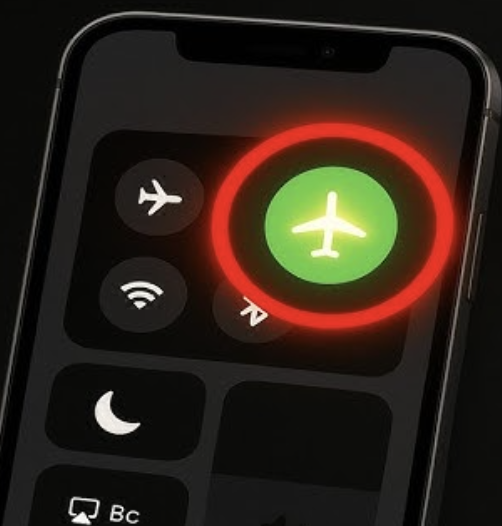
If you are in an area with poor signal, your phone works harder to maintain a connection, which burns battery quickly. Switching to airplane mode or Wi-Fi calling in low-signal areas can help.
6. Keep Your Device Cool
Never leave your phone or laptop in a hot car. Avoid using your device while it is charging in a warm environment. Do not put your phone in direct sunlight for extended periods.
Heat above 35 degrees Celsius (95 degrees Fahrenheit) causes real, permanent damage to battery chemistry. In summer, keep devices in the shade and avoid demanding tasks — like gaming or video recording — while the device is already warm.
For laptops, make sure vents are not blocked. Using a laptop on a bed or pillow covers the vents and traps heat.
7. Update Your Software Regularly
Software updates often include battery optimization improvements. Manufacturers patch inefficient processes, improve sleep states, and fix bugs that cause unnecessary battery drain. Staying on an outdated version can mean living with power bugs that were fixed months ago.
This applies to apps too, not just your operating system. Outdated app versions are often less optimized than their current releases.
8. Use Battery Saver and Low Power Modes Wisely
Do not wait until you are at 10% to enable battery saver mode. Enable it at 30–40% to stretch your remaining charge further. Battery saver modes reduce performance slightly and limit background activity, but for basic tasks like browsing and messaging, you will barely notice the difference.
On iPhones, Low Power Mode disables automatic downloads, reduces visual effects, and limits email fetching. On Android, Battery Saver restricts background activity and lowers performance. Both are effective.
9. Reduce Notification Volume and Sync Frequency
Every notification wakes your screen and processor. Reducing unnecessary notifications does not just reduce distraction — it also saves power.
Set email and calendar apps to sync every 15 or 30 minutes instead of in real time, unless you genuinely need instant updates. This reduces how often the app wakes the device and contacts a server.
10. For Laptops: Adjust Power Plans and Dim the Screen
Windows and macOS both offer power plans that reduce processor performance and screen brightness when plugged in or on battery. Use a Balanced or Power Saver plan when you do not need full performance.
Reduce screen timeout to 1–2 minutes so the display turns off quickly when idle. On MacBooks, use the Energy Saver settings to reduce display brightness when on battery.
Advantages and Limitations of Battery-Saving Practices
Advantages
- Longer daily runtime without carrying a charger.
- Slower long-term capacity degradation, meaning your device stays useful longer.
- Reduced heat output, which improves overall device comfort and longevity.
- Lower electricity costs over time from fewer charges.
Limitations
- Some features, like push email or live widgets, require background activity to work properly.
- Restricting background apps can mean notifications arrive with a delay.
- Charging limits (like stopping at 80%) mean you start some days with less capacity.
- Not all devices give users fine-grained control over charging behavior.
The key is balance. You do not need to apply every setting aggressively. Pick the habits that fit your lifestyle and start there.
Common Mistakes That Shorten Battery Life
- Leaving your phone plugged in overnight without adaptive charging enabled: This keeps the battery at 100% for hours, causing stress.
- Using third-party chargers that do not support your device’s charging standard: Mismatched voltage or amperage can degrade batteries faster.
- Charging through a case that traps heat: Remove thick cases while charging if your phone gets warm.
- Force-closing all apps constantly: Contrary to popular belief, killing background apps and reopening them can sometimes use more power than letting the OS manage them naturally.
- Ignoring software updates: As mentioned, updates often carry significant battery optimizations.
- Storing devices at full charge for long periods: If you are not using a device for weeks, store it at around 50% charge. Storing at 100% accelerates calendar aging in the battery.
Frequently Asked Questions
Q: Does closing apps save battery life?
A: Not always. On modern iOS and Android, the system manages apps efficiently. Force-closing apps and reopening them can actually use more energy than leaving them in a suspended state. Focus instead on restricting background refresh for specific apps rather than force-quitting everything.
Q: Is it bad to charge your phone overnight?
A: It depends on your settings. Without smart charging, overnight charging keeps your battery at 100% for many hours, which causes gradual degradation. With Optimized Battery Charging or Adaptive Charging enabled, the phone delays the final charge to just before your alarm — significantly reducing this risk. Enable these features if your device supports them.
Q: How do I know if my battery is degrading?
A: On iPhone, go to Settings, then Battery, then Battery Health and Charging. You will see a percentage showing maximum capacity. On Android, the path varies by manufacturer, but many devices show battery health in the settings menu or through the built-in diagnostic app. A healthy battery should be above 80% capacity. Below that, you will notice noticeably shorter runtime.
Q: Does dark mode actually save battery?
A: Yes, but only on OLED and AMOLED screens. On these displays, truly black pixels are switched off entirely, consuming almost no power. On LCD screens, dark mode has a negligible effect on battery because the backlight stays on regardless of what color the pixels display.
Q: What is the ideal charging range for long-term battery health?
A: Most battery researchers and manufacturers agree that keeping your battery between 20% and 80% minimizes electrochemical stress and extends long-term capacity. Some go further and suggest 30% to 70% for maximum longevity, though this is impractical for daily use. The 20–80 rule is a realistic and effective compromise.
Q: Do battery-saving apps actually work?
A: Most third-party battery-saving apps on Android and iOS have limited real-world impact because modern operating systems already manage power efficiently at the system level. Some apps claim to “optimize” your battery but primarily work by killing background processes — something your OS already does. Built-in battery settings are almost always more effective and safer than third-party tools.
Conclusion
Extending battery life in 2026 is not about using obscure hacks or disabling half your phone’s features. It is about understanding how batteries work and building a few smart habits that become second nature over time.
The most impactful steps are simple: keep your charge between 20% and 80%, enable smart charging features, dim your screen, and keep your device cool. These four habits alone can meaningfully extend both your daily runtime and your battery’s long-term health.
As devices evolve — with solid-state batteries, smarter charging algorithms, and more efficient processors — taking care of your battery will only get easier. But the core principles of avoiding heat, avoiding extremes, and charging intelligently will remain relevant regardless of what technology changes.
Start with one or two changes today. Your battery — and your device — will thank you for it.
Explore further battery optimization tips in your device’s official support documentation, or check in with your manufacturer’s battery health tools to see exactly where your battery stands right now.